Guides
Make JSON useful in Google Sheets.
Step-by-step walkthroughs built from the working add-on, with real endpoints, real screenshots, and the exact choices that produce a clean table.
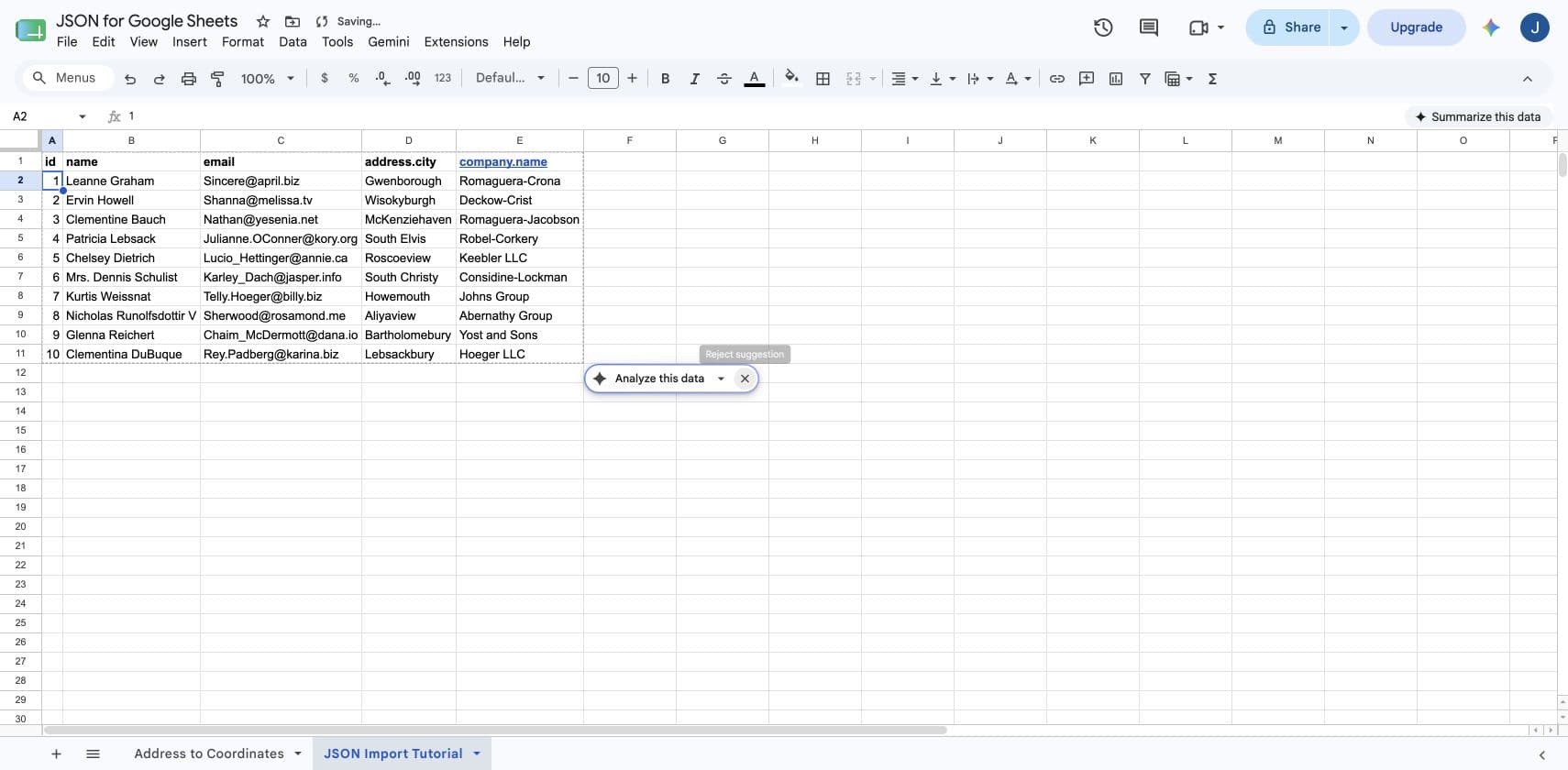
How to import JSON into Google Sheets
Import a public URL, upload a local .json file, choose nested fields, and keep remote data fresh.
Read the guide →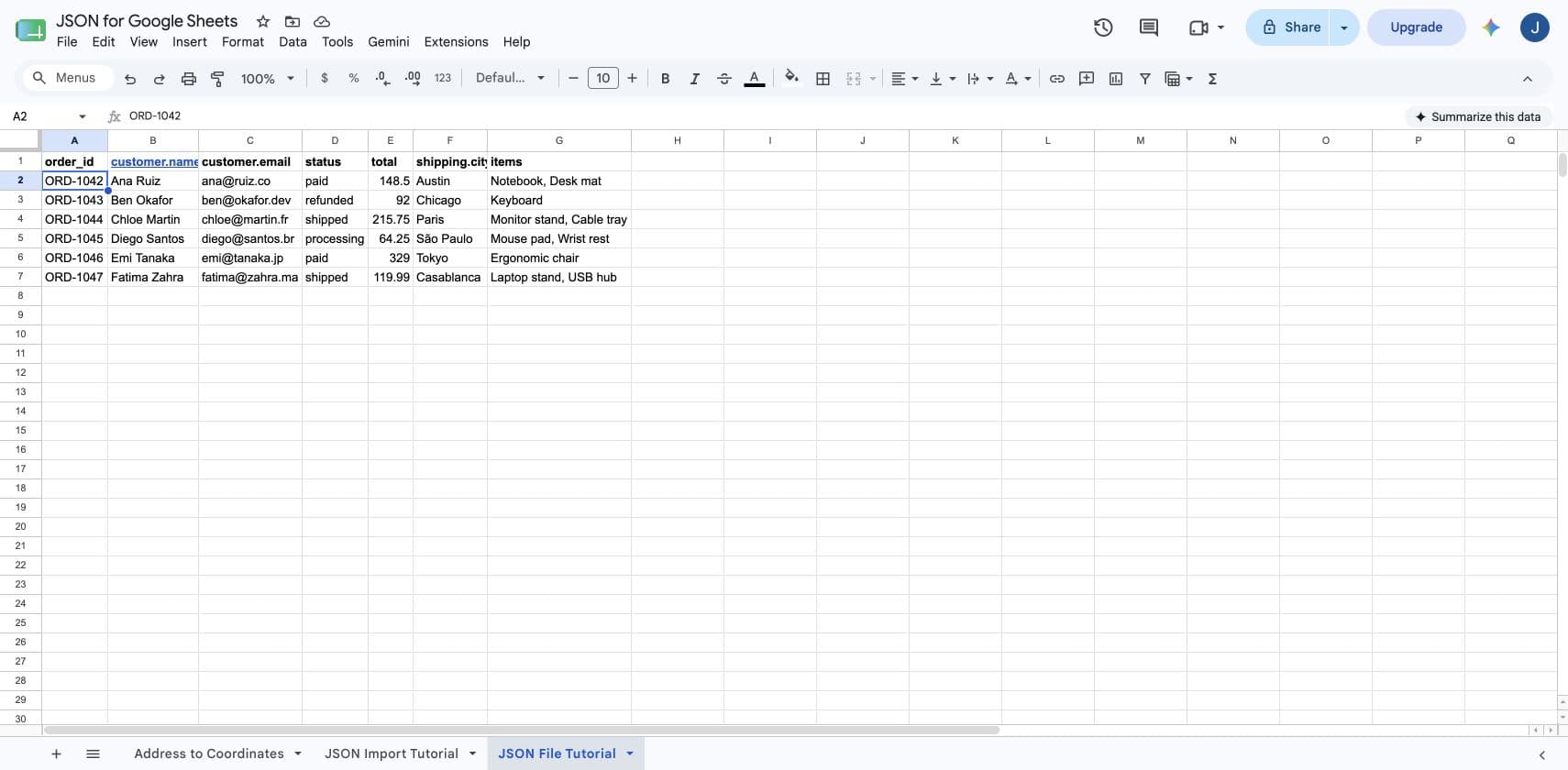
How to upload a JSON file to Google Sheets
Download a sample .json file, preview nested data, choose useful columns, and write a clean local-file table.
Read the guide →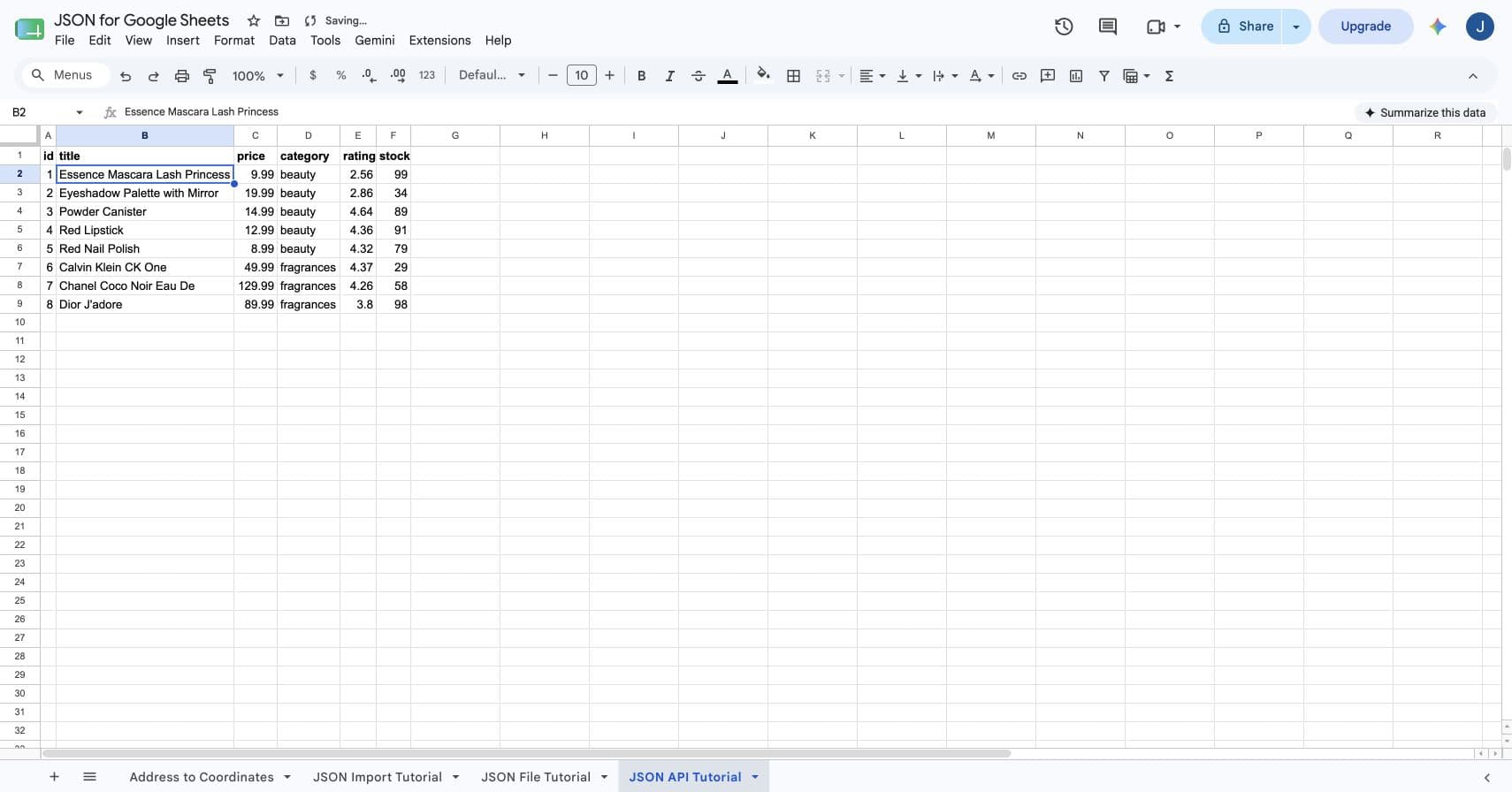
How to connect a JSON API to Google Sheets
Configure a GET request, query parameters, authentication, root paths, pagination, and refresh behavior.
Read the guide →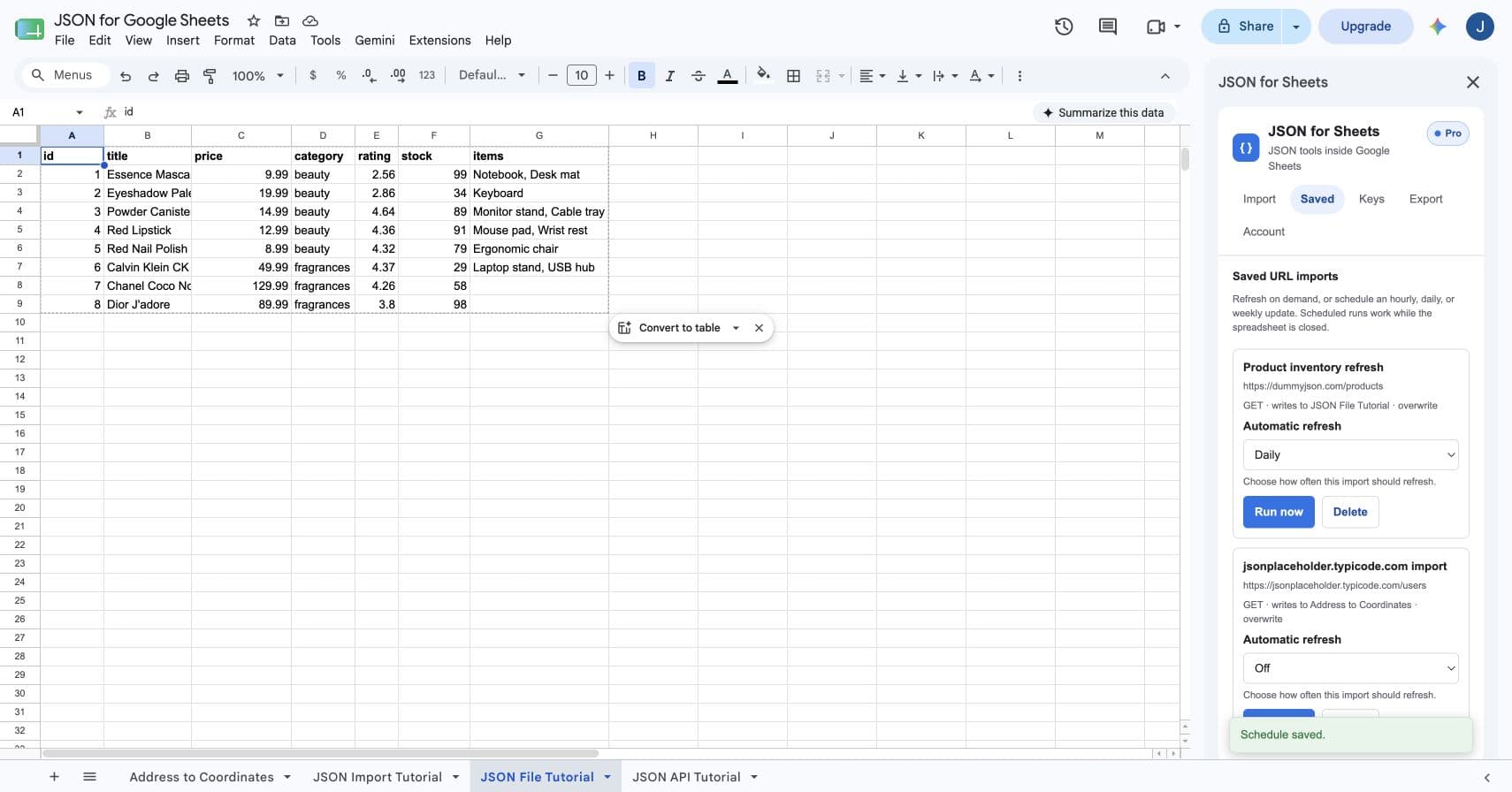
How to automatically refresh JSON data in Google Sheets
Save a working API import, test it on demand, and schedule fresh hourly, daily, or weekly updates.
Read the guide →5 best IMPORTJSON alternatives for Google Sheets
Compare a visual add-on, open-source scripts, custom Apps Script, built-in import functions, and general API connectors.
Read the comparison →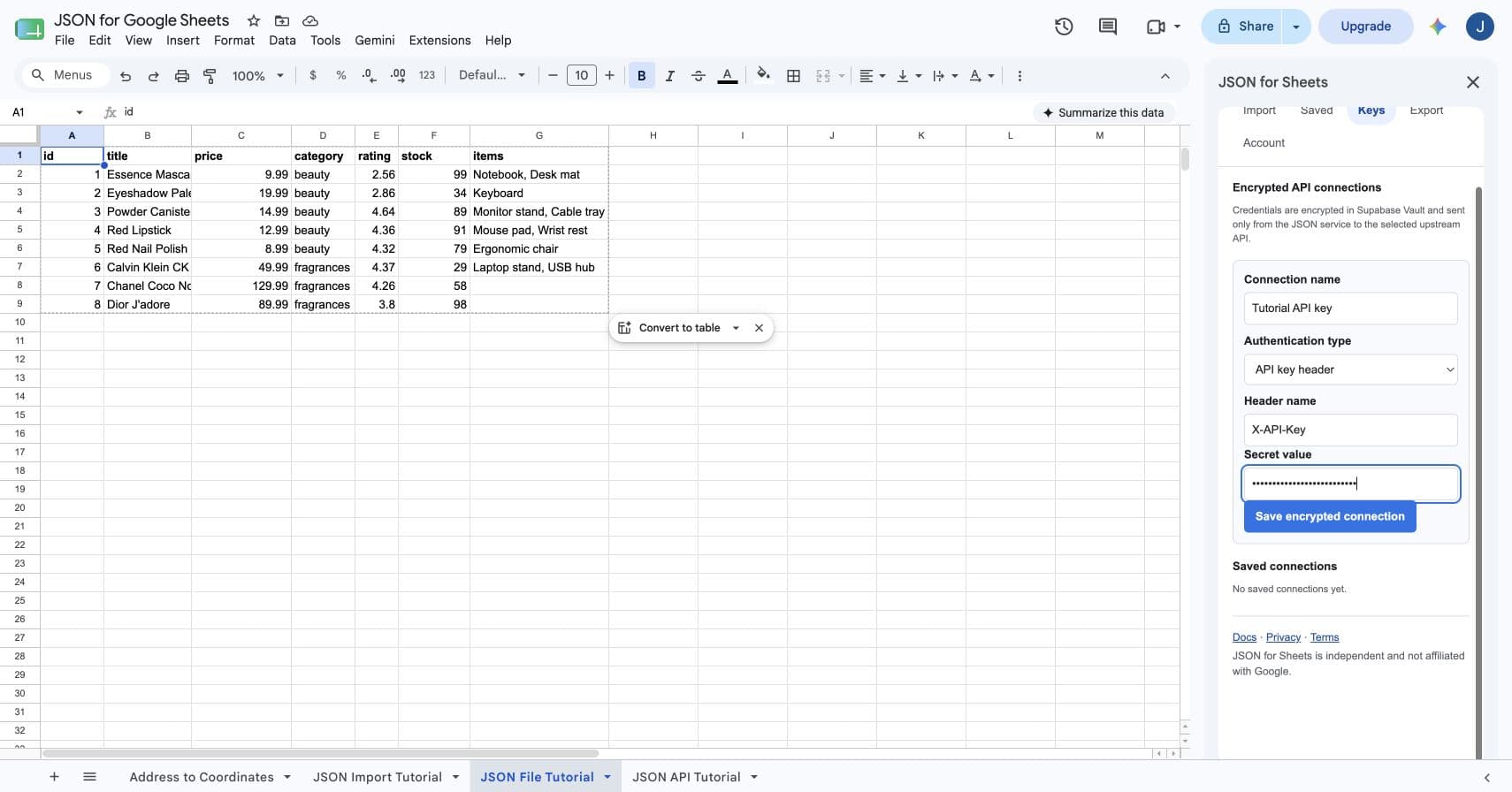
How to import JSON with an API key into Google Sheets
Save an encrypted API key, attach it to a request, preview the protected response, and write a safe table.
Read the guide →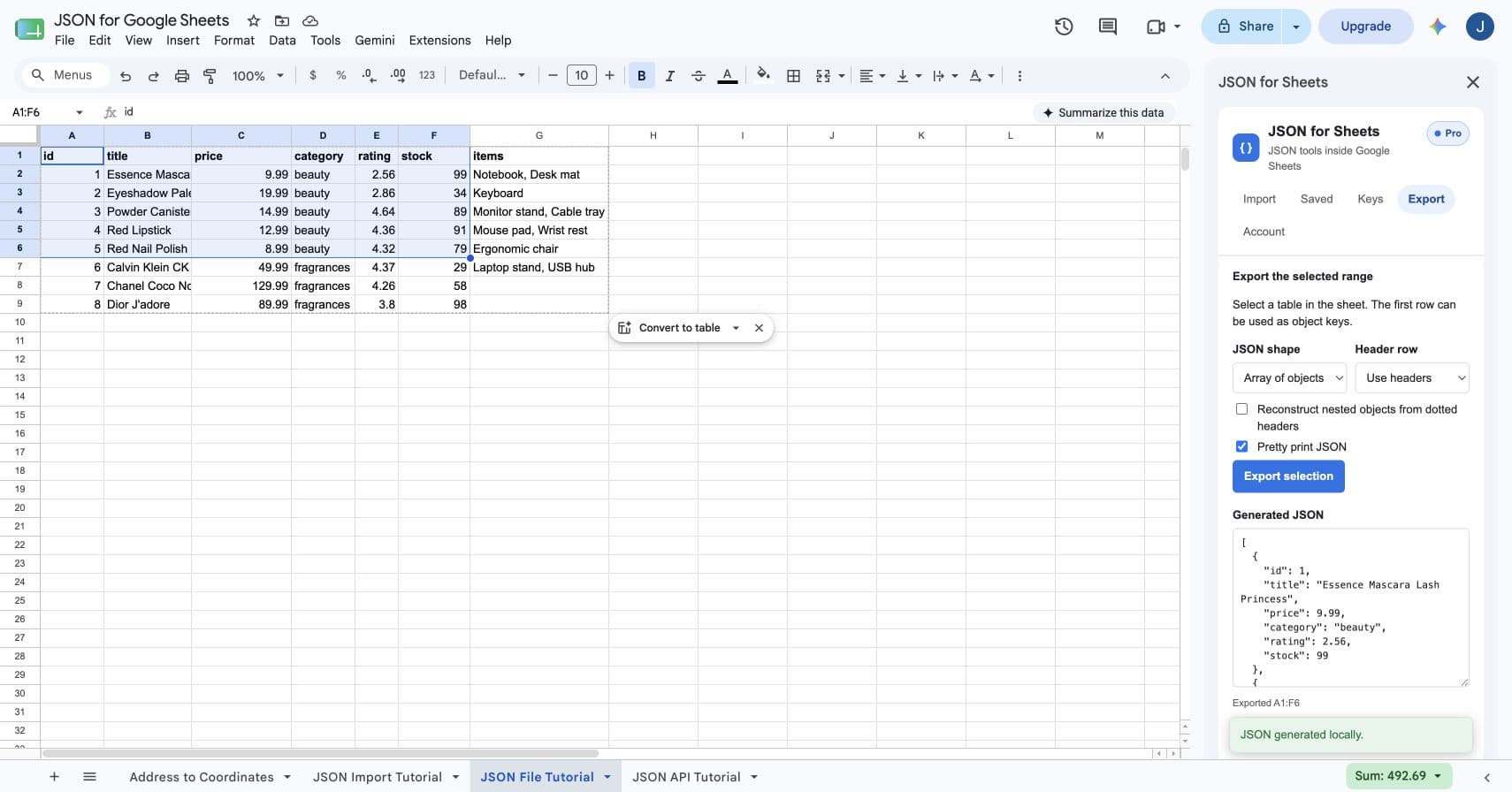
How to export Google Sheets to JSON
Convert a selected range into objects, keyed records, or row arrays, then copy clean JSON for another system.
Read the guide →Cómo importar JSON a Google Sheets
Importa una URL, una API o un archivo .json, selecciona campos anidados y escribe una tabla limpia.
Leer la guía →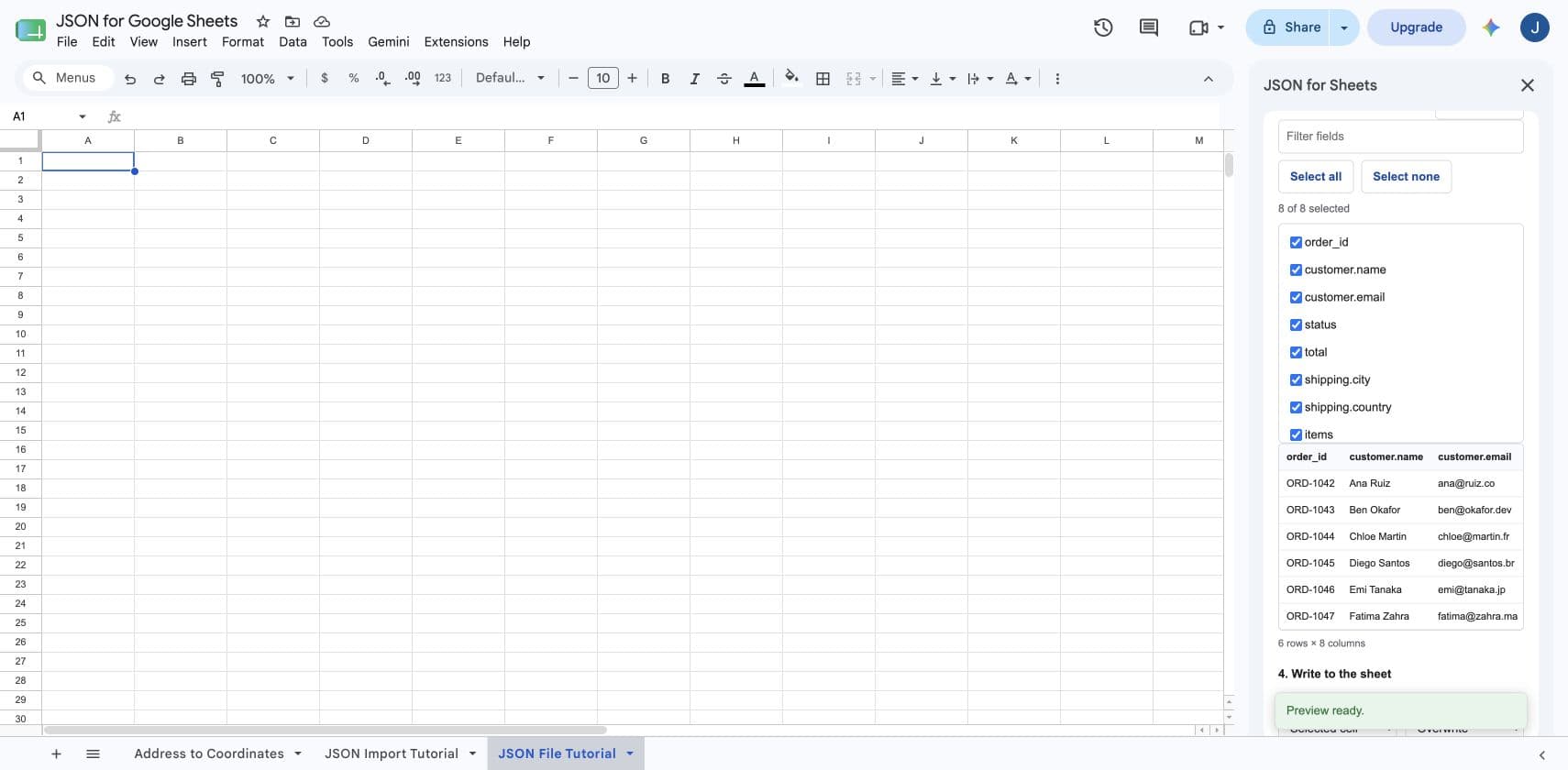
How to flatten nested JSON in Google Sheets
Turn objects into dotted columns and choose whether arrays stay intact, join into one cell, or expand into rows.
Read the guide →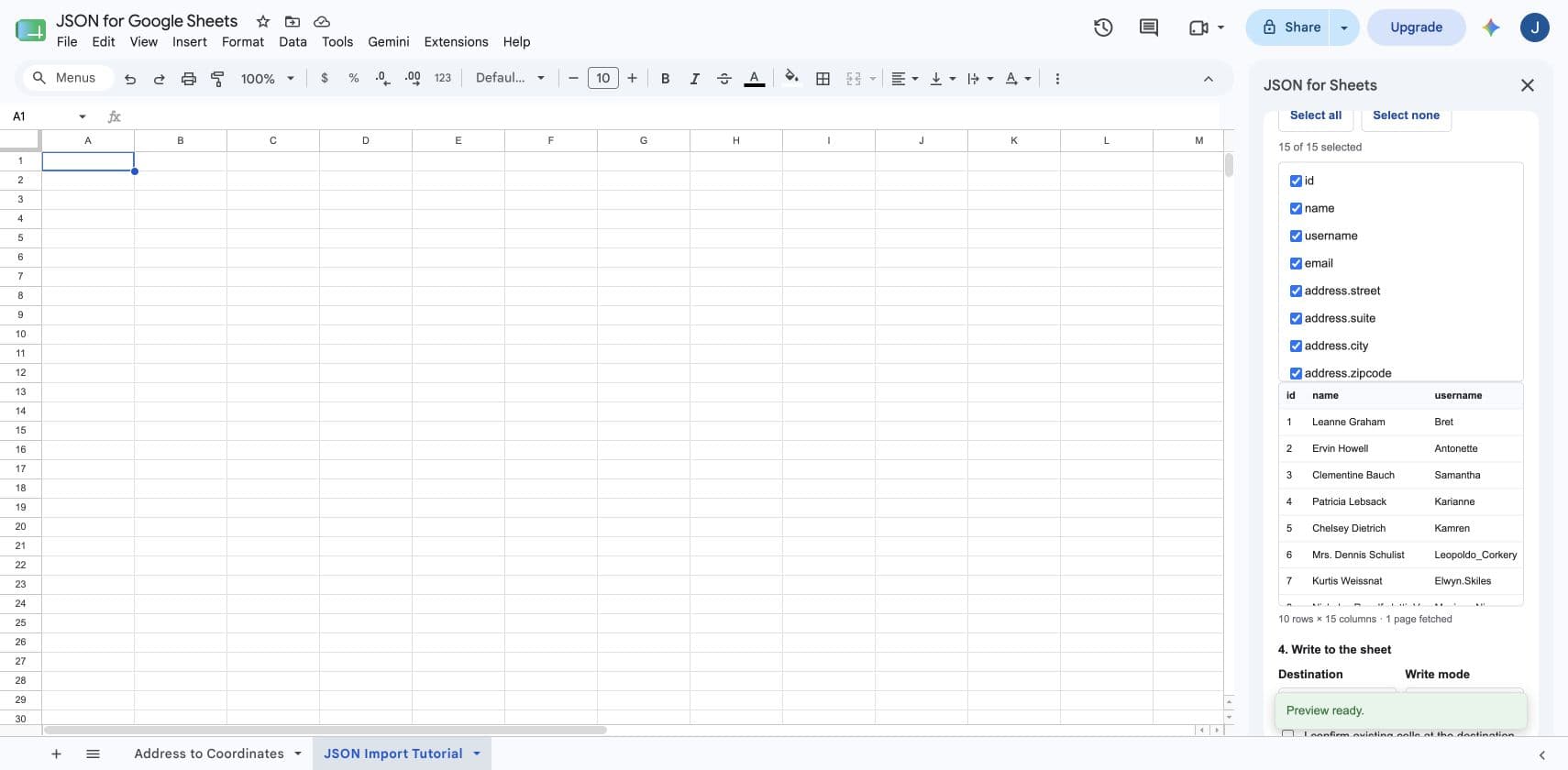
How to parse JSON in Google Sheets
Extract values, query objects, inspect schemas, validate payloads, and spill JSON arrays into rows and columns.
Read the guide →