Authenticated API tutorial
How to import JSON with an API key into Google Sheets
Connect a protected JSON API without placing the secret in a cell, formula, URL field, or saved request. Store the key as an encrypted connection, attach it to the request, preview the response, and write the selected data as a table.
Open JSON for Sheets and select Keys. Choose API key header or API key query parameter according to the provider's instructions, then save the connection. Return to Import → API request, enter the endpoint, and select the saved connection under Authentication. Preview the response and write the table. The request stores only the connection ID, not the raw secret.
Before you begin
Collect three values from the API provider's documentation:
- The endpoint URL, such as
https://api.example.com/v1/orders. - The authentication location: header, query parameter, or bearer token.
- The exact header or parameter name, such as
X-API-Key,x-api-key,api_key, orkey.
Names are not interchangeable. If the provider expects X-API-Key, sending Authorization will not work. If it expects a bearer token, use the Bearer token connection type instead of inventing a custom header.
The tutorial uses a fake value and a public DummyJSON endpoint so no real credential appears in the guide. DummyJSON ignores the demonstration header. For a protected endpoint, use the real key and exact authentication format supplied by its provider.
Step 1
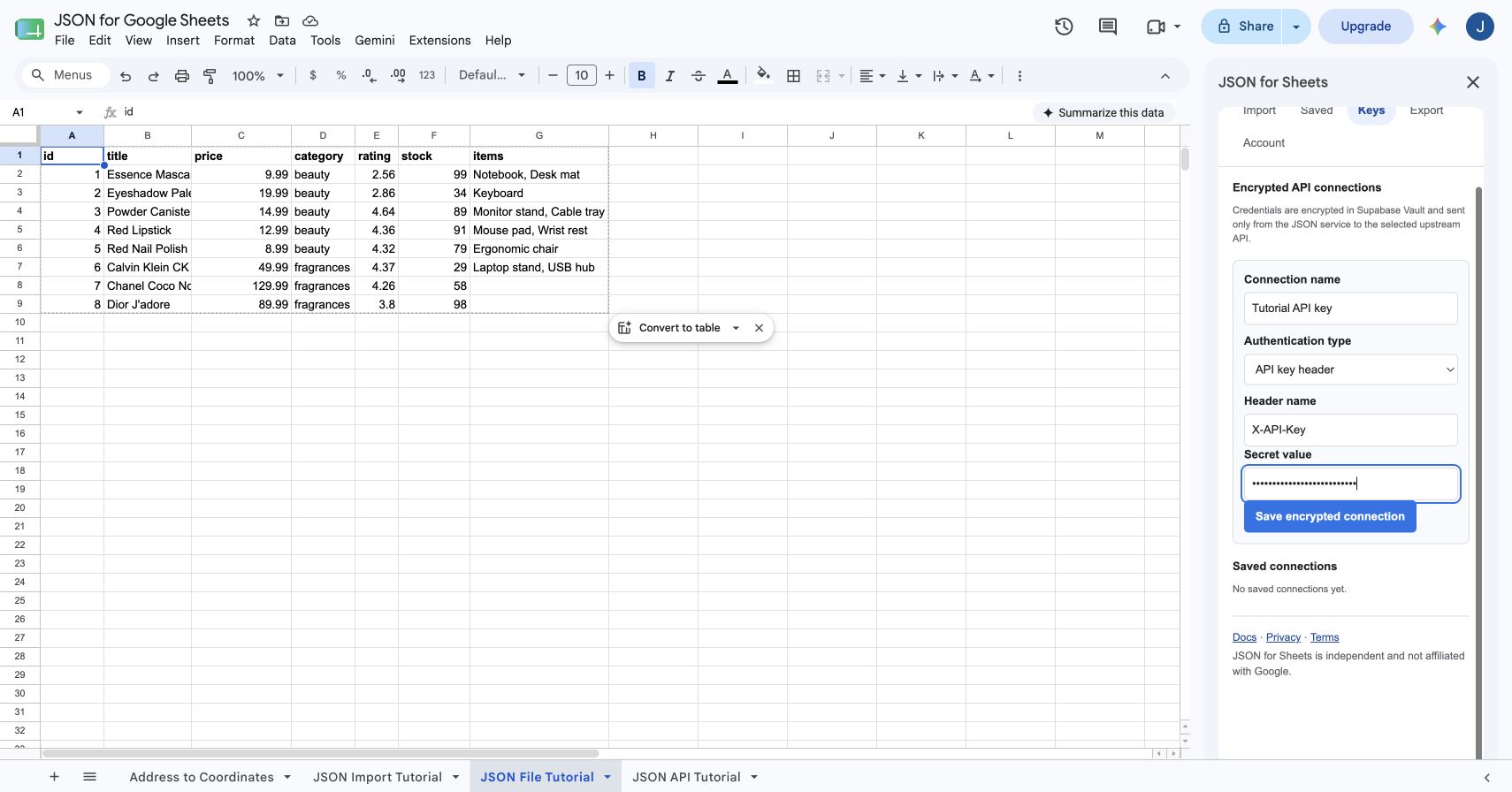
Open the encrypted Keys tab
In the spreadsheet, choose Extensions → JSON for Sheets → Open JSON for Sheets, then select Keys. This is the only place where a raw API credential should be entered.
Do not paste an API key into a spreadsheet cell, formula, API URL, query text, non-secret header field, request body, or saved-import name. Those areas are designed for request configuration, not credential storage.
Step 2
Choose API key header or query parameter
Enter a descriptive connection name, then choose the authentication type. Use API key header when the provider expects a secret HTTP header. Enter only its name—such as X-API-Key—in Header name, and put the key itself in Secret value.
Choose API key query parameter only when the provider requires a URL parameter such as ?api_key=…. If both formats are supported, prefer the header because URLs and query strings are more commonly copied or included in access logs.
Step 3
Save the encrypted connection
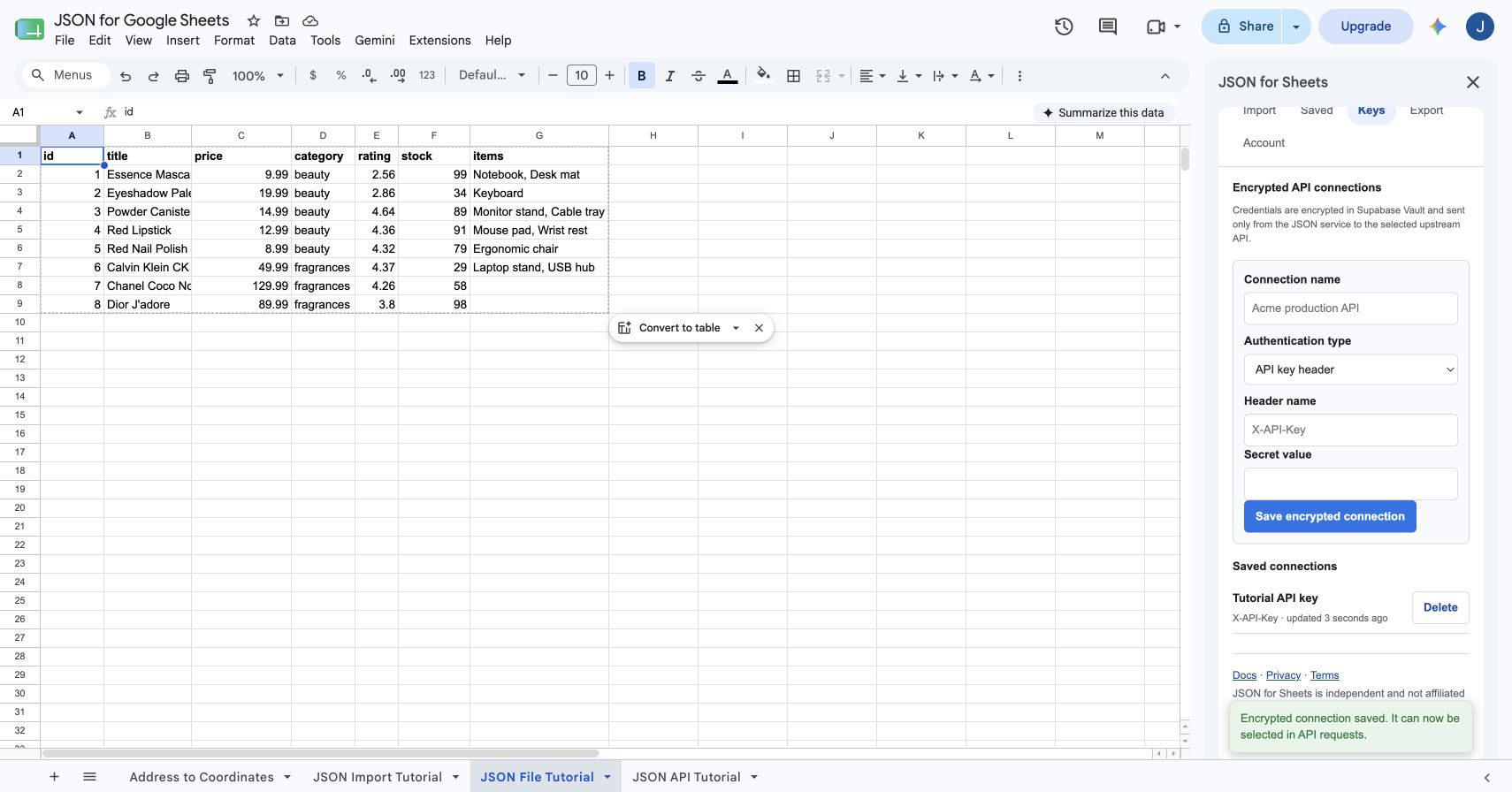
Select Save encrypted connection. After encryption succeeds, the saved card displays the connection name, authentication label, and update time. It does not display the secret value and cannot reveal it later.
Deleting the connection revokes it and removes the encrypted Vault secret. Any saved request that referenced it stops working until another connection is selected.
Step 4
Select the API key in the request builder
Return to Import and choose API request. Select the HTTP method and enter the endpoint. Under Authentication, choose the saved connection—for example, Tutorial API key · X-API-Key.
Add non-secret query parameters and headers in their separate fields. Set the root path when the records live inside a wrapper such as data, results, items, or products. Configure pagination if the endpoint returns multiple pages.
Once a connection is selected, do not add the same key to the URL or non-secret headers. JSON for Sheets attaches the encrypted credential on the server when the request is sent.
Step 5
Preview the authenticated JSON response
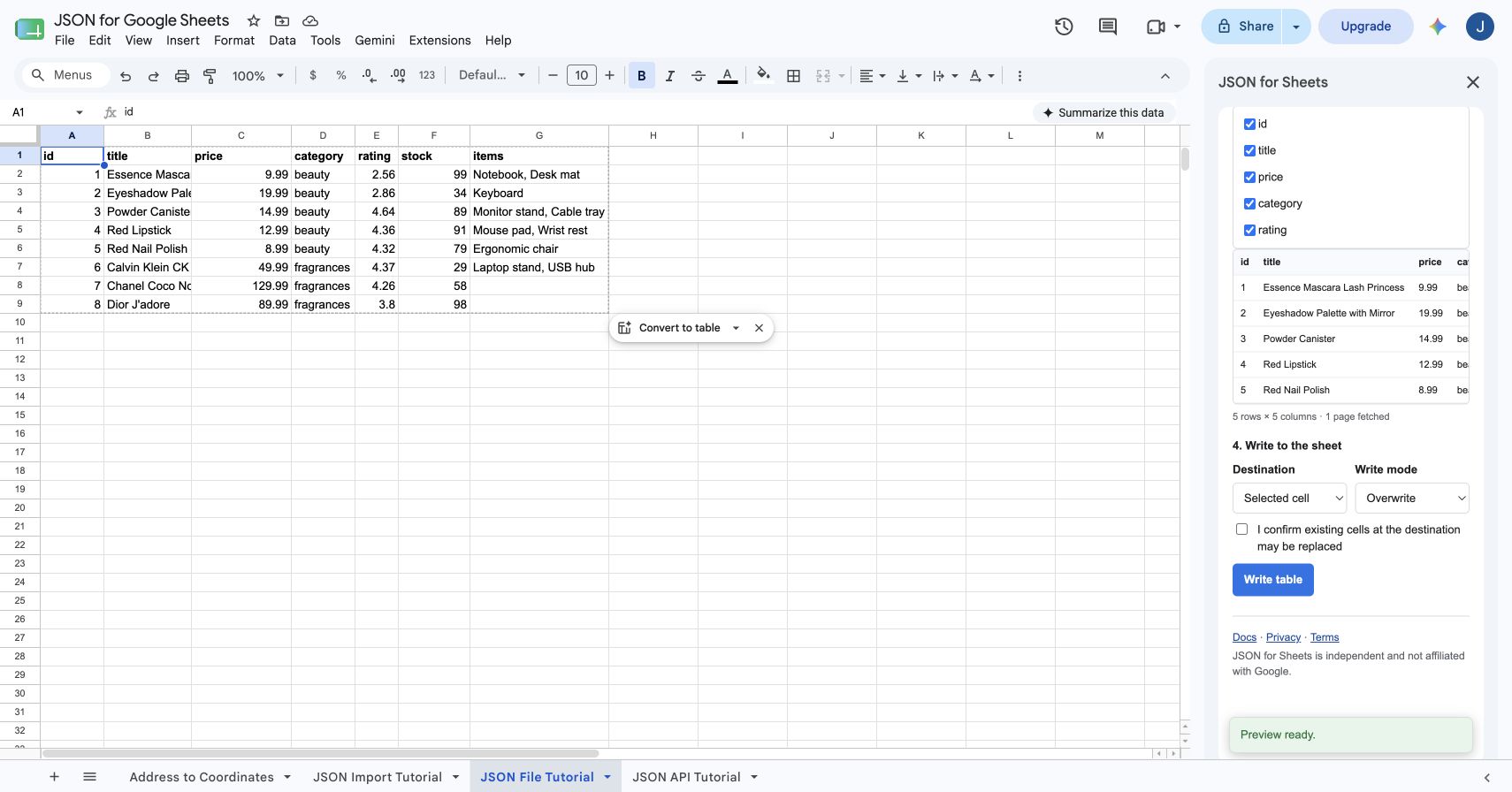
Select Preview JSON. A successful request displays the detected rows and fields without changing the spreadsheet. Confirm the result count, response root, and selected output columns before writing.
Choose the destination and write mode, then select Write table. After the first successful write, the request can be saved for manual reruns or scheduled refreshes. Saved imports retain the connection ID rather than the raw key.
For pagination, request bodies, cell variables, and advanced transformations, read the complete JSON API connection guide.
How JSON for Sheets handles API secrets
- Encrypted storage: credentials are encrypted in Supabase Vault. The connection record stores an opaque Vault identifier rather than plaintext.
- No secret in the sheet: raw credentials are not written into cells, formulas, previews, saved request metadata, or saved-import configuration.
- Server-side attachment: the JSON service resolves the selected connection and attaches it when calling the configured public upstream API.
- Origin boundaries: credentials and request bodies are not forwarded to a different origin during redirects or response-driven next-page navigation.
- Deletion: deleting a connection marks it revoked and removes the underlying Vault secret.
These controls reduce accidental exposure, but they do not change the permissions of the key itself. Create the narrowest provider credential available, rotate it according to the provider's policy, and revoke it at the provider if you suspect misuse.
Supported API authentication types
| Connection type | Use it when | Example request shape |
|---|---|---|
| Bearer token | The provider documents OAuth access tokens or bearer authentication | Authorization: Bearer … |
| API key header | The key belongs in a named HTTP header | X-API-Key: … |
| API key query parameter | The provider requires the key in the URL query string | ?api_key=… |
| Basic authentication | The endpoint expects a username and password | Authorization: Basic … |
| Custom secret header | The provider uses another secret header format | X-Client-Secret: … |
Troubleshoot API-key JSON imports
| Problem | What to check |
|---|---|
| 401 Unauthorized | The key may be missing, expired, revoked, malformed, or attached under the wrong header or query name. |
| 403 Forbidden | The credential may be valid but lack access to this endpoint, account, project, region, or resource. |
| Connection is not listed | Reopen the add-on in the spreadsheet where the connection was saved and confirm the correct Google account is connected. |
| Connection limit reached | Delete an unused connection or review the saved-connection allowance on the current plan. |
| No rows found | The request may have succeeded but the records are inside a response wrapper. Set the correct root path. |
| Works once, then fails | Check provider rate limits, token expiration, pagination, request allowance, and whether a saved credential was rotated or revoked. |
Frequently asked questions
Can Google Sheets import JSON from an API that requires a key?
Yes. JSON for Sheets supports API keys in headers or query parameters, bearer tokens, HTTP Basic credentials, and custom secret headers. Save the credential under Keys, then select the encrypted connection in the API request builder.
Should an API key go in a header or the URL?
Follow the API provider's documentation. If the provider supports both, a header is generally preferable because query strings are more likely to appear in URL logs, history, or copied links. JSON for Sheets supports either method.
Does JSON for Sheets save my raw API key in the spreadsheet?
No. The raw secret is not written into cells, formulas, request metadata, or the saved import. It is encrypted in Supabase Vault and referenced by connection ID.
Can I use a bearer token instead of an API key?
Yes. Choose Bearer token when the API expects an Authorization header in the form Bearer followed by the token. Do not manually paste the token into the non-secret header field.
Why does my authenticated JSON request return 401 or 403?
Confirm that the key is active, the authentication type and header or query name match the provider's documentation, the API account has access to the endpoint, and the selected connection belongs to the current spreadsheet installation.
Can an authenticated JSON import refresh automatically?
Yes. After a successful write, save the import. It keeps a reference to the encrypted connection, and paid plans can run it on supported hourly, daily, or weekly schedules without placing the secret in the saved request.
How many API connections can I save?
Current limits are one saved connection on Free, five on Starter, 25 on Pro, and 100 on Business. Check the pricing page for current allowances before purchasing.
Build the full request
Connect the API, then shape the response.
The complete API guide covers methods, request bodies, query parameters, spreadsheet variables, pagination, field selection, destinations, and scheduled refreshes.