Google Sheets tutorial
How to upload a JSON file to Google Sheets
Turn a local .json file into a clean spreadsheet table. Preview the structure, choose exactly which fields to keep, control nested arrays, and approve the destination before anything is written.
Open JSON for Sheets, choose From file, and select a valid .json file up to 5 MB. Preview the file, choose the output columns, and write the result to the selected cell or a new sheet. The file is read inside the add-on session, is not uploaded to JSON for Sheets servers, and does not use a remote-fetch allowance.
Download the example JSON file
This tutorial uses six fictional orders with nested customer and shipping objects plus an array of purchased item names. Download the exact file used in the screenshots, or follow the same workflow with your own data.
{
  "order_id": "ORD-1042",
  "customer": {
    "name": "Ana Ruiz",
    "email": "ana@ruiz.co"
  },
  "status": "paid",
  "total": 148.5,
  "shipping": { "city": "Austin", "country": "US" },
  "items": ["Notebook", "Desk mat"]
}
Step 1
Open JSON for Sheets and choose From file
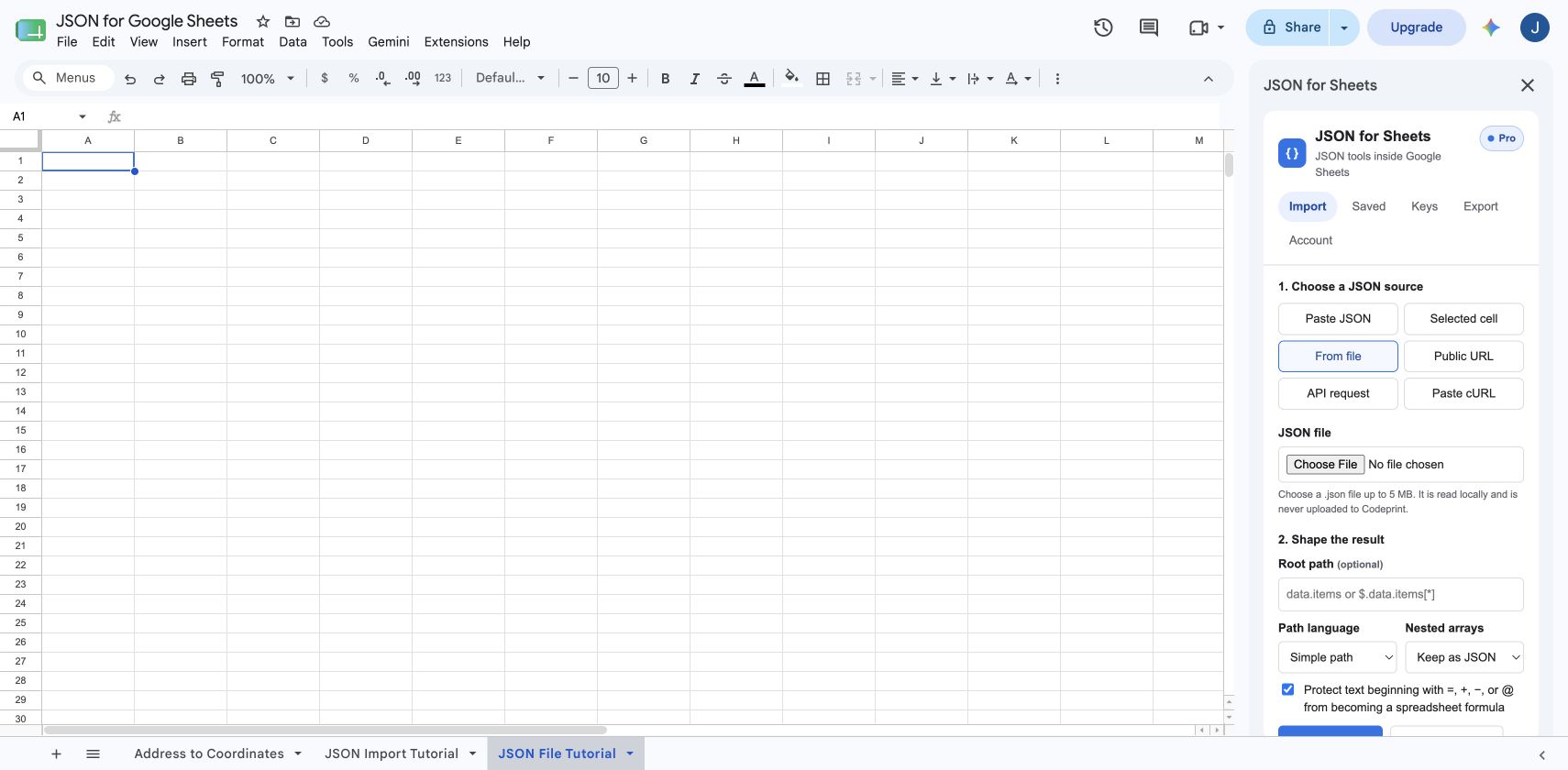
Open the destination spreadsheet, then choose Extensions → JSON for Sheets → Open JSON for Sheets. In the Import tab, select From file and choose orders.json from your computer.
Leave the root path empty because the sample's top level is already an array of records. Choose Join values for nested arrays so each order stays on one spreadsheet row and its item names share one readable cell.
Step 2
Preview the JSON structure
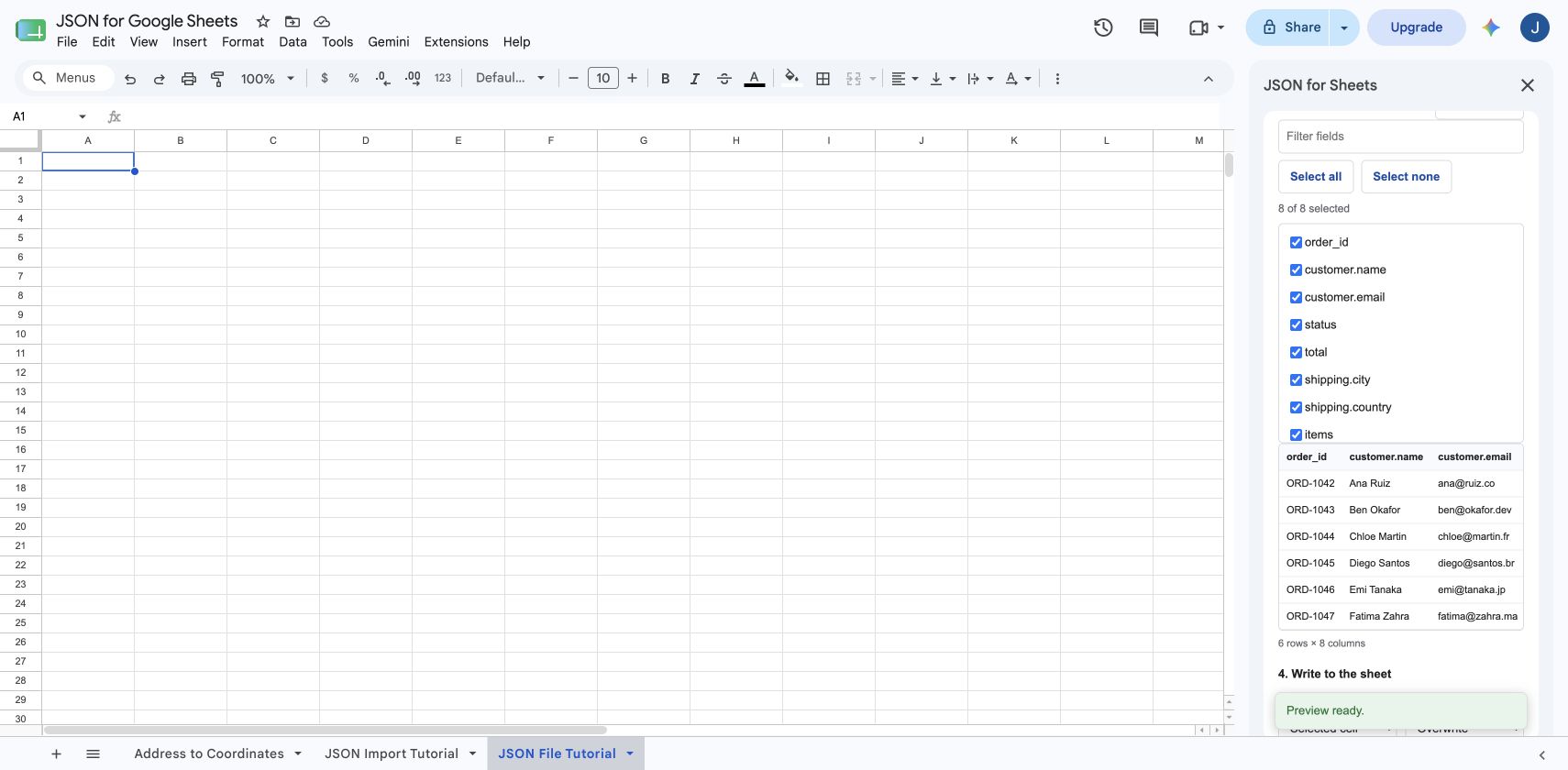
Click Preview JSON. The add-on parses the local file and reports the predicted row and column counts before changing the spreadsheet. For this sample it finds six records and eight available fields.
Preview is the safest place to catch the wrong root path, an unexpected response envelope, or an array mode that would create too many rows.
Step 3
Choose the columns to import
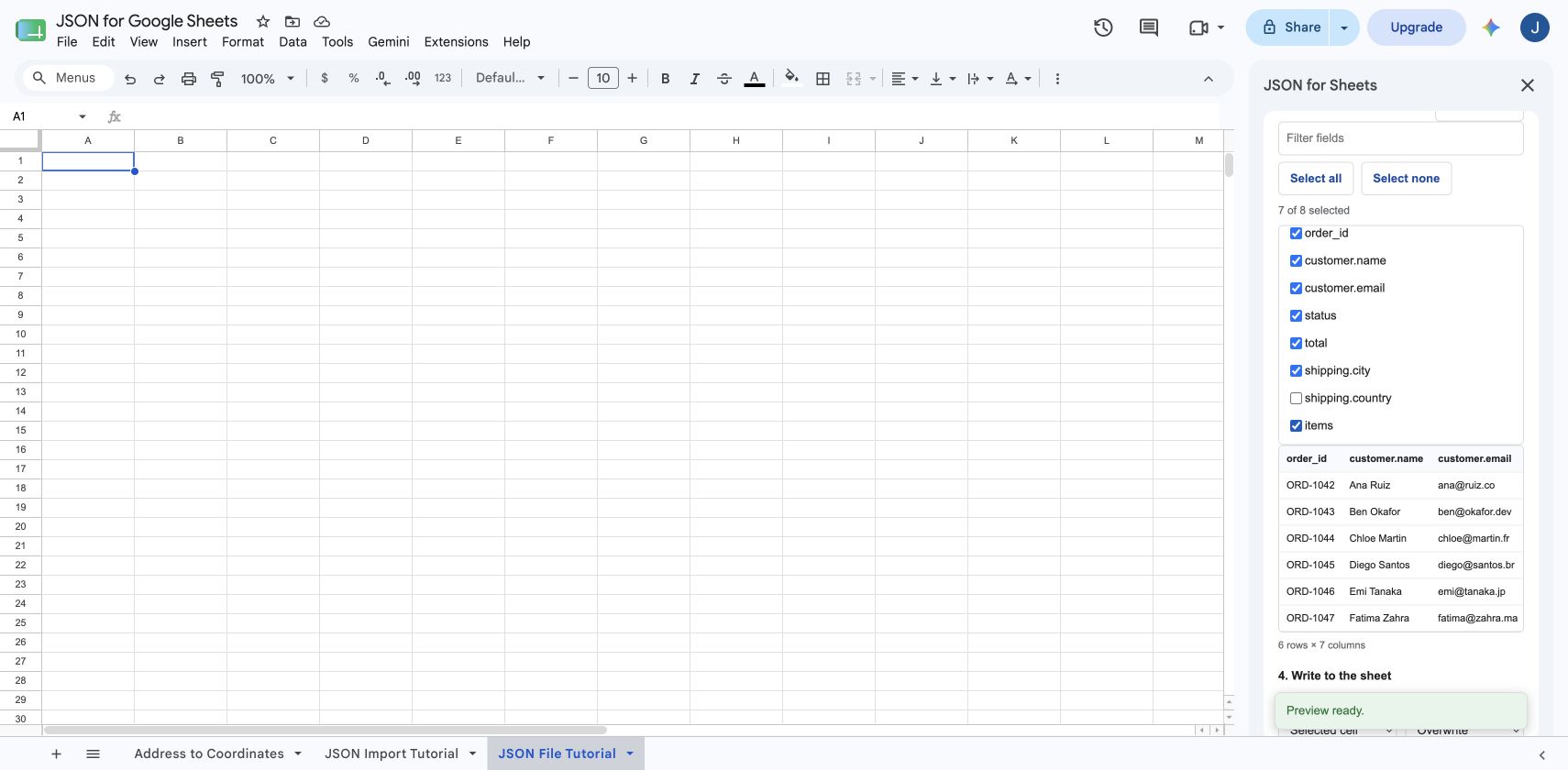
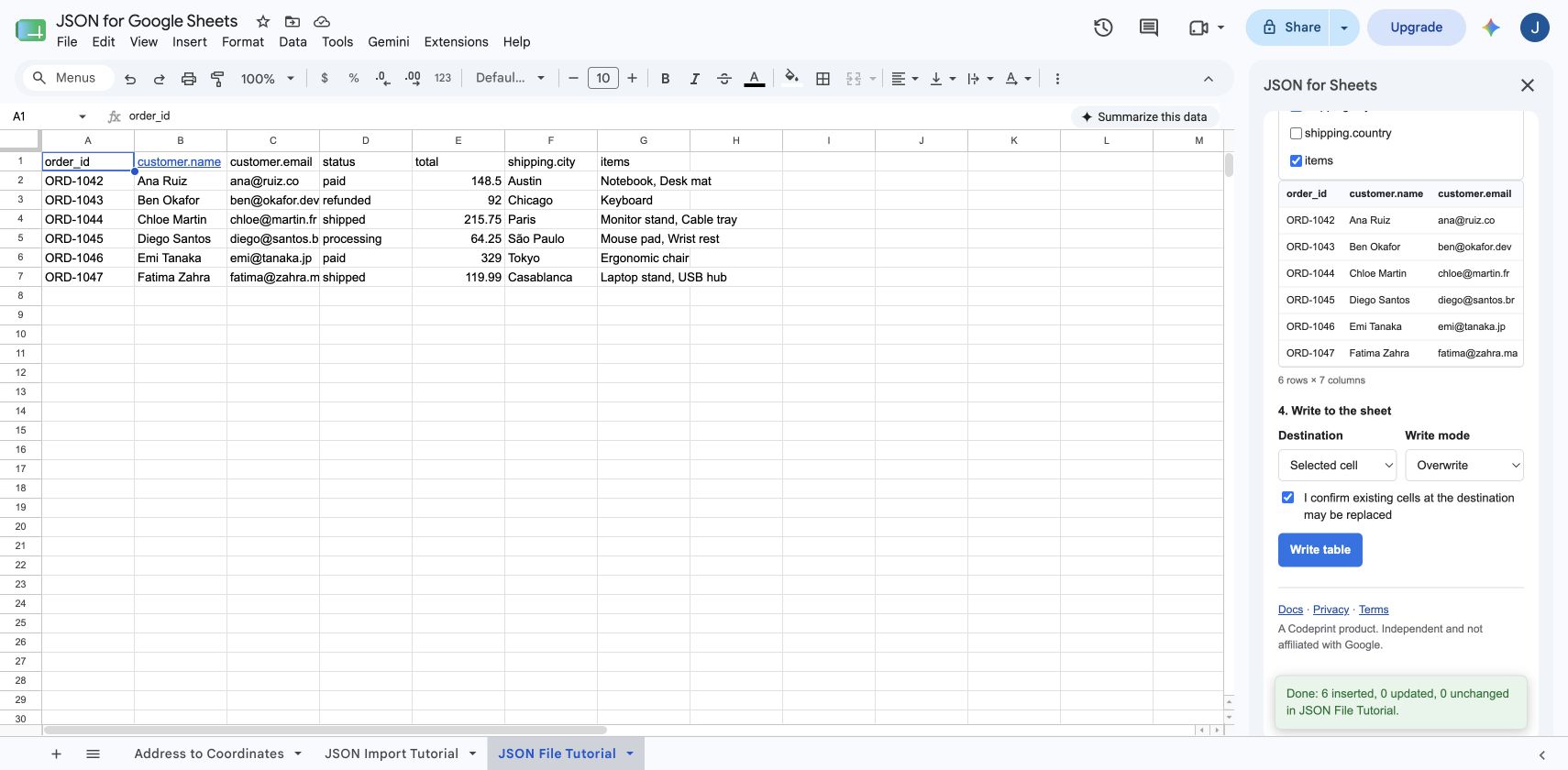
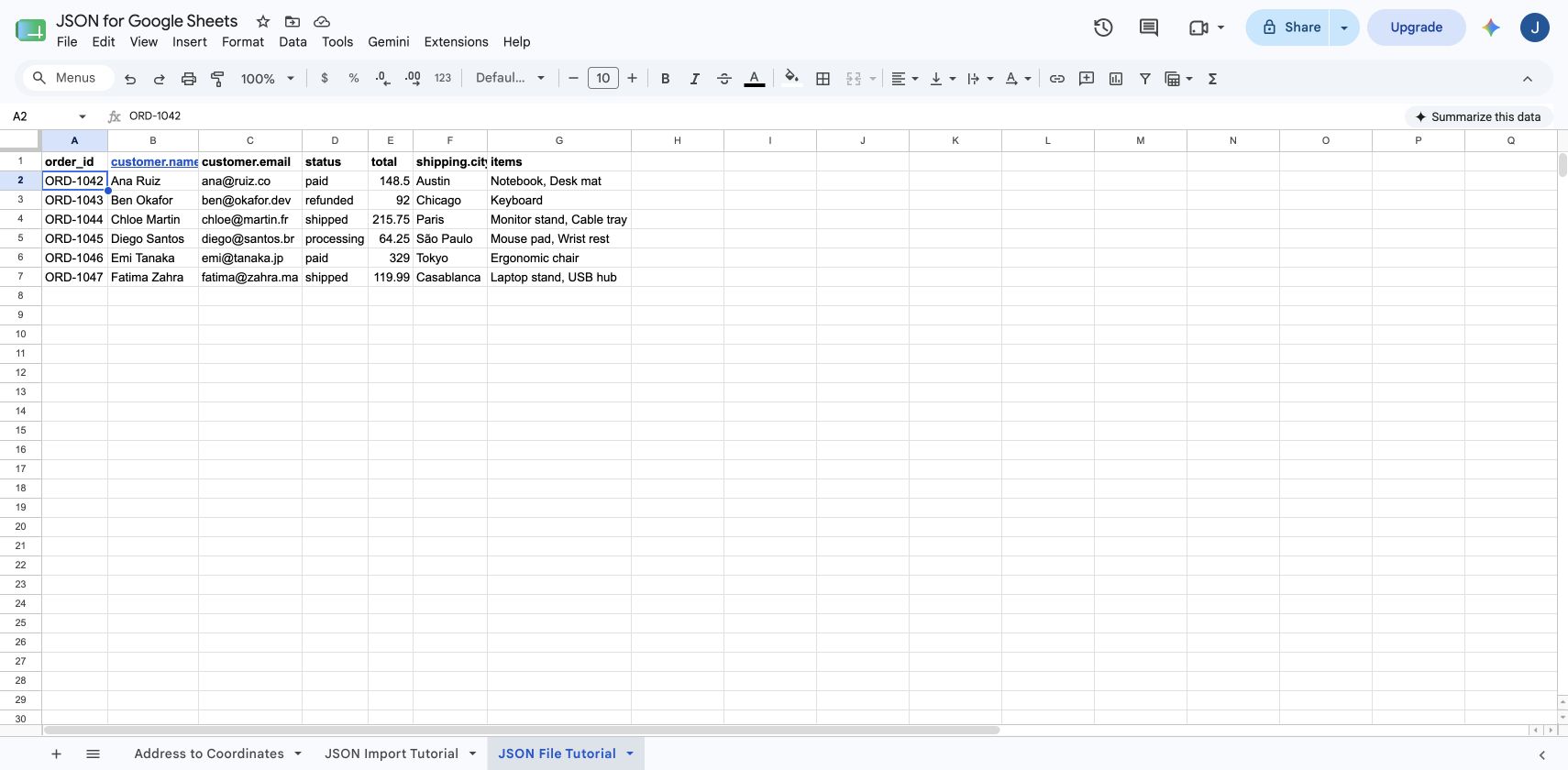
Select only the fields that belong in the final table. This example keeps order_id, customer.name, customer.email, status, total, shipping.city, and items. It leaves out shipping.country because the city already provides enough context for the tutorial.
There is no separate Apply fields button. Checking or unchecking a field updates the preview and the eventual write selection at once.
Step 4
Choose a destination and write the table
Choose Selected cell to start at the active cell, or New sheet to isolate the import. For a new table, select Overwrite, review the six-row preview, and check the confirmation acknowledging that destination cells may be replaced.
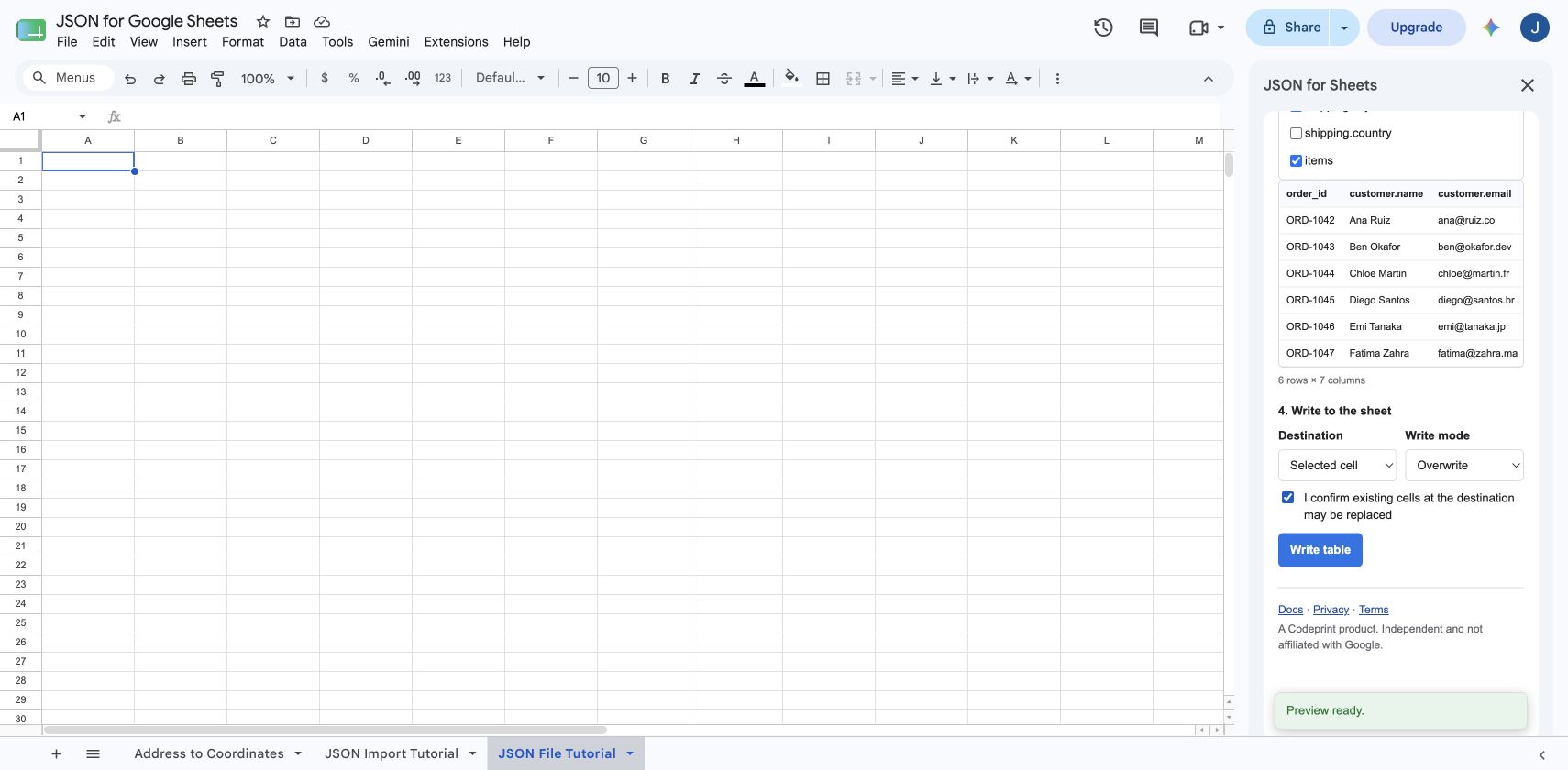
Click Write table. The success message reports the number of rows inserted, updated, and left unchanged so the result is easy to verify.
What happens to the local file?
- No server upload: the selected file is read inside the active add-on session.
- No remote-fetch charge: local previews and writes do not consume the daily or monthly remote-request allowance.
- No response cache: JSON for Sheets does not retain a cached copy of the file contents.
- User-approved write: data reaches the spreadsheet only after you choose the destination and click Write table.
See the privacy policy for the complete description of Google user data and service-provider handling.
How nested JSON becomes rows and columns
Nested objects become dotted field paths. In the sample, customer.name and shipping.city become independent columns without changing the source file.
| Array mode | Use it when | Spreadsheet result |
|---|---|---|
| Keep as JSON | You need the original array intact | One JSON string in one cell |
| Join values | The array contains tags, labels, or names | One readable cell per source record |
| Expand to rows | Each child item should become a record | One output row per array item |
If the records sit inside a wrapper such as {"data":{"orders":[...]}}, enter data.orders as the root path before previewing.
Read the complete nested JSON guide to compare row expansion, joined arrays, JSON cells, arrays of objects, and multiple-array growth.
Common JSON file import problems
| Problem | What to do |
|---|---|
| The file will not load | Confirm that the name ends in .json, the file is no larger than 5 MB, and the contents are valid JSON without trailing commas. |
| No rows are found | Enter the path to the record array, such as data.orders, and preview again. |
| Too many rows appear | Change nested arrays from Expand to rows to Join values or Keep as JSON. |
| A value beginning with = changes | Keep formula protection enabled so text beginning with =, +, -, or @ stays text. |
| Cells already contain data | Choose New sheet, select an empty destination, or review the overwrite confirmation carefully before writing. |
Frequently asked questions
Can I upload a JSON file directly to Google Sheets?
Google Sheets does not include a native JSON-file importer. JSON for Sheets adds a From file workflow that reads a local .json file, previews its fields and rows, and writes the selected columns into the current spreadsheet.
What is the maximum JSON file size?
The local-file limit is 5 MB per file. For larger data sets, split the file into smaller valid JSON files or expose the data through a paginated public or authenticated API.
Is my JSON file uploaded to JSON for Sheets servers?
No. The selected file is read inside the active add-on session and is not uploaded to JSON for Sheets servers. Its contents are transformed and written only when you approve the spreadsheet destination.
Does a local JSON file use a remote request?
No. Previewing and writing a local file does not consume the remote-fetch allowance because the add-on does not call the JSON API service to retrieve that file.
How are nested objects and arrays imported?
Nested object keys become dotted columns such as customer.name or shipping.city. Arrays can stay as JSON, be joined into one readable cell, or expand into multiple output rows.
Will uploading JSON overwrite my spreadsheet?
Only after you choose a destination, select Overwrite, and explicitly confirm that existing destination cells may be replaced. You can also write to a new sheet to keep the source data separate.
Working from an API instead?
Import live JSON from a URL.
The complete URL guide covers public endpoints, authenticated API requests, field selection, writes, and scheduled refreshes.