Google Sheets automation tutorial
How to automatically refresh JSON data in Google Sheets
Turn a working JSON URL or API import into a repeatable data sync. Save the request, test it on demand, and choose an hourly, daily, or weekly schedule that keeps the spreadsheet current even while it is closed.
Import a remote JSON source with JSON for Sheets, write the first table, and select Save import. Open the Savedtab to run it manually or choose an automatic interval. Starter supports daily and weekly refreshes; Pro adds hourly refreshes. Every run fetches fresh data, and each successful response page counts toward the plan's remote-fetch allowance.
How automatic JSON refresh works
A schedule is attached to a saved remote import, not to a spreadsheet formula. The saved import remembers the request, authentication connection reference, response-shaping choices, selected fields, spreadsheet destination, write mode, pagination, and cell-variable bindings. When it is due, the add-on fetches the source again and writes the new result with those same settings.
The first time you enable a schedule for a spreadsheet, Google Picker asks you to select that specific file. This grants per-file access so a user-enabled refresh can reopen the spreadsheet while it is closed. JSON for Sheets does not use that access to search Google Drive or open unrelated files.
Every preview, manual refresh, and scheduled refresh requests the upstream source again. The upstream API may implement its own caching, but JSON for Sheets does not retain a response cache.
Step 1
Configure the JSON URL or API request
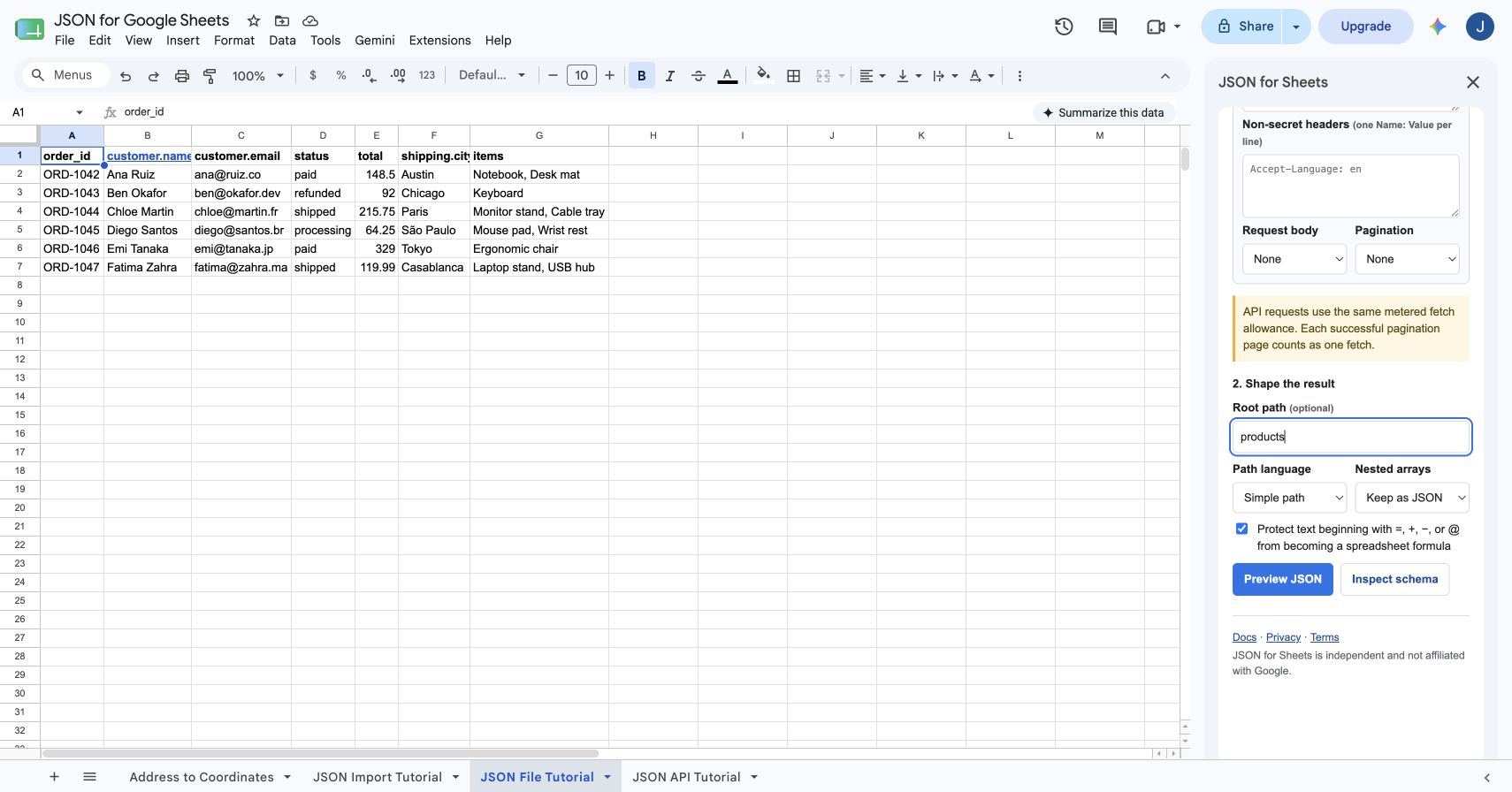
Open Extensions → JSON for Sheets → Open JSON for Sheets. Choose Public URL for a simple endpoint or API request when you need a method, query parameters, headers, an encrypted connection, a request body, or pagination.
This example uses GET https://dummyjson.com/products, requests eight records, and sets products as the root path. For the full request setup, follow the JSON API integration guide.
Step 2
Preview fresh data and write the initial table
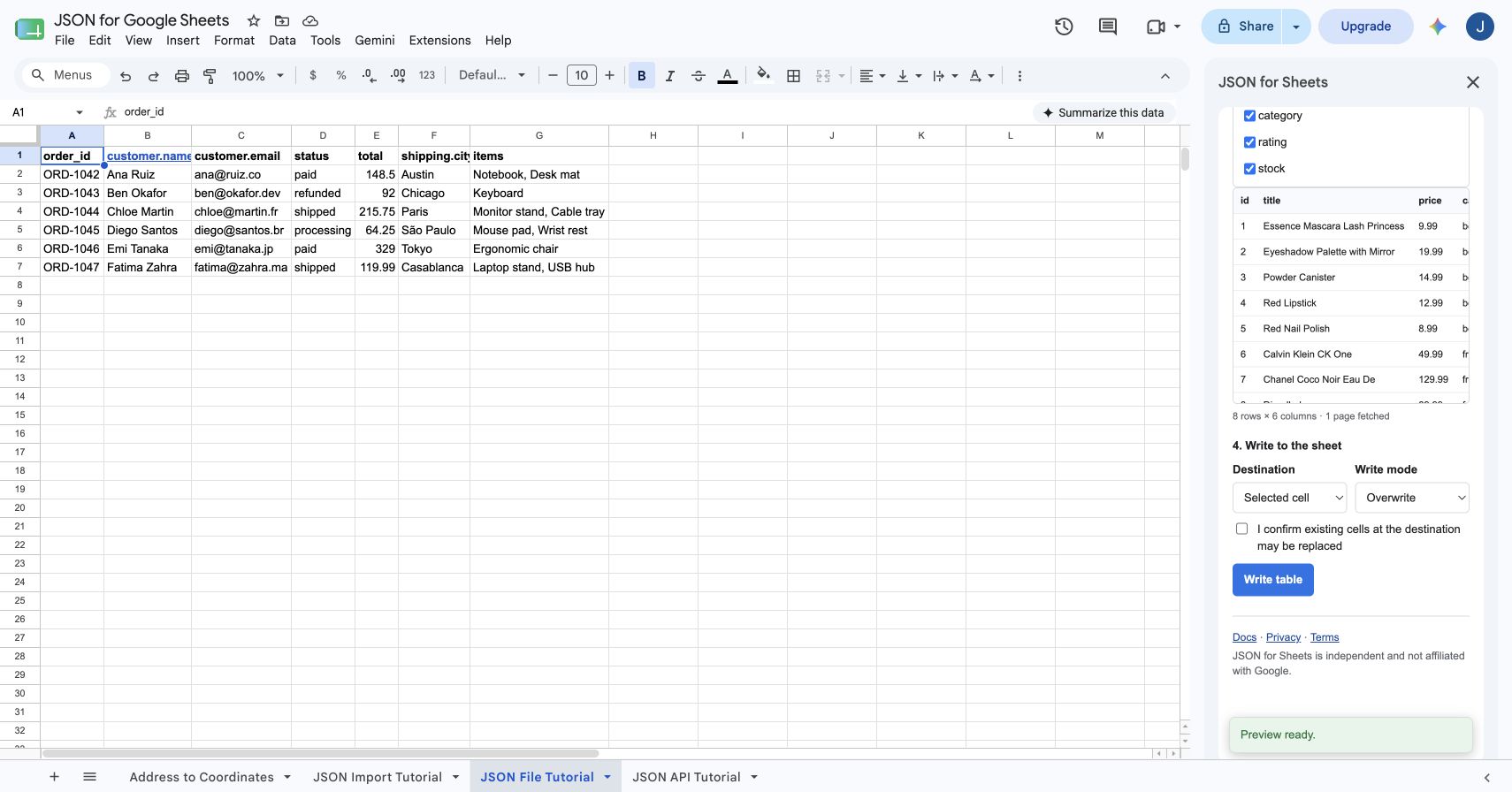
Select Preview JSON, review the detected rows and columns, and keep only the fields the scheduled table needs. Then choose the spreadsheet destination and write mode. Overwrite requires an explicit confirmation because existing destination cells may be replaced.
A saved import becomes available only after a successful write. That requirement proves the endpoint, response shape, field selection, and destination all work before automation is enabled.
Step 3
Name and save the remote import
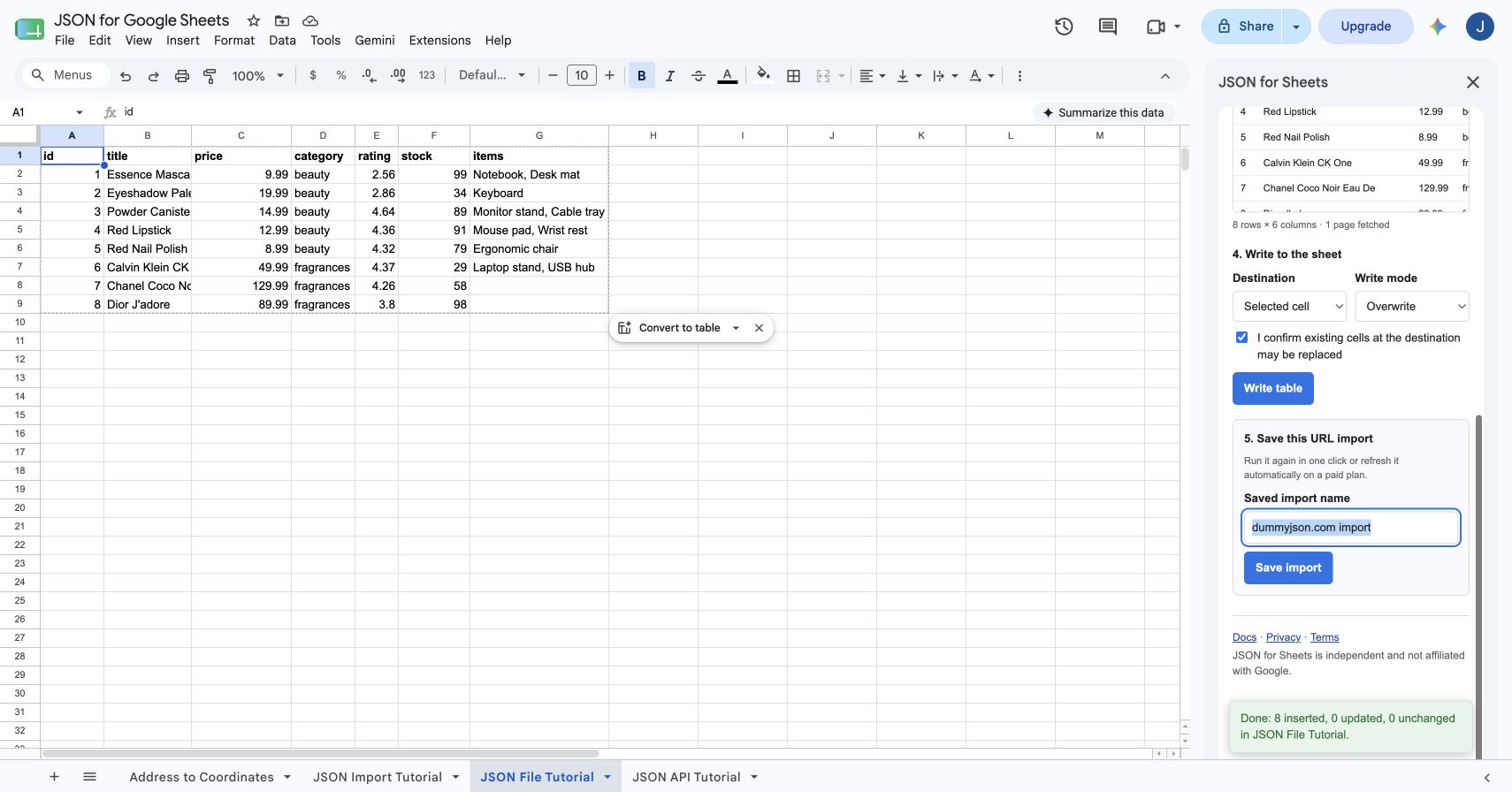
After the write succeeds, a Save this URL import section appears. Give the import a name that describes the source and destination, such as Product inventory refresh, then select Save import.
The saved request does not contain a raw API secret. If the endpoint is authenticated, it stores a reference to the encrypted connection created under Keys.
Step 4
Test the saved import with Run now
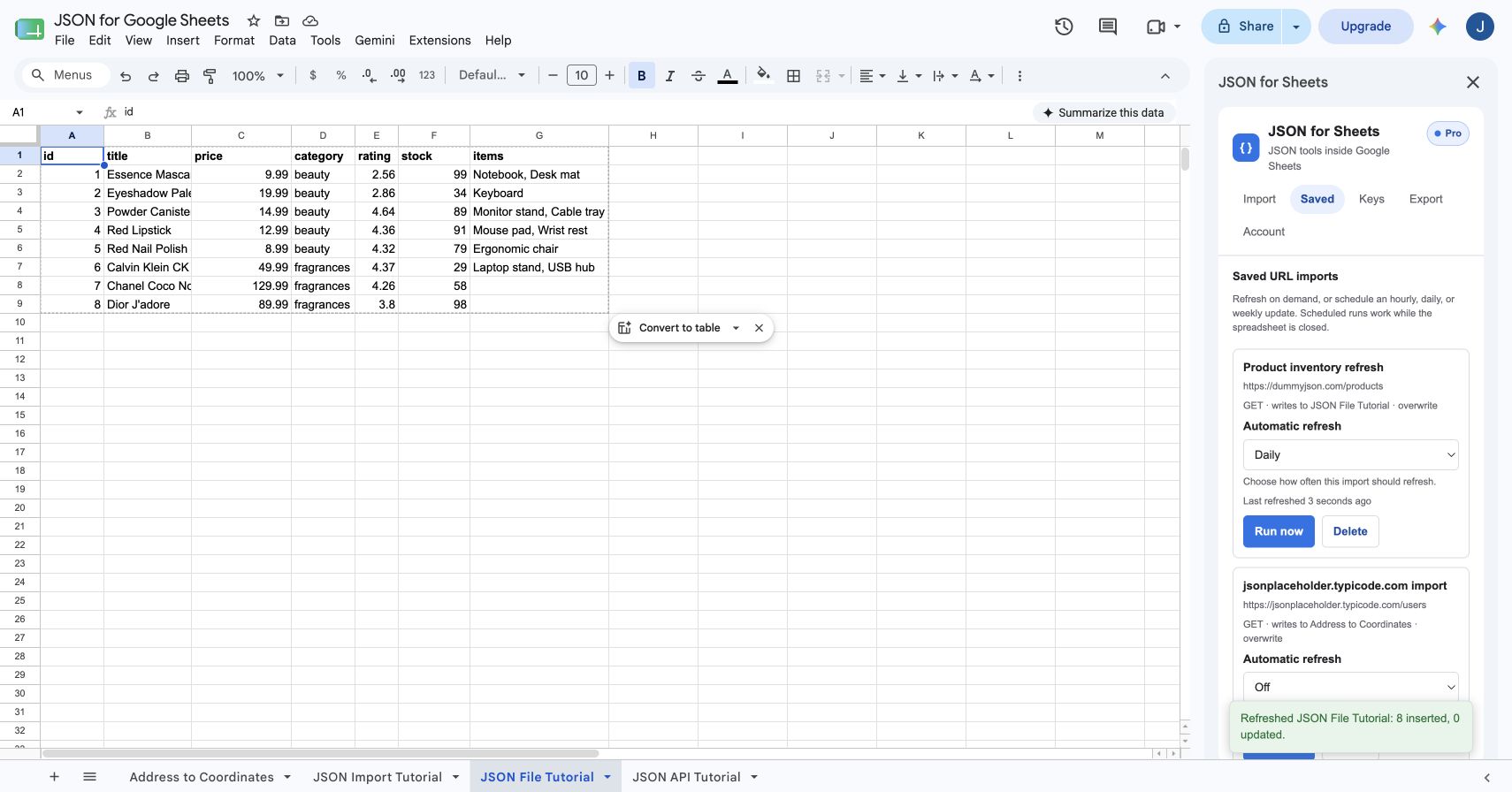
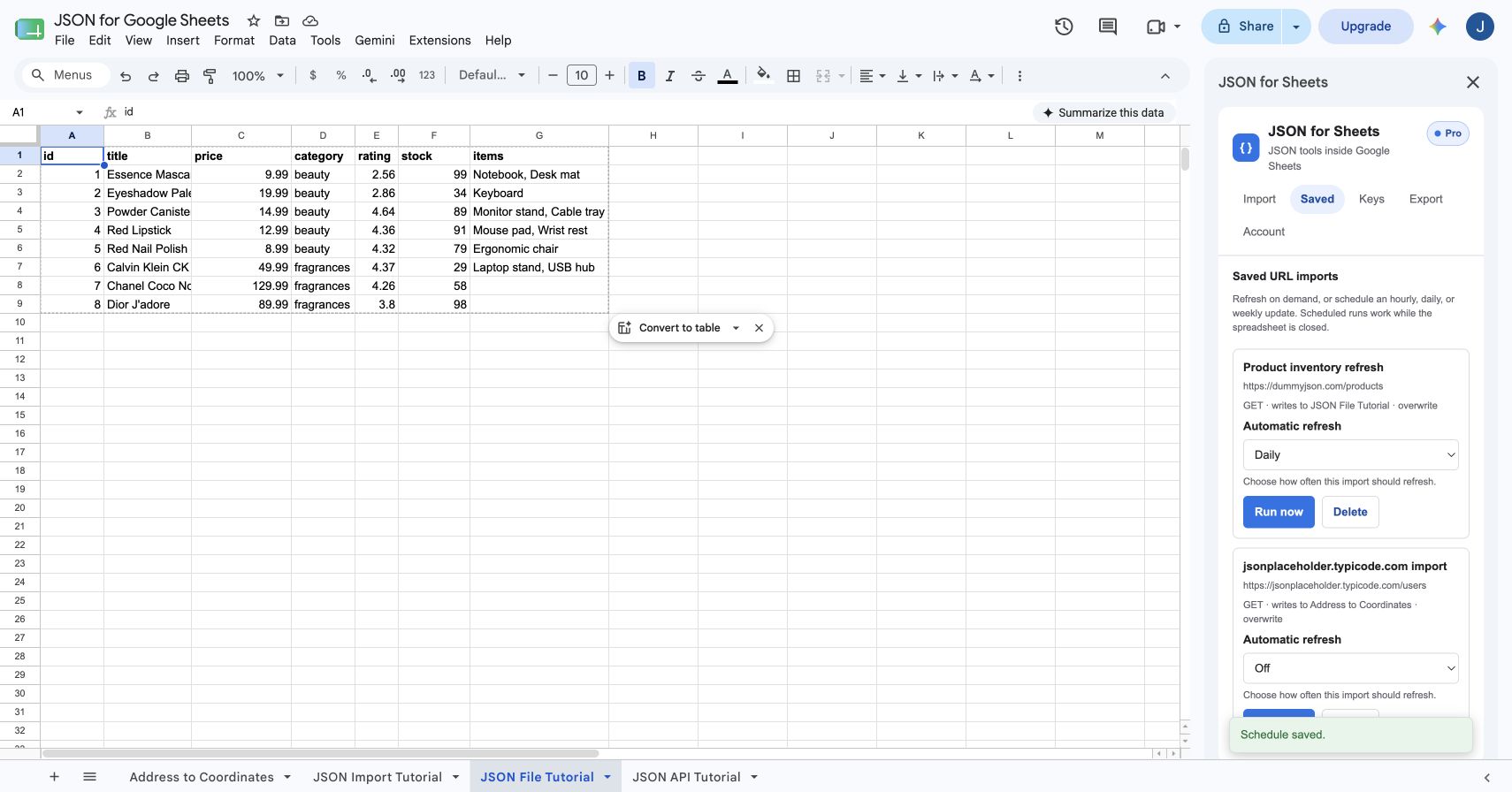
Open Saved and find the new import. Before turning on automation, select Run now. The card shows the URL, HTTP method, destination sheet, and write mode so you can verify the refresh will target the intended table.
A successful manual run updates the last-refreshed time and reports how many rows were inserted or updated. If it fails, correct the source, credential, destination, or transformation before scheduling it.
Step 5
Choose hourly, daily, or weekly refresh
Use the Automatic refresh menu on the saved import. Starter can choose Daily or Weekly. Pro can choose Hourly, Daily, or Weekly. If Google Picker opens, select the current spreadsheet and approve the per-file access so the schedule can run while the sheet is closed.
The selection is saved immediately. Choose Off at any time to disable the schedule without deleting the saved import. A plan downgrade is rechecked before scheduled runs, so an interval that is no longer included does not continue silently.
Choose the right refresh write mode
| Write mode | What each refresh does | Best for |
|---|---|---|
| Overwrite | Replaces the saved destination table with the newest result. | Dashboards, inventory snapshots, and current-state reports |
| Append | Adds all returned rows below the existing table. | Event logs and time-series snapshots when the source returns only new records |
| Update or append | Updates rows whose selected key already exists and appends new keys. | Customer, order, product, or ticket records with stable IDs |
Set the write mode during the successful initial import, before saving it. For upsert behavior, choose a key that is unique and consistently present. Avoid Append when the endpoint returns the complete historical dataset on every request, or each refresh will create duplicates.
Scheduled refresh plans and request usage
| Plan | Automatic intervals | Remote-fetch allowance |
|---|---|---|
| Free | None; saved imports can run manually | 5 successful remote page fetches per day |
| Starter | Daily and weekly | 5,000 successful remote page fetches per month |
| Pro | Hourly, daily, and weekly | 60,000 successful remote page fetches per month |
One successful response page equals one remote fetch. A one-page API refreshed daily uses about 30 or 31 fetches in a typical month. A five-page API refreshed hourly can use up to 120 fetches per day, so pagination and frequency should be planned together. Redirect hops are not counted separately, and failed fetches are not charged.
See pricing and current plan limits before scheduling a high-volume source.
Troubleshoot an automatic JSON refresh
| Problem | What to check |
|---|---|
| Schedule option is unavailable | Confirm the connected JSON for Sheets plan. Free saved imports can use Run now but cannot enable automation. |
| Spreadsheet authorization was not completed | Choose the interval again and select the same spreadsheet in Google Picker. |
| Last refresh failed | Check the upstream status, saved credential, URL, response root, page settings, and remaining request allowance. |
| Rows are duplicated | Use Overwrite for full snapshots, or Update or append with a stable unique key. Do not append a full dataset repeatedly. |
| Columns changed | The upstream JSON schema changed. Edit and preview the source again, select the intended fields, write successfully, and resave the import. |
| Data appears unchanged | Use Run now and compare the upstream response. JSON for Sheets fetches fresh data, but the source itself may return unchanged or cached content. |
Frequently asked questions
Can Google Sheets automatically refresh JSON data?
Yes. JSON for Sheets can save a successful remote import and refresh it while the spreadsheet is closed. Starter supports daily and weekly schedules, while Pro supports hourly, daily, and weekly schedules.
Does each scheduled refresh count as a request?
Yes. Each successfully fetched response page counts as one remote fetch. A paginated refresh that retrieves five successful pages uses five remote fetches. Failed fetches are not charged.
Does JSON for Sheets cache API responses?
No. Each preview, manual saved-import run, and scheduled refresh requests the upstream source again. Response bodies are processed in memory and are not retained in a response cache.
Can a saved import update existing rows instead of replacing the table?
Yes. Choose Update or append before the initial successful write, select the key column, and save the import. Future runs preserve that write mode and update matching keys while appending new rows.
Can a scheduled refresh run while the spreadsheet is closed?
Yes. When you first enable a schedule, Google Picker asks you to authorize that specific spreadsheet so the add-on can reopen it for user-enabled refreshes. The schedule remains subject to Google Apps Script and product limits.
What happens if a scheduled refresh fails?
The saved import shows its last failure instead of silently reporting success. Check the API status, credentials, response shape, upstream rate limit, spreadsheet access, and JSON for Sheets usage allowance before running it again.
Can Free users save an import?
Yes. Free users can save remote imports and run them manually. Automatic schedules require a paid plan.
Need to build the request first?
Connect the JSON API, then automate it.
The API guide covers authentication, query parameters, request bodies, spreadsheet variables, root paths, field selection, and pagination.