Google Sheets tutorial
How to import JSON into Google Sheets
Turn a public JSON URL, API response, pasted payload, or local .json file into a clean spreadsheet table—without writing Apps Script or maintaining an IMPORTJSON formula.
Google Sheets does not include a native IMPORTJSON function. Its built-in import functions cover formats such as CSV, TSV, HTML, XML, RSS, Atom, and spreadsheet ranges. To import JSON, use an add-on such as JSON for Sheets or write and maintain your own Apps Script parser. This guide uses the add-on route because it provides a field preview, nested-data controls, safe writes, and refresh options in one workflow.
A complete example you can repeat
We will import ten user records from JSONPlaceholder, a public test API. It requires no API key, so you can follow the exact same steps:
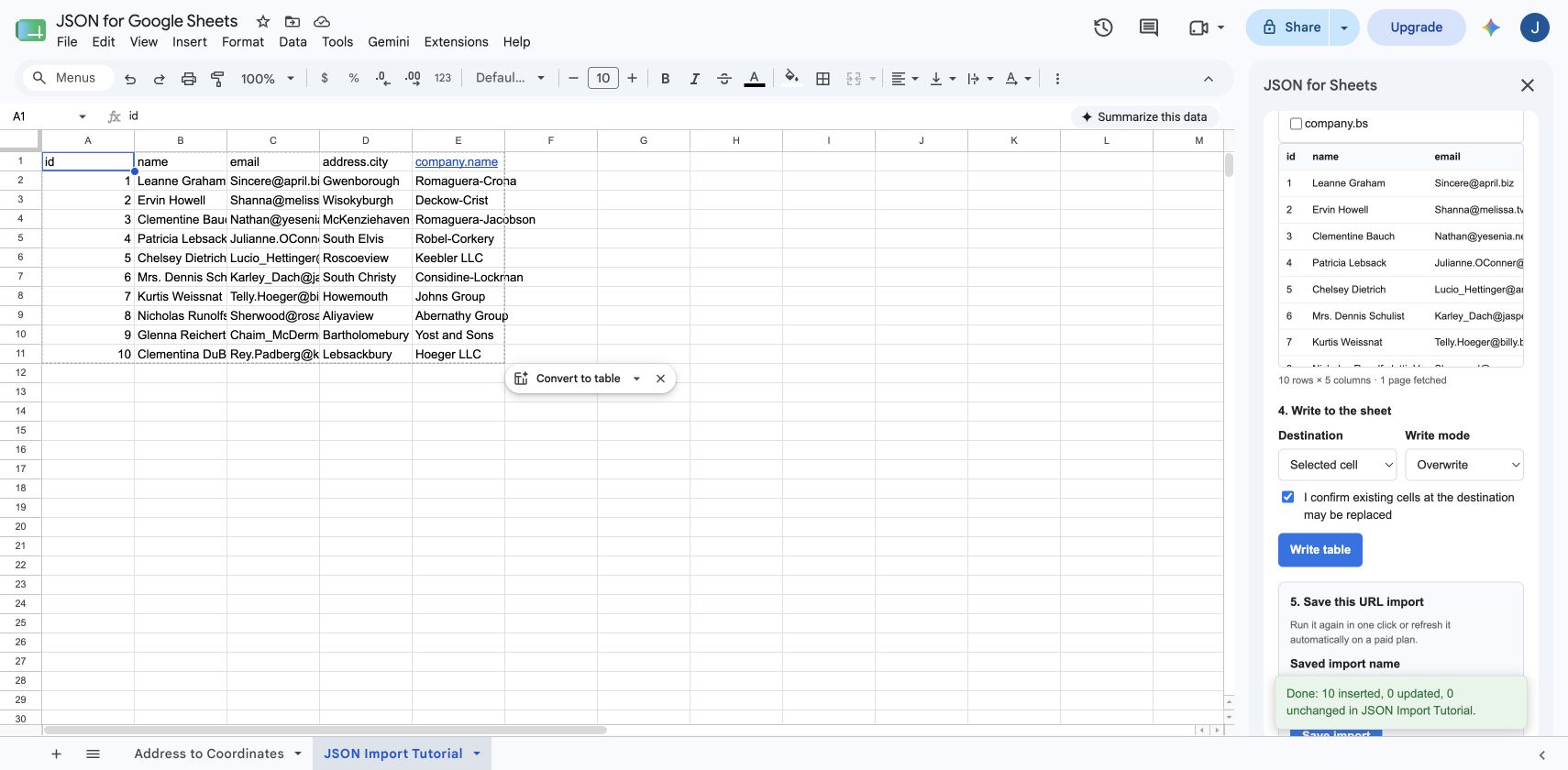
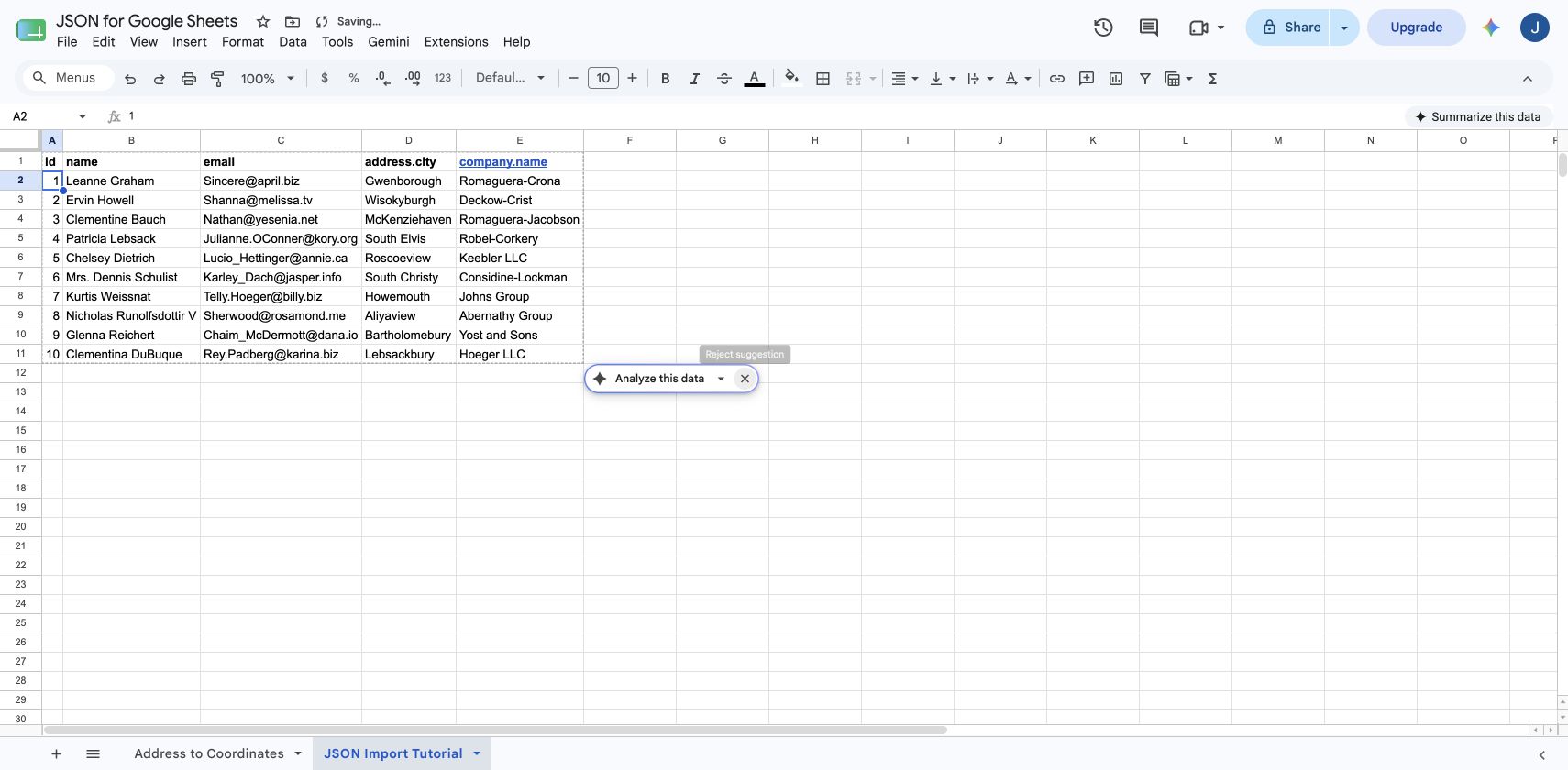
https://jsonplaceholder.typicode.com/usersThe response contains simple fields such as id, name, and email, plus nested objects such as address and company. We will keep five useful columns: id, name, email, address.city, and company.name.
Step 1
Open JSON for Sheets
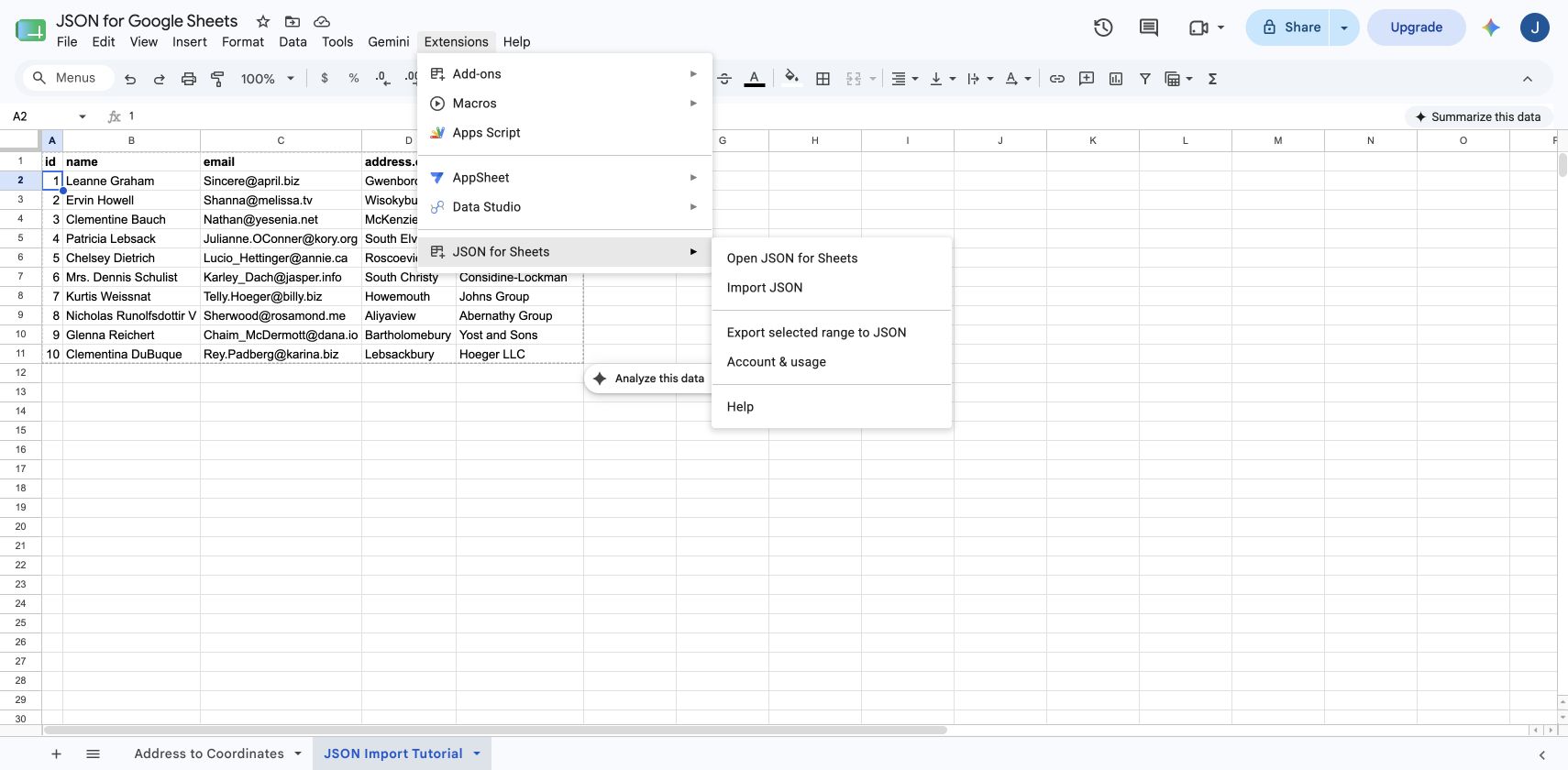
Open the spreadsheet where the table should live. From the menu, choose Extensions → JSON for Sheets → Open JSON for Sheets. The import sidebar opens on the right.
Step 2
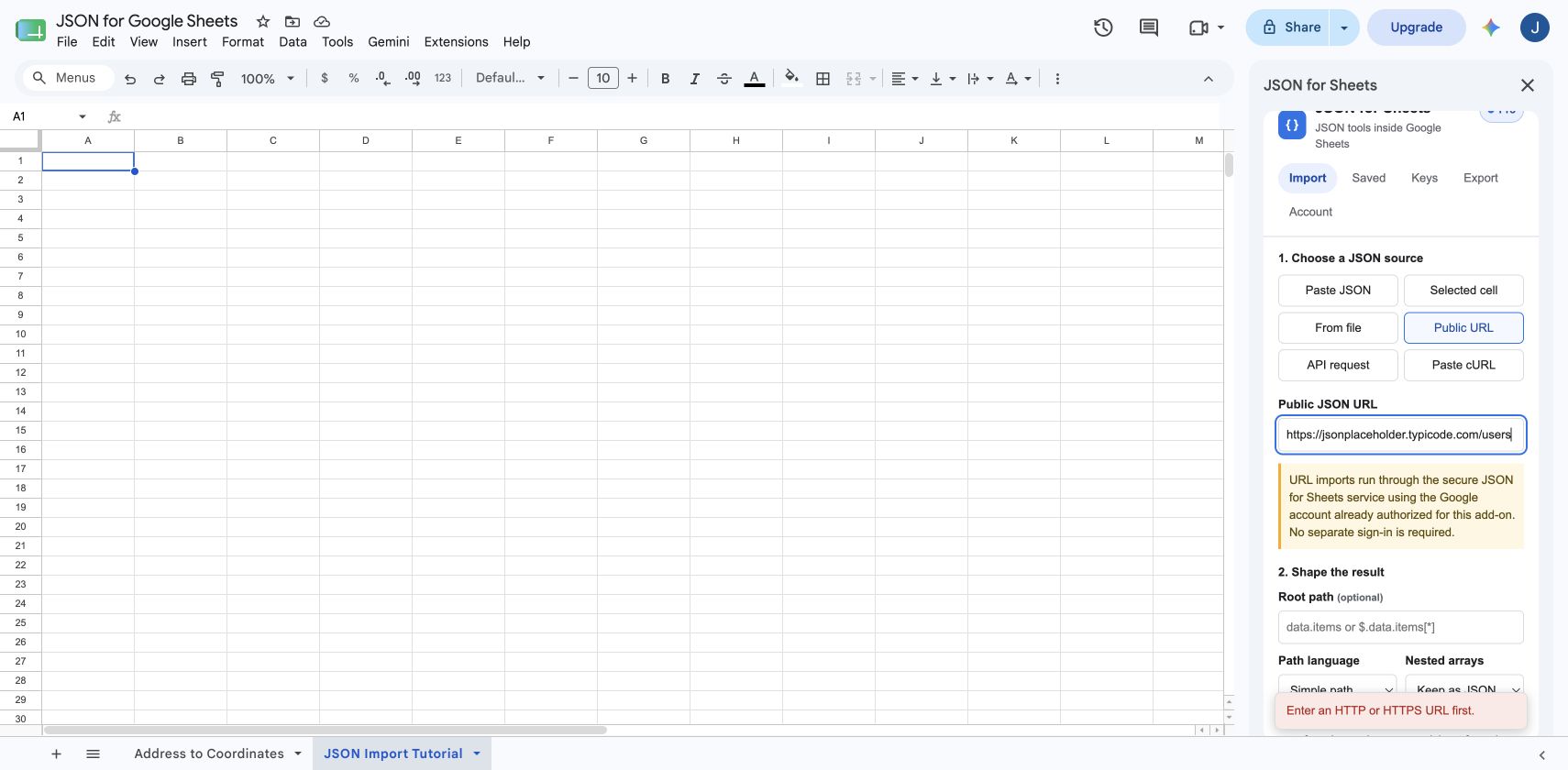
Choose Public URL and enter the endpoint
Select Public URL, then paste the endpoint. Leave the root path empty for this example because the top-level response is already an array of users. Keep Simple path and Keep as JSON selected.
Need authentication, query parameters, request bodies, or pagination? Follow the complete JSON API integration guide.
Still deciding how to approach the problem? Compare the best IMPORTJSON alternatives for Google Sheets, including add-ons, open-source scripts, custom Apps Script, and built-in import workarounds.
Step 3
Preview the JSON before writing anything
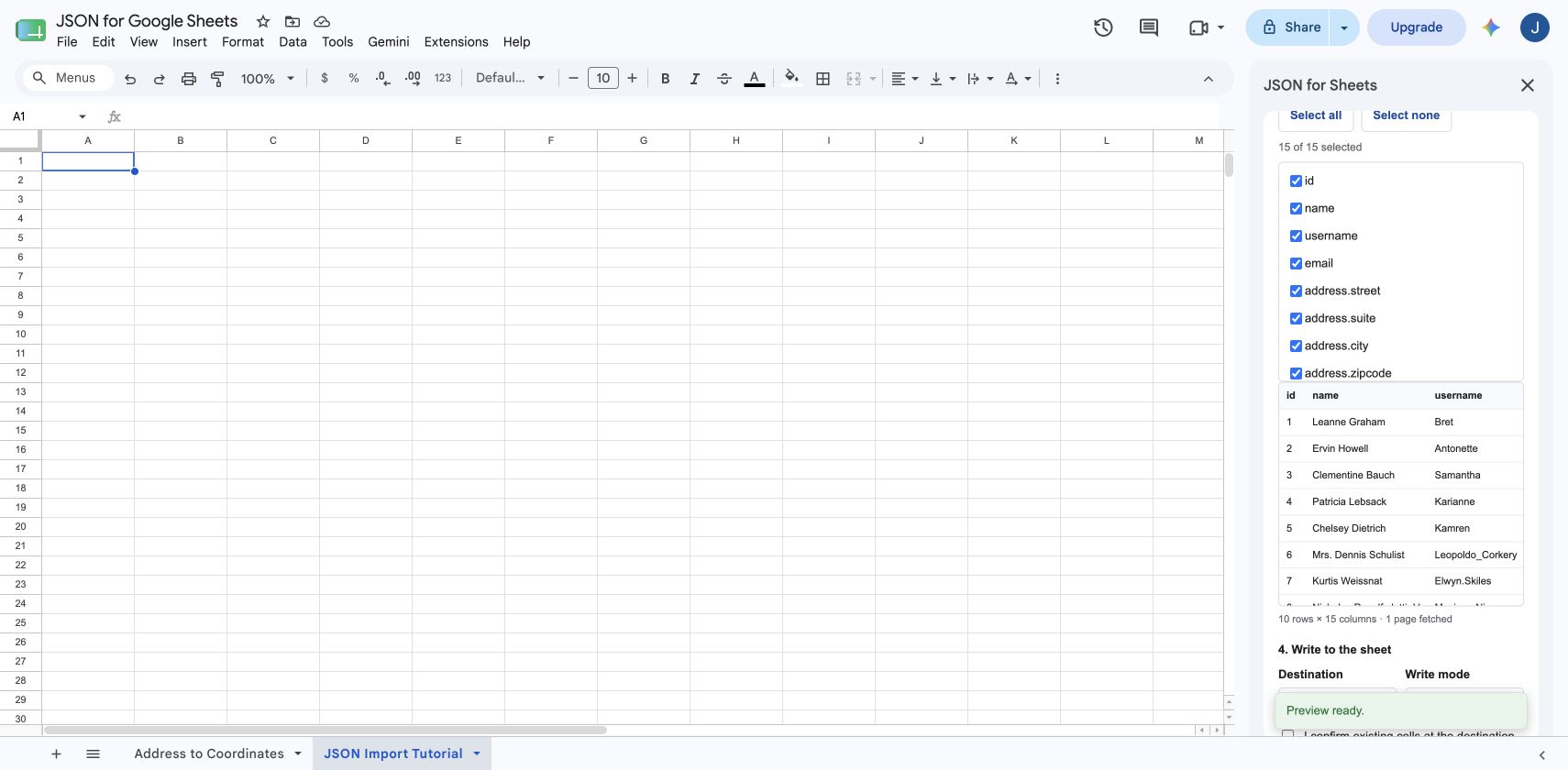
Click Preview JSON. The add-on fetches the current response, flattens object keys into column paths, and shows the predicted rows and columns. Nothing is written to the sheet during preview.
For this endpoint the preview finds 10 rows and 15 fields. That is enough information to catch an unexpected response shape before it replaces cells.
Step 4
Choose only the columns you need
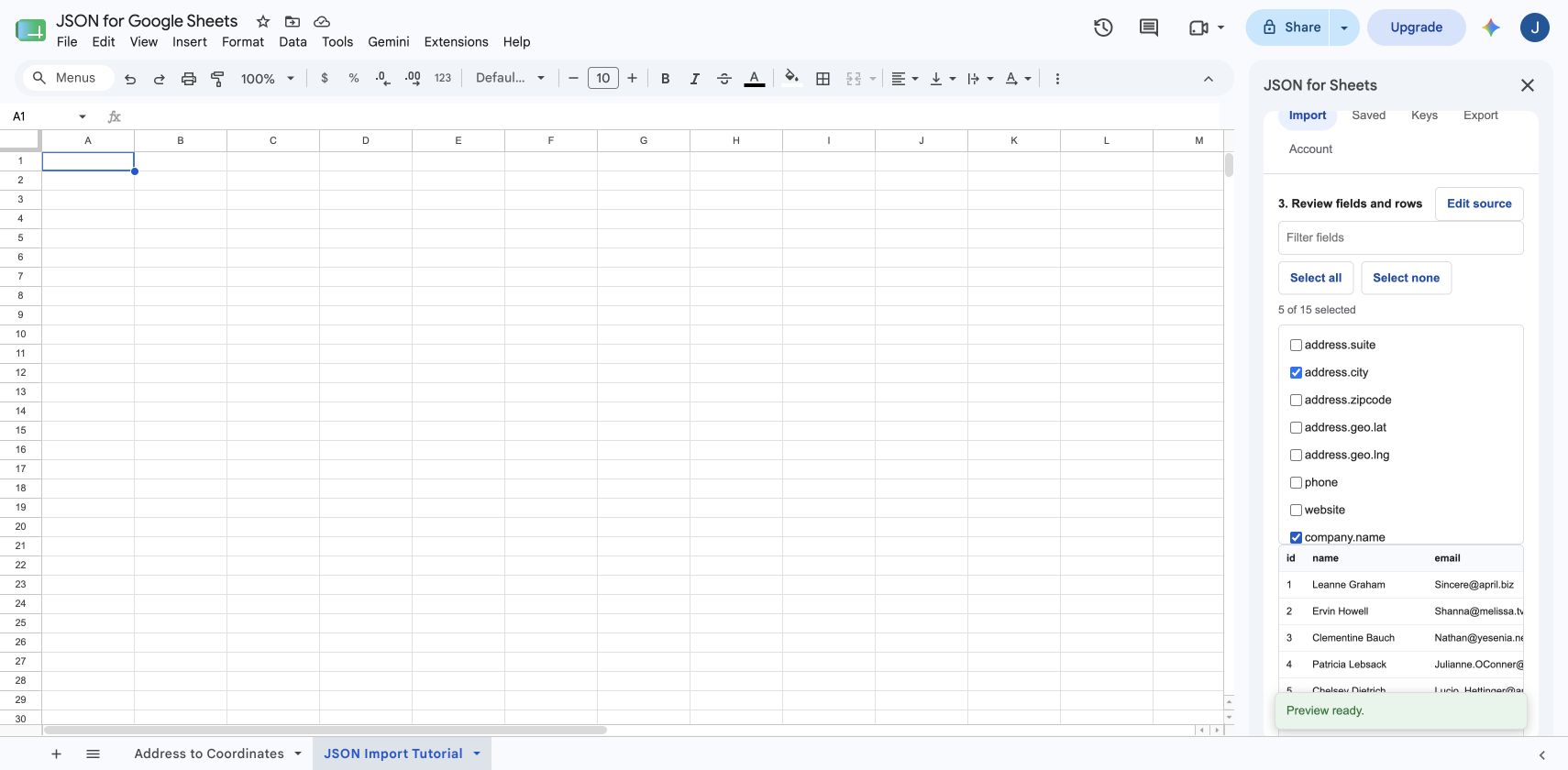
Select Select none, then check id, name, email, address.city, and company.name. The table preview updates immediately as fields change.
Large API responses often contain metadata, internal IDs, and nested fields you will never analyze. Importing only useful columns makes the sheet easier to read and reduces the size of every write.
Step 5
Choose the destination and write mode
Choose Selected cell to begin at the active cell, or New sheet to keep the import separate. For a first import, use Overwrite. Confirm that cells in the destination may be replaced, then click Write table.
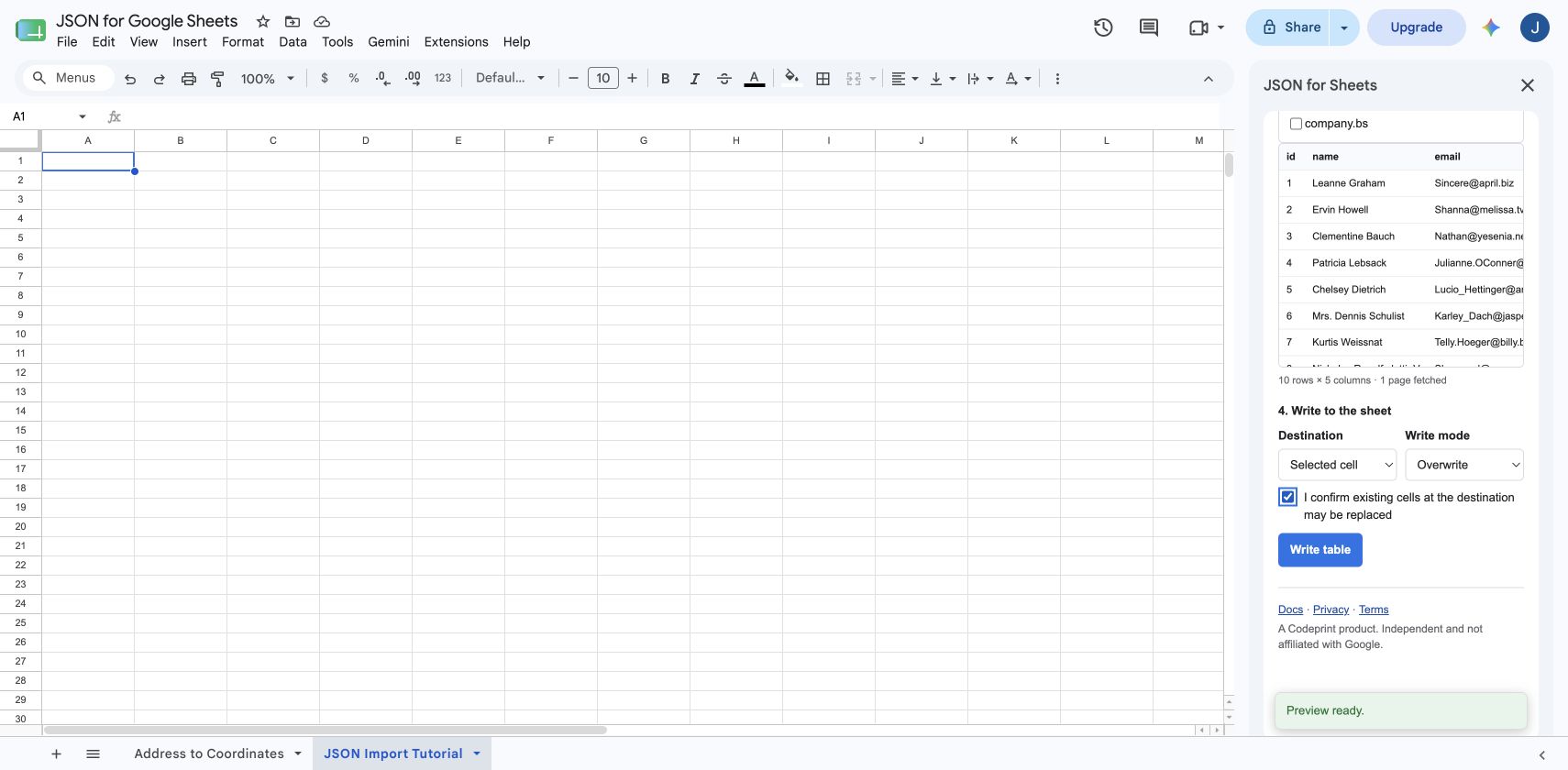
The live run inserted 10 rows and zero updates. After a successful remote import, the sidebar also offers to save the configuration so it can run again without rebuilding the request.
How to upload a local JSON file to Google Sheets
- Open JSON for Sheets and choose From file.
- Select a
.jsonfile up to 5 MB from your computer. - Choose a root path and nested-array mode if needed.
- Preview the file, select the output fields, and write the table.
Local files are read inside the add-on session and are not uploaded to JSON for Sheets servers. Local file previews and writes also do not consume a remote-fetch allowance.
Follow the complete local JSON file guide for a downloadable example, nested-array choices, and screenshots of every step.
If the JSON already lives in a cell, see how to parse JSON with local Google Sheets formulas without consuming a remote request.
What happens to nested JSON?
Objects become dotted field paths. For example, this JSON object produces an address.city column:
{
  "name": "Leanne Graham",
  "address": {
    "city": "Gwenborough"
  }
}
For nested arrays, choose the behavior that matches what one spreadsheet row should mean:
| Array mode | Best for | Result |
|---|---|---|
| Keep as JSON | Preserving the source for later | One JSON string in one cell |
| Join values | Tags and short labels | One readable cell per record |
| Expand to rows | Line items or child records | One output row per child item |
Read the complete nested JSON guide for root paths, arrays of objects, row expansion, multiple-array growth, and formula options.
How to keep JSON data up to date
Remote responses are fetched fresh; JSON for Sheets does not serve a cached response. Preview again for an immediate update, or save the import after writing it.
- Free: five successful remote page fetches per UTC day and manual saved-import runs.
- Starter: monthly remote allowance plus daily and weekly schedules.
- Pro: a larger monthly allowance plus hourly, daily, and weekly schedules.
Scheduled refresh is opt-in. Google Picker asks you to select the current spreadsheet before the add-on may reopen that specific file while it is closed. See the current plan limits and scheduling documentation before building a production sync.
Common JSON import problems
| Problem | What to check |
|---|---|
| No rows found | The records may be inside a wrapper such as data.items. Enter that root path and preview again. |
| 401 or 403 | The endpoint needs authentication. Save a bearer token, API key, or Basic credential under Keys and reference that connection from API request. |
| Blocked destination | The URL resolves to a private or local network address. For security, the remote service accepts public HTTP or HTTPS destinations only. |
| Too many rows | Narrow the root path, reduce the upstream page size, choose fewer fields, or import the response in smaller pages. |
| Unexpected extra rows | Check whether Expand to rows is multiplying a nested array. Use Join values or Keep as JSON when one source record should stay one row. |
Frequently asked questions
Can Google Sheets import JSON natively?
Google Sheets includes import functions for CSV, TSV, HTML, XML, RSS, Atom feeds, and other spreadsheets, but it does not include a native IMPORTJSON function. JSON needs to be transformed by an add-on, Apps Script, or an external integration before it becomes rows and columns.
How do I import JSON from a URL into Google Sheets?
Open JSON for Sheets, choose Public URL, paste the HTTPS endpoint, preview the response, select the fields you want, and write the result to the selected cell or a new sheet.
Can I upload a .json file to Google Sheets?
Yes. Choose From file in JSON for Sheets and select a local .json file up to 5 MB. The file is read inside the add-on session and is not uploaded to JSON for Sheets servers.
How do I handle nested JSON objects?
Nested object keys become dotted fields such as address.city or company.name. Choose only the fields you need. For nested arrays, keep them as JSON, join their values, or expand child items into additional rows.
Does JSON for Sheets cache API responses?
No. Every manual preview and scheduled refresh fetches the remote source again. Response bodies are processed in memory and are not retained in a response cache.
Can the imported JSON refresh automatically?
Yes. Save a remote import after writing it. Free saved imports can run manually; Starter supports daily and weekly schedules, while Pro also supports hourly schedules.
Ready to try it?
Turn your next JSON response into a table.
JSON for Sheets is available now from the Google Workspace Marketplace.