Google Sheets API tutorial
How to connect a JSON API to Google Sheets
Build a repeatable JSON-to-Google-Sheets integration with a visual request builder. Configure the endpoint, query parameters, authentication, root path, output fields, pagination, and refresh behavior without maintaining Apps Script.
In JSON for Sheets, choose API request, select the HTTP method, and enter the endpoint. Add query parameters, non-secret headers, a request body, or an encrypted authentication connection when needed. Preview the response, choose its root path and fields, then write the table to the selected cell or a new sheet. A successful request can be saved for later manual or scheduled runs.
A JSON API example you can repeat
This walkthrough imports eight products from DummyJSON, a public test API that does not require authentication. The exact request used in the screenshots is:
GET https://dummyjson.com/productsAdd these query parameters as separate key=value lines:
limit=8
select=title,price,category,rating,stock
The API returns an object containing products, total, skip, and limit. The product records are inside products, so that is the root path we will use.
Step 1
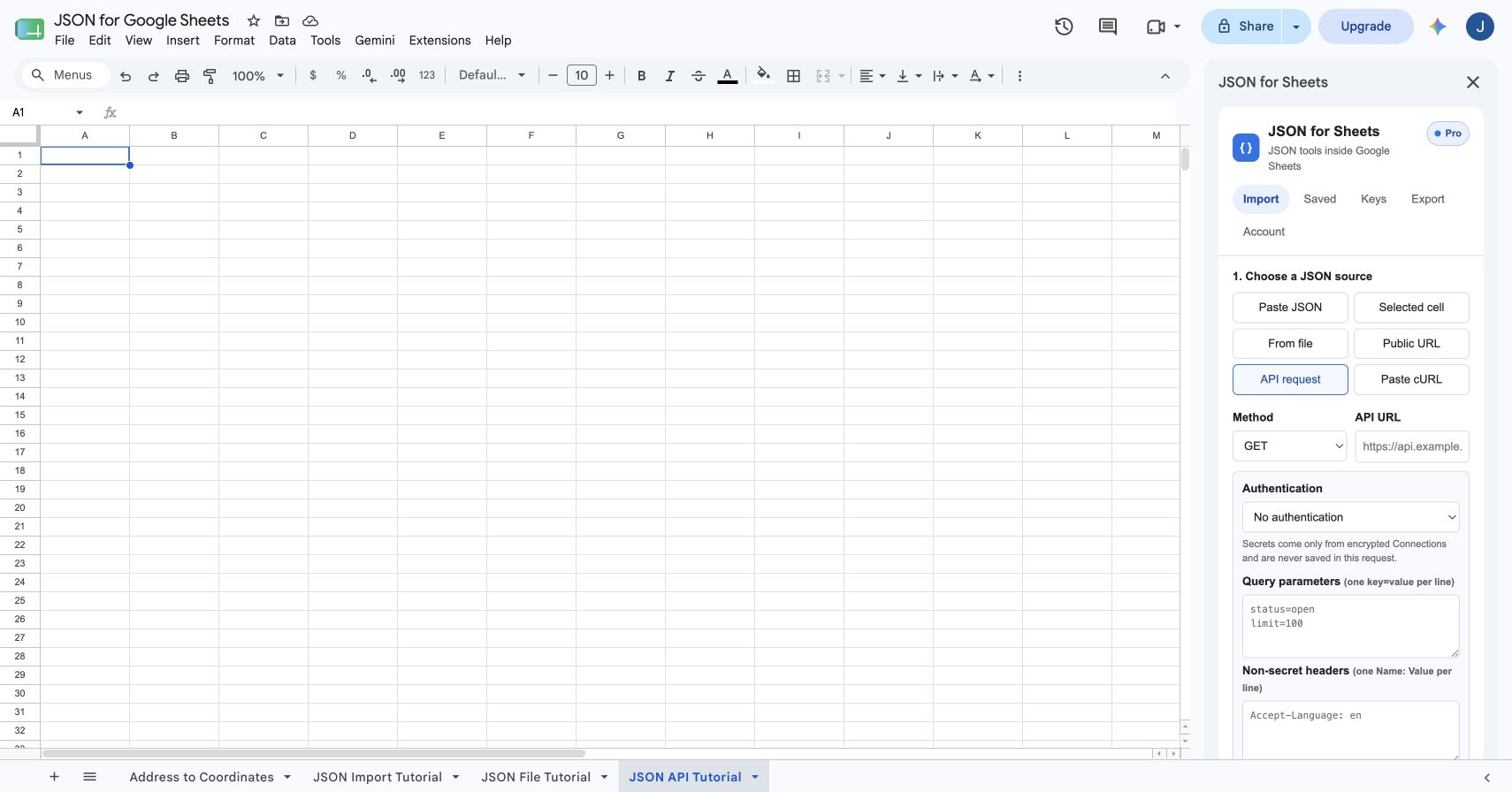
Open the API request builder
Open the destination spreadsheet, then choose Extensions → JSON for Sheets → Open JSON for Sheets. In the Import tab, select API request. The builder supports GET, POST, PUT, PATCH, and DELETE requests.
Step 2
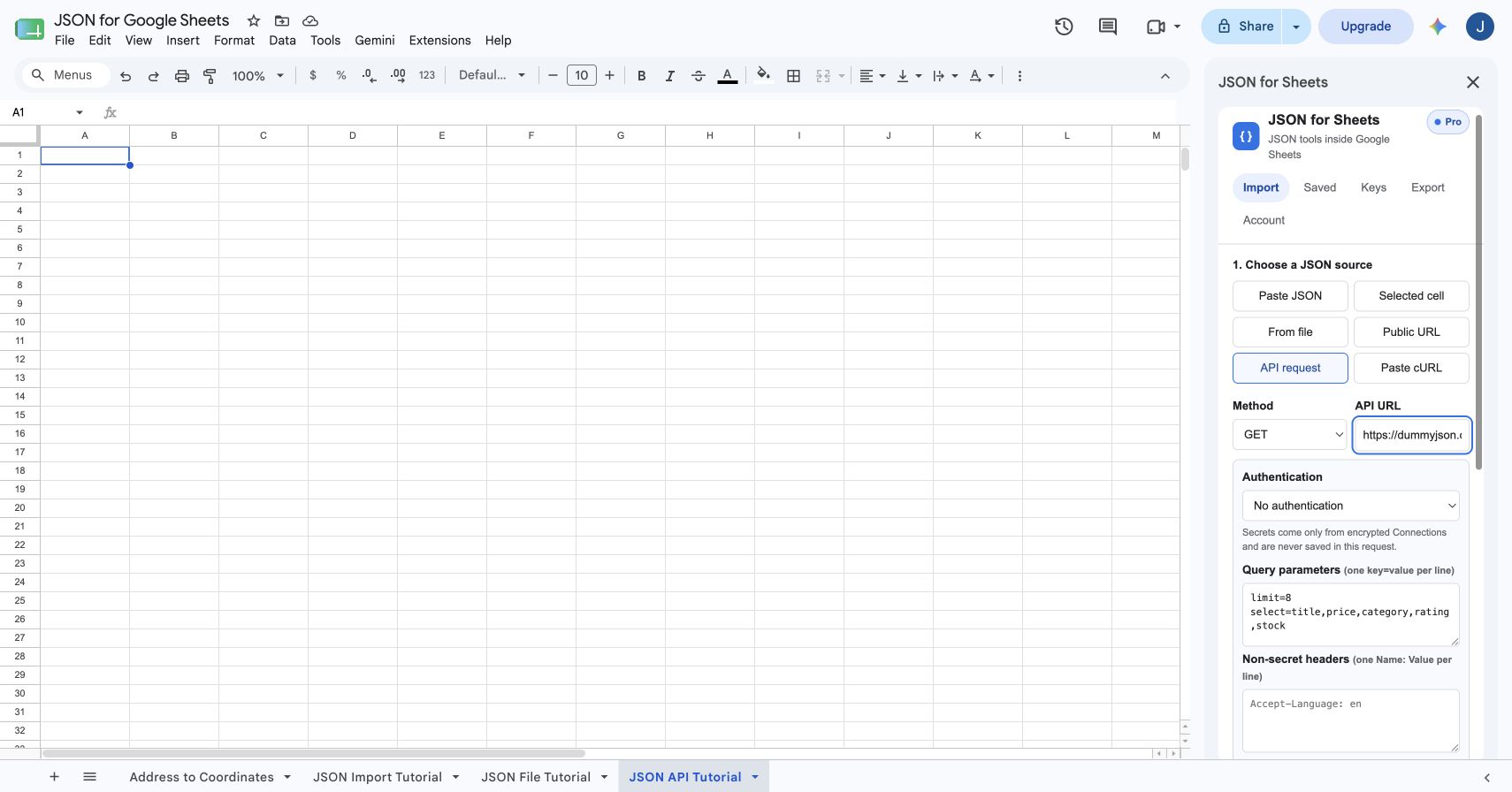
Configure the GET request
Keep the method set to GET and enter https://dummyjson.com/products. Leave Authentication set to No authentication for this public endpoint. In Query parameters, add limit=8 and the select line shown above.
Query parameters are entered separately from the URL so the saved configuration stays readable. Non-secret headers use one Name: Value pair per line. Secrets should never be pasted into that header box; use an encrypted connection instead.
Step 3
Set products as the root path
Enter products under Root path. This tells the transformer to treat each object inside the response's products array as a spreadsheet row instead of trying to turn the wrapper metadata into the table.
If the endpoint returns a top-level array, leave it empty. If rows live inside data, results, items, or another wrapper, enter that path. Simple paths, a documented JSONPath subset, and JMESPath are supported.
Step 4
Preview the API response
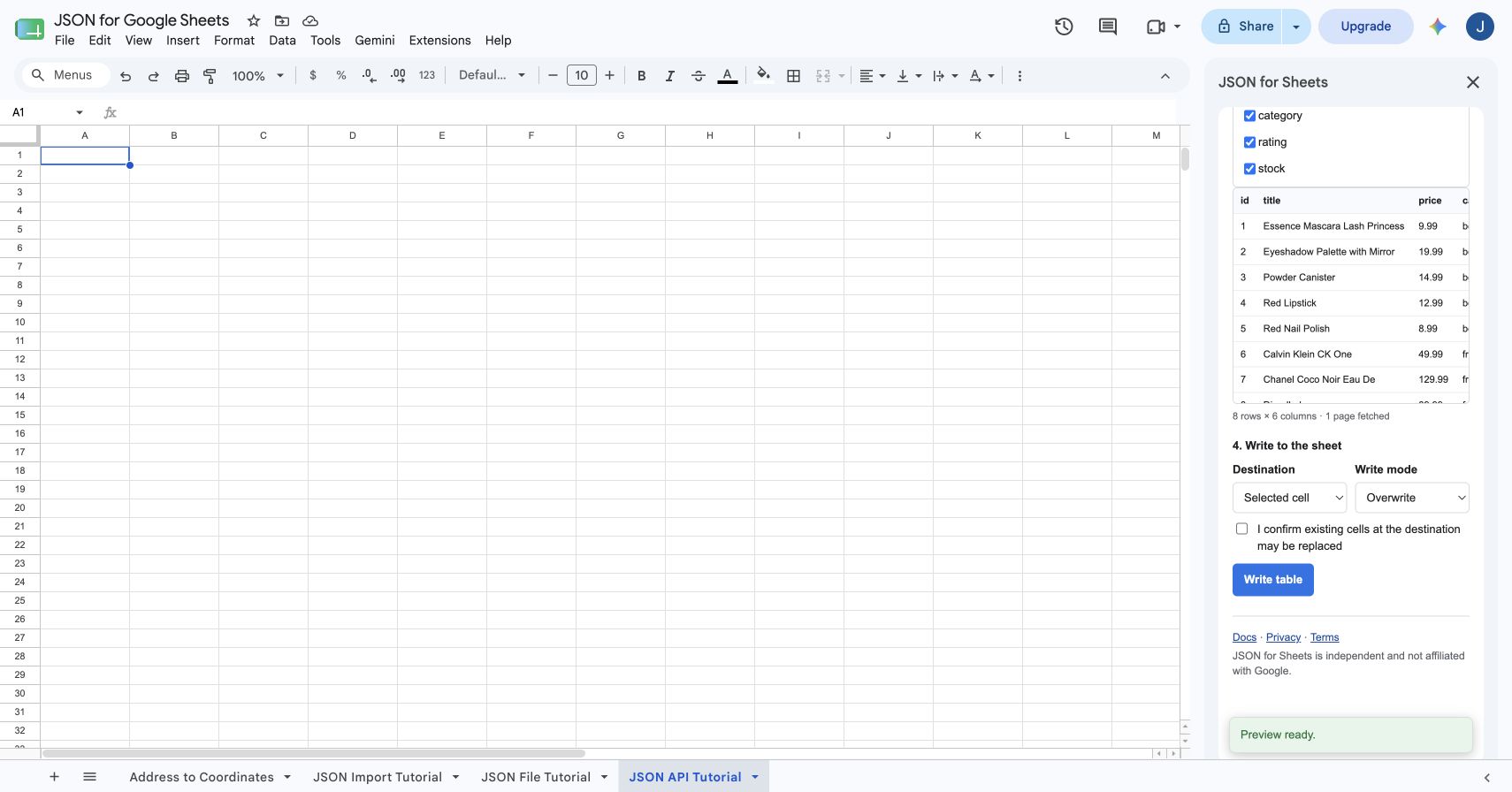
Click Preview JSON. JSON for Sheets fetches the current response, applies the root path, flattens the records, and shows the predicted rows and fields without writing to the spreadsheet.
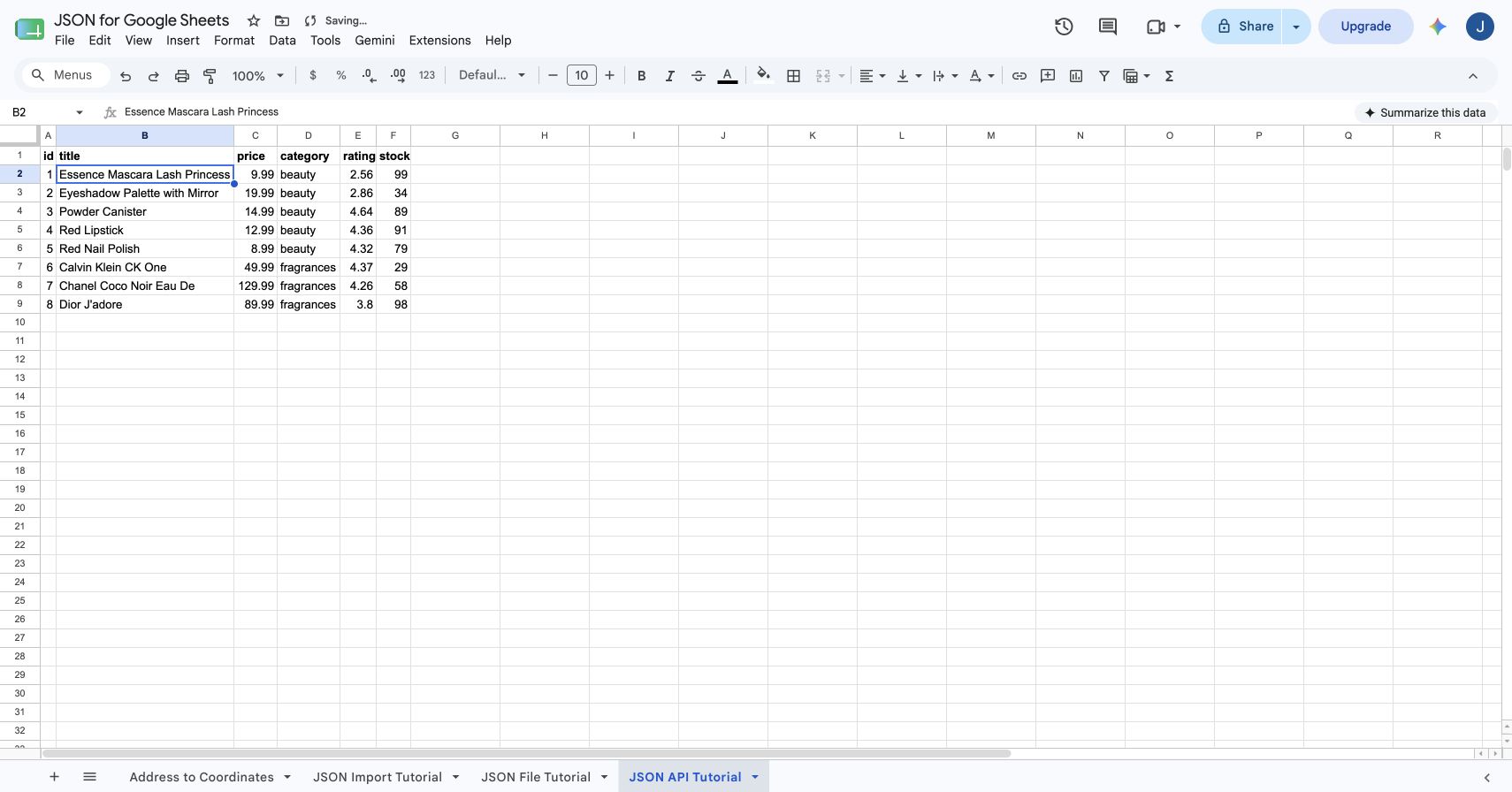
The live example returns eight rows, six fields, and one fetched page: id, title, price, category, rating, and stock. Field checkboxes control exactly which columns will be written.
Step 5
Write the API response to Google Sheets
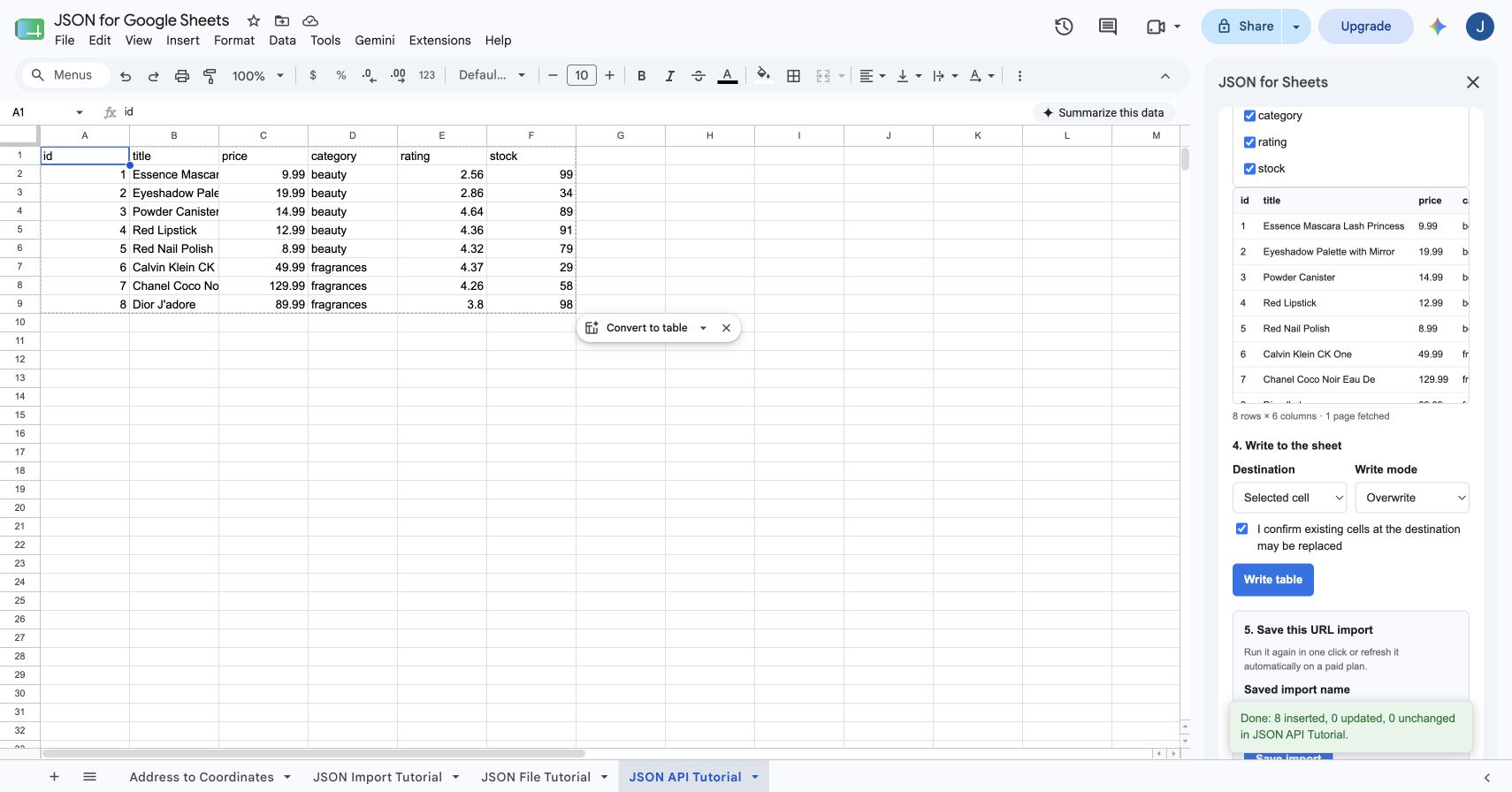
Choose Selected cell or New sheet. For this empty tutorial sheet, use Overwrite and confirm that destination cells may be replaced. Click Write table.
The completion message confirms that eight rows were inserted with zero updates and zero unchanged rows.
How to connect an authenticated API
Open Keys and save one of the supported encrypted connection types:
- Bearer token
- API key in a named header
- API key in a named query parameter
- HTTP Basic username and password
- Custom secret header
Return to API request and select the connection under Authentication. The add-on receives the connection's ID and masked metadata, not the raw secret. The service resolves the credential for the request, and saved credentials stay bound to the original request origin. Cross-origin redirects and response-driven next-page URLs do not receive the original credential or request body.
Do not paste a token into the URL, non-secret header box, spreadsheet, formula, or request body. Save it under Keys so it can be encrypted and kept out of saved request metadata.
Follow the API key authentication guide for screenshots of encrypted connection setup, header and query-key choices, secret handling, and 401/403 troubleshooting.
Use spreadsheet cells as API variables
Add a placeholder such as {{customer_id}} anywhere in the URL, query parameters, non-secret headers, root path, or request body. The sidebar then lets you bind that name to one cell such as A2 or 'Settings'!B2.
JSON for Sheets reads the bound cell again on every manual or scheduled run. Changing the cell changes the next request without editing the saved integration. URL substitutions are encoded, and an exact placeholder in a JSON body keeps the cell's value type.
Import paginated API responses
The request builder supports four common pagination patterns:
| Pagination type | Use it when | Typical configuration |
|---|---|---|
| Page number | The API accepts page 1, 2, 3… | Parameter page and maximum pages |
| Offset + limit | The API accepts a starting offset and page size | offset, limit, and page size |
| Next URL | The response supplies the complete next-page URL | Response path such as next |
| Cursor | The response supplies the next cursor token | Cursor parameter and response path |
Always set a bounded maximum page count. Each successful page consumes one remote fetch and the combined result remains subject to plan limits for pages, response size, rows, columns, cells, and execution time. Failed fetches are not charged.
Save and refresh the JSON API integration
After a successful write, enter a saved-import name and select Save import. Saved requests remember the request configuration, response shaping, selected fields, destination, write mode, variable bindings, and pagination settings.
- Manual refresh: run the saved import whenever you need current data.
- Scheduled refresh: paid plans can enable supported hourly, daily, or weekly intervals.
- Fresh responses: every run requests the upstream API again; there is no response cache.
Follow the automatic JSON refresh guide for the complete save, test, schedule, write-mode, and troubleshooting workflow.
Review the current plans and request allowances before using a high-volume or frequently paginated integration.
Common API integration problems
| Problem | What to check |
|---|---|
| No rows found | The records may be inside data, results, items, or another wrapper. Set the correct root path. |
| 401 or 403 | Confirm the authentication type, credential, header or query name, permissions, and API account status. |
| 400 or validation error | Check method, query values, content type, and whether the endpoint expects JSON or form fields. |
| Private-address block | The destination resolves to a private or local network. JSON for Sheets accepts public HTTP or HTTPS API destinations only. |
| Unexpected columns | Preview again, filter the field list, and select only the columns needed for the sheet. |
| Too many requests | Reduce pages or refresh frequency, check the upstream rate limit, and review the JSON for Sheets allowance. |
Frequently asked questions
How do I connect a JSON API to Google Sheets?
Open JSON for Sheets, choose API request, enter the endpoint and method, add any query parameters or headers, select a saved authentication connection if required, preview the response, and write the selected fields to the spreadsheet.
Can Google Sheets call a REST API without Apps Script?
Yes. An add-on such as JSON for Sheets can make the HTTP request and transform the JSON response into rows and columns without requiring you to write or maintain an Apps Script function.
Can I use a bearer token or API key?
Yes. JSON for Sheets supports encrypted bearer tokens, API keys in a header or query parameter, HTTP Basic credentials, and custom secret headers. Saved credentials are referenced by connection ID and are not written into saved request metadata.
Can I send POST, PUT, PATCH, or DELETE requests?
Yes. The API request builder supports GET, POST, PUT, PATCH, and DELETE methods with no body, a JSON body, or form fields represented as JSON.
How does API pagination work?
Choose page number, offset and limit, next URL, or cursor pagination and set an explicit maximum page count. Each successfully fetched page counts as one remote fetch and remains subject to the plan's row, cell, response-size, and page limits.
Can the API data refresh automatically?
Yes. After a successful write, save the remote import. It can be run manually, and paid plans can enable scheduled refresh intervals supported by the selected plan.
Does JSON for Sheets cache API responses?
No. Each manual preview, saved-import run, or scheduled refresh requests the source again. Response bodies are processed in memory and are not retained in a response cache.
Working with a file instead?
Upload a local JSON file.
The local-file guide covers file privacy, nested arrays, field selection, and safe spreadsheet writes.