JSON formula tutorial
How to parse JSON in Google Sheets
Extract one value, return a nested object, inspect an unknown payload, or turn a complete JSON array into a spillable table. Use local spreadsheet formulas when JSON is already in a cell—or the visual sidebar for URLs, APIs, files, and safer writes.
Google Sheets has no native JSON parser. With JSON for Sheets installed, put JSON text in a cell such as A1 and use =JSON_VALUE(A1,"customer.email") to extract one value, =JSON_QUERY(A1,"items") to return an array as JSON text, or =JSON_TABLE(A1,"items") to spill that array into rows and columns. For remote URLs and APIs, use the sidebar instead of a formula.
Sample JSON for the formula examples
Paste this valid JSON into cell A1:
{
  "order_id": "ORD-1042",
  "customer": {
    "name": "Ana Ruiz",
    "email": "ana@example.com"
  },
  "active": true,
  "items": [
    { "sku": "NB-1", "quantity": 2 },
    { "sku": "DM-4", "quantity": 1 }
  ]
}
The examples below read that cell locally. They do not fetch a URL, send the payload to the JSON for Sheets remote API, or use a remote request from your plan.
Choose a formula or the visual sidebar
| Use formulas when | Use the sidebar when |
|---|---|
| JSON text already exists in a cell | The source is a public URL or authenticated API |
| You need a live scalar lookup | You want a field preview before writing |
| A spillable result can occupy adjacent cells | You need pagination, saved requests, or schedules |
| You want to inspect, validate, format, or minify local JSON | You need explicit destinations, append, overwrite, or update-or-append |
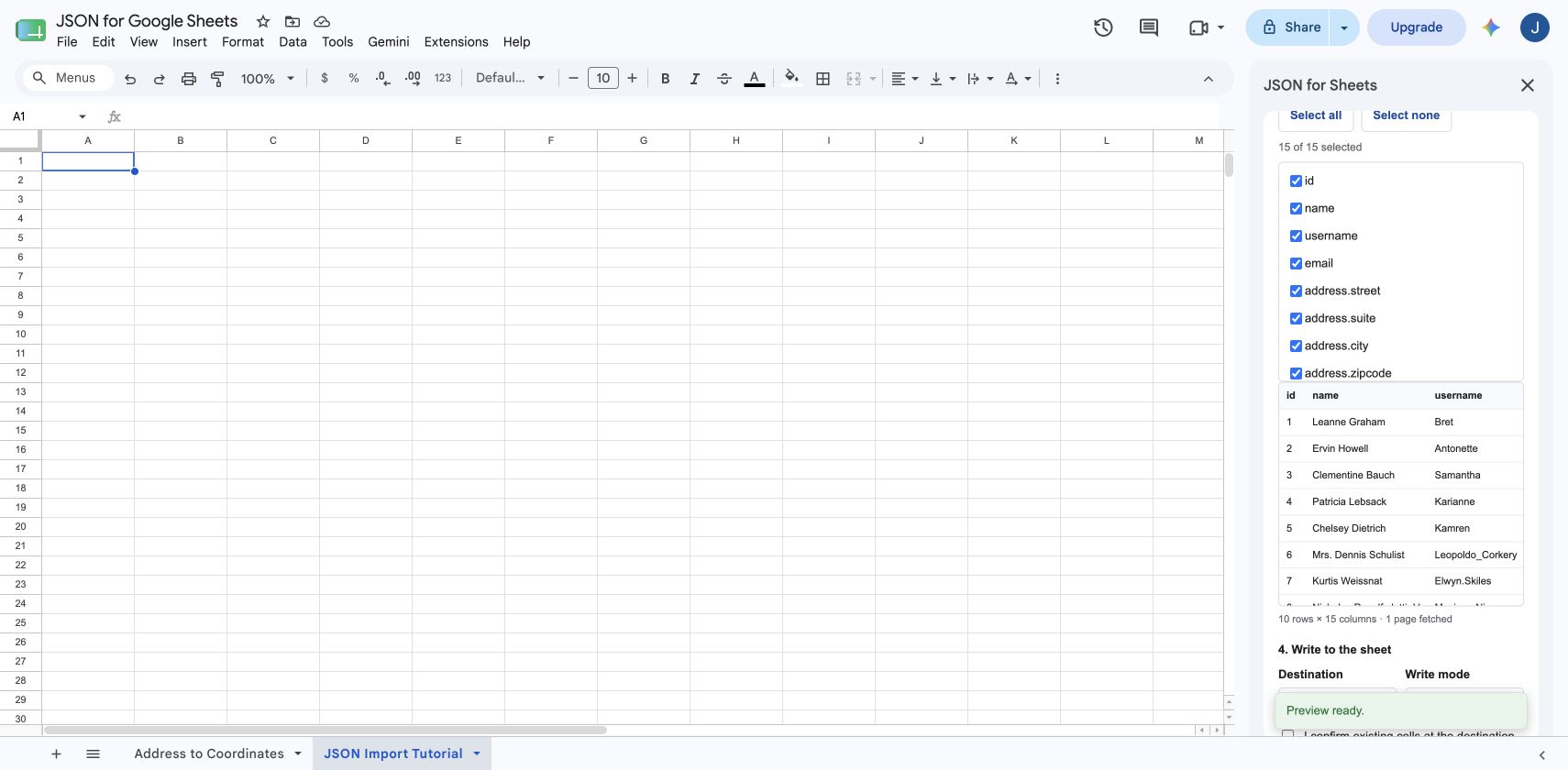
The sidebar also handles pasted JSON, a cell, and local files. Its preview is useful when the structure is unknown or the output could be large.
Step 1
Check whether a cell contains valid JSON
=JSON_VALID(A1)The result is TRUE when the cell contains valid JSON and FALSE when parsing fails. Use this before other parsing formulas when data may contain trailing commas, incomplete strings, comments, or ordinary text.
JSON rules are stricter than JavaScript object syntax: property names and text strings require double quotes, comments are not allowed, and a final property cannot be followed by a trailing comma.
Step 2
Inspect an unfamiliar JSON structure
Use these formulas before guessing at paths:
| Formula | Result for the sample |
|---|---|
=JSON_TYPE(A1,"items") | array |
=JSON_LENGTH(A1,"items") | 2 |
=JSON_KEYS(A1,"customer") | Spills name and email down two rows |
=JSON_SCHEMA(A1) | Spills discovered paths, types, and counts |
JSON_TYPE returns object, array, string, number, boolean, or null. JSON_LENGTH counts array items, object keys, or string characters. JSON_KEYS lists object keys or array indexes vertically.
Step 3
Extract one JSON value into a cell
=JSON_VALUE(A1,"customer.email")The formula returns:
ana@example.comArray indexes work too:
=JSON_VALUE(A1,"items[0].sku")This returns NB-1. Add a fallback as the third argument when a path may be missing:
=JSON_VALUE(A1,"customer.phone","Not provided")Use JSON_VALUE when the expected result is a string, number, boolean, or null-like value that belongs in one cell. When a selected value is null, the formula returns the supplied fallback or a blank cell.
Step 4
Return a selected object or array as JSON text
=JSON_QUERY(A1,"items")The result is compact JSON in one cell:
[{"sku":"NB-1","quantity":2},{"sku":"DM-4","quantity":1}]JSON_QUERY is useful when another formula, script, API request, or export needs valid JSON rather than separate spreadsheet columns. It can use Simple path by default, or an explicit JSONPath subset or JMESPath language through its options argument.
Step 5
Convert a JSON array into rows and columns
=JSON_TABLE(A1,"items","headers=true")The formula spills this table into neighboring cells:
| sku | quantity |
|---|---|
| NB-1 | 2 |
| DM-4 | 1 |
Nested objects automatically become dotted columns. Nested arrays can remain JSON, join into one cell, or expand into additional rows with array=json, array=join, or array=rows. Read the nested JSON guide for complete examples and expansion warnings.
JSON_TABLE returns a two-dimensional array. Clear cells below and to the right of the formula so Google Sheets can display every output row and column.
Pretty-print or minify JSON text
Make compact JSON easier to read:
=JSON_PRETTY(A1,2)Remove unnecessary whitespace:
=JSON_MINIFY(A1)The optional indentation for JSON_PRETTY accepts values from 0 through 10 and defaults to 2. Both functions validate the input before returning formatted JSON text.
Understand JSON path syntax
| Path | Selected value |
|---|---|
customer.email | A nested object property |
items[0].sku | The first array item's SKU |
$ or an empty path | The complete JSON value |
["a.b"] | A source key that literally contains a dot |
Simple paths cover most extraction tasks. JSON_QUERY and JSON_TABLE can also use the documented JSONPath subset or JMESPath by adding language=jsonpath or language=jmespath to the options string.
Parse JSON from a URL or API in the sidebar
Do not use JSON_IMPORTfor a remote URL. It is intentionally disabled in the current release. A custom formula can recalculate when another collaborator opens or edits a shared spreadsheet, which could otherwise spend the spreadsheet owner's account allowance.
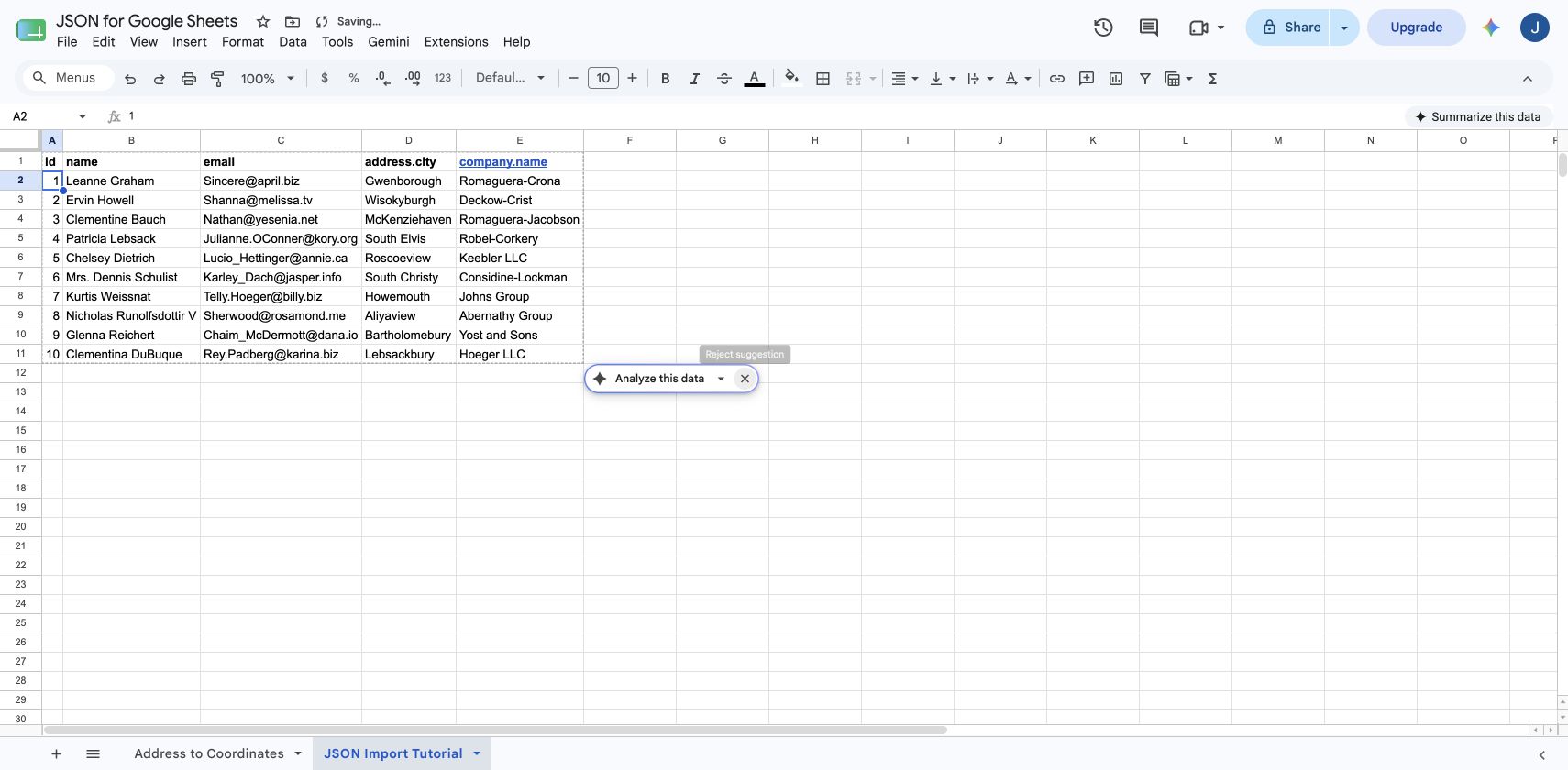
Instead, open JSON for Sheets and choose Public URL or API request. Remote work then runs under the active user's installation token and supports previews, authentication, pagination, fields, safe destinations, saved imports, and schedules.
Follow the complete JSON API guide for authentication, parameters, request bodies, pagination, and refresh behavior.
JSON parsing function reference
| Function | Purpose |
|---|---|
JSON_VALUE | Extract a selected scalar, with an optional fallback |
JSON_QUERY | Return a selected value as compact JSON text |
JSON_KEYS | List object keys or array indexes |
JSON_LENGTH | Count array items, object keys, or string characters |
JSON_TYPE | Identify the selected JSON value type |
JSON_VALID | Return TRUE or FALSE for valid JSON |
JSON_PRETTY | Format JSON with readable indentation |
JSON_MINIFY | Remove unnecessary JSON whitespace |
JSON_TABLE | Convert JSON into a spillable table |
JSON_FLATTEN | Use the same table engine with a flattening-oriented name |
JSON_SCHEMA | List discovered paths, types, and counts |
TABLE_TO_JSON | Convert a spreadsheet range back into JSON text |
See the complete function reference and JSON_TABLE documentation for argument details.
Troubleshoot JSON parsing in Google Sheets
| Problem | What to check |
|---|---|
| Invalid JSON | Remove comments and trailing commas, close every bracket and quote, and use double quotes for JSON strings and property names. |
| Path does not exist | Use JSON_SCHEMA or JSON_KEYS to inspect the payload, then verify property spelling, capitalization, and array indexes. |
| Array appears in one cell | JSON_QUERY returns JSON text. Use JSON_TABLE when the array should become rows and columns. |
| Spill result is blocked | Clear cells that overlap the expected JSON_TABLE, JSON_KEYS, or JSON_SCHEMA output. |
| Remote formula returns an error | JSON_IMPORT is disabled. Open the sidebar and use Public URL or API request. |
| Unexpected blank cells | Some records may not contain the selected field, or JSON_VALUE may have selected a null value. |
| JSON looks truncated | Google Sheets cell limits still apply. Use the sidebar for larger tables instead of storing a complete payload in one cell. |
Frequently asked questions
Can Google Sheets parse JSON natively?
Google Sheets does not include native JSON parsing functions. JSON for Sheets adds local formulas such as JSON_VALUE, JSON_QUERY, JSON_TABLE, and JSON_SCHEMA, plus a visual sidebar for local and remote sources.
How do I extract one value from JSON in a Google Sheets cell?
If A1 contains JSON, use a formula such as =JSON_VALUE(A1,"customer.email"). The path can use dotted object properties and array indexes.
How do I convert a JSON array into Google Sheets rows and columns?
Use JSON_TABLE with a path to the record array, or use the sidebar's visual preview and field picker. JSON_TABLE spills a two-dimensional table beginning at the formula cell.
What is the difference between JSON_VALUE and JSON_QUERY?
JSON_VALUE is designed to return a selected scalar as a spreadsheet value. JSON_QUERY returns the selected JSON value as compact JSON text, which is useful for objects and arrays.
How can I check whether a cell contains valid JSON?
Use =JSON_VALID(A1). It returns TRUE when the cell contains valid JSON and FALSE when parsing fails.
Can I parse JSON directly from a URL with a formula?
Remote JSON imports are sidebar-only in the current release. JSON_IMPORT is intentionally disabled so shared-sheet recalculation cannot spend the wrong user's remote allowance. Use Public URL or API request in the sidebar.
Do local JSON formulas consume remote requests?
No. Parsing JSON text already present in a cell with JSON_VALUE, JSON_QUERY, JSON_TABLE, JSON_SCHEMA, or the other local functions does not consume the remote-fetch allowance.
Choose the right parsing workflow
Use a formula locally—or preview a complete source.
Start with local functions when JSON already lives in the sheet. Use the sidebar for URLs, API credentials, pagination, saved requests, destinations, and scheduled updates.