Nested data tutorial
How to flatten nested JSON in Google Sheets
Turn nested objects into useful columns and decide exactly what arrays should mean in a spreadsheet. Keep them intact, join simple values, or expand child records into rows—without hand-writing a recursive parser.
Open JSON for Sheets and choose your JSON source. Set Root path to the record array, then choose Keep as JSON, Join values, or Expand to rows under Nested arrays. Preview the response. Nested objects automatically appear as dotted fields such as customer.name and shipping.city. Select the fields you need and write the table.
How nested objects become spreadsheet columns
JSON objects have hierarchy; spreadsheet tables do not. JSON for Sheets preserves that hierarchy in each column name by joining property names with dots.
{
  "order_id": "ORD-1042",
  "customer": {
    "name": "Ana Ruiz",
    "email": "ana@ruiz.co"
  },
  "shipping": {
    "city": "Austin",
    "country": "US"
  }
}
The flattened headers are:
order_id · customer.name · customer.email · shipping.city · shipping.countryThe original JSON is not changed. The dotted paths identify where each value came from and prevent unrelated fields such as customer.name and vendor.name from colliding.
If a source key literally contains a dot, the parser uses bracket notation such as ["a.b"]. That remains distinct from the nested path a.b.
Three ways to handle nested JSON arrays
Consider one order with two tags:
{
  "order_id": "ORD-1042",
  "tags": ["rush", "gift"]
}| Nested-array mode | Output | Best use |
|---|---|---|
| Keep as JSON | ["rush","gift"] in one cell | Preserving the exact array for later processing |
| Join values | rush, gift in one cell | Readable tags, labels, names, or categories |
| Expand to rows | Two rows; the order ID repeats | Treating every child item as a spreadsheet record |
There is no universally correct mode. Choose based on what one spreadsheet row should represent. If one row means one order, keep or join its tags. If one row means one tag assignment, expand them.
Step 1
Choose the JSON source
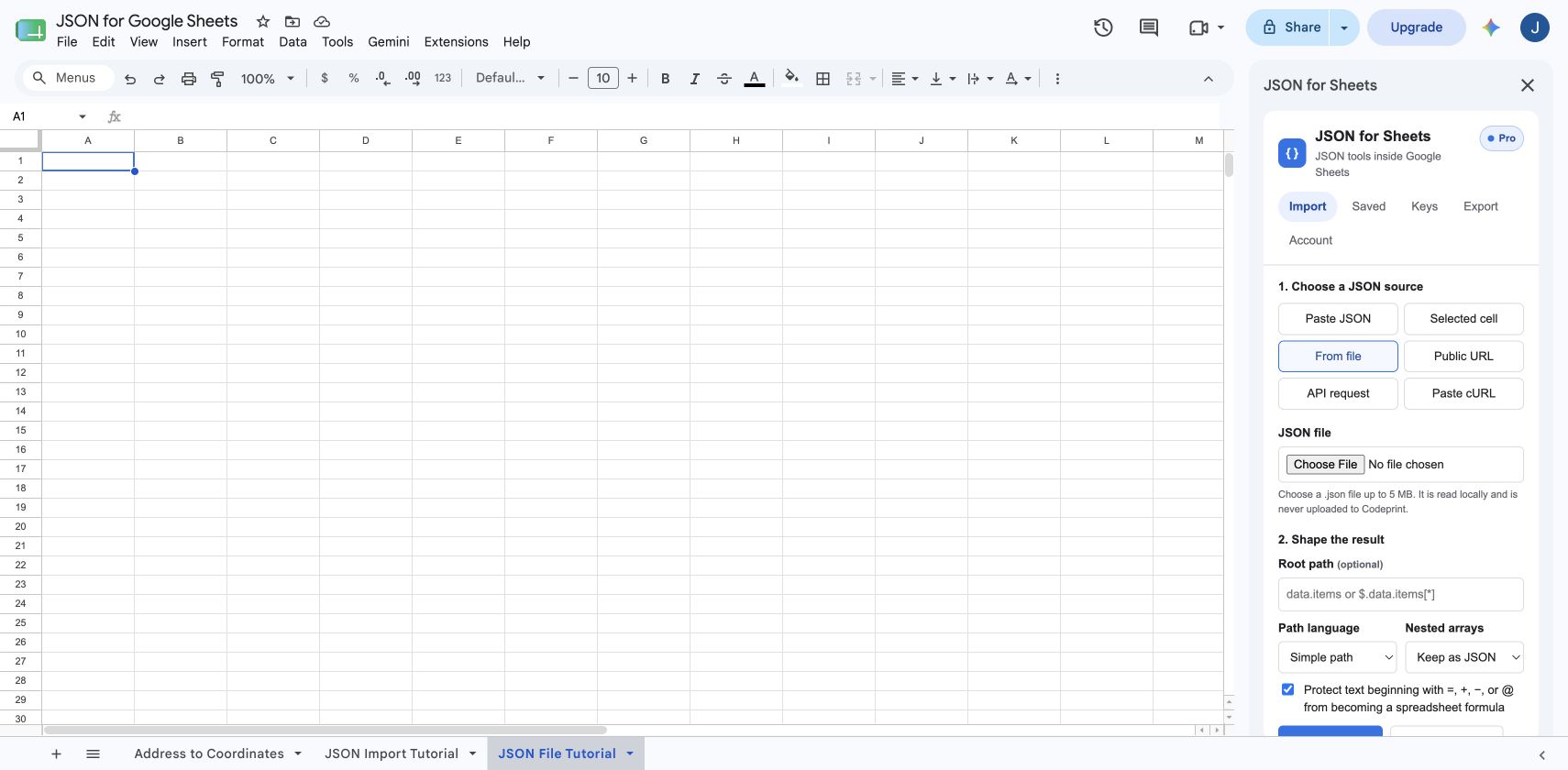
Open Extensions → JSON for Sheets → Open JSON for Sheets. The same shaping controls work with pasted JSON, a spreadsheet cell, a local .json file, a public URL, or a configured API request.
This walkthrough uses the downloadable orders.json example. It contains nested customer and shipping objects plus an array of item names. Choose From file and select the local file.
Step 2
Point Root path at the record array
Leave Root path empty when the top level is already the record array. If the response wraps records inside an object, enter the path to that array. For example, {"data":{"orders":[...]}} uses data.orders in Simple path mode.
JSON for Sheets also offers a JSONPath subset and JMESPath for more advanced selection. Start with Simple path unless you need filtering or a more complex projection; the easiest table begins from the narrowest record array that already represents your rows.
Step 3
Choose Keep as JSON, Join values, or Expand to rows
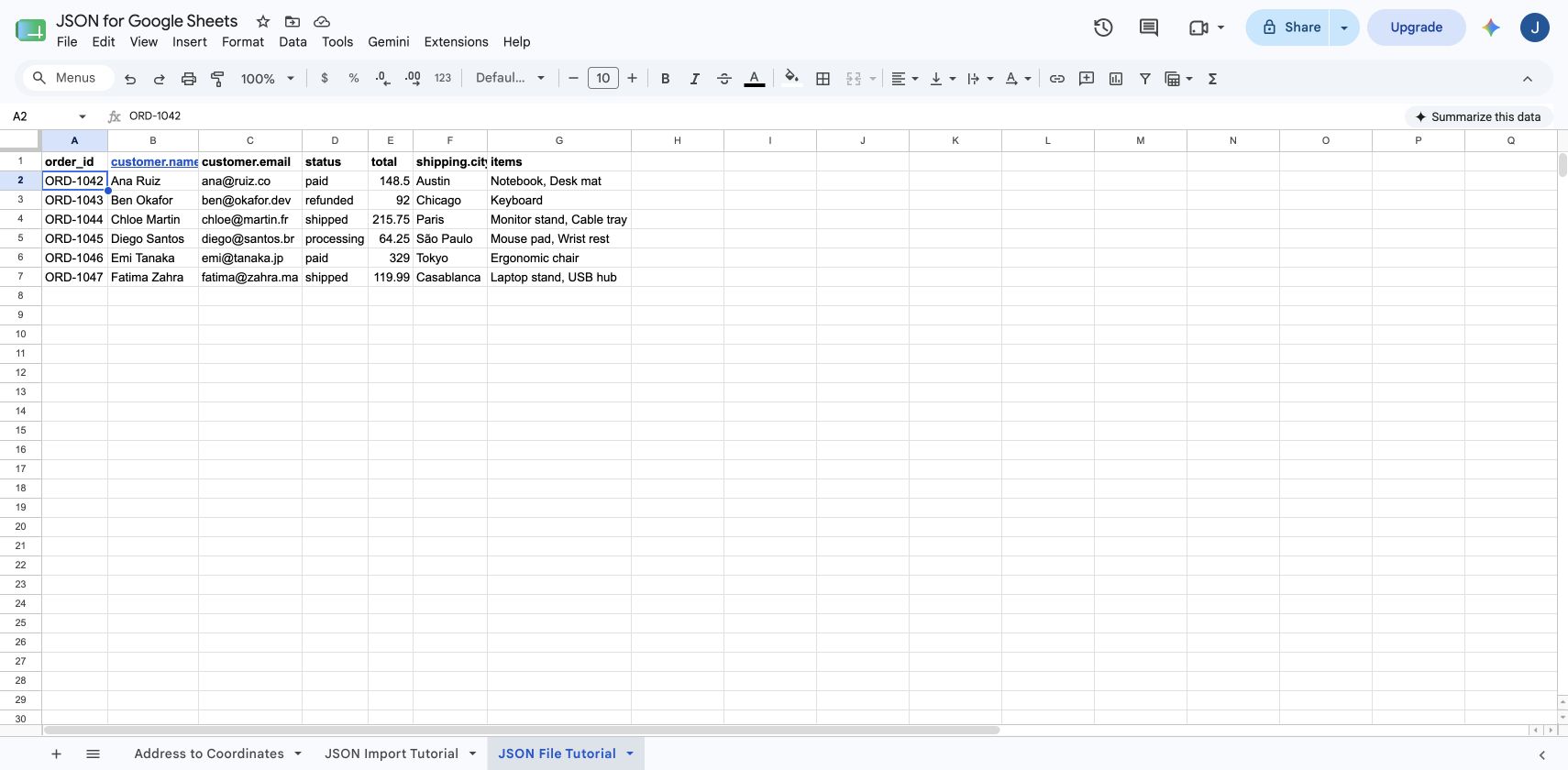
For the order sample, choose Join values. Each order remains one row, while its item names become a readable value such as Notebook, Desk mat. Choose Keep as JSON if punctuation and structure must remain exact.
Use Expand to rows for line items or child records. An order with two item objects becomes two spreadsheet rows. Parent values are repeated, and child object fields become paths such as items.sku and items.quantity.
Step 4
Preview the flattened fields and expanded row count
Select Preview JSON. The field list shows nested objects as dotted paths. The preview also reports source rows, output rows, columns, and warnings before the spreadsheet changes.
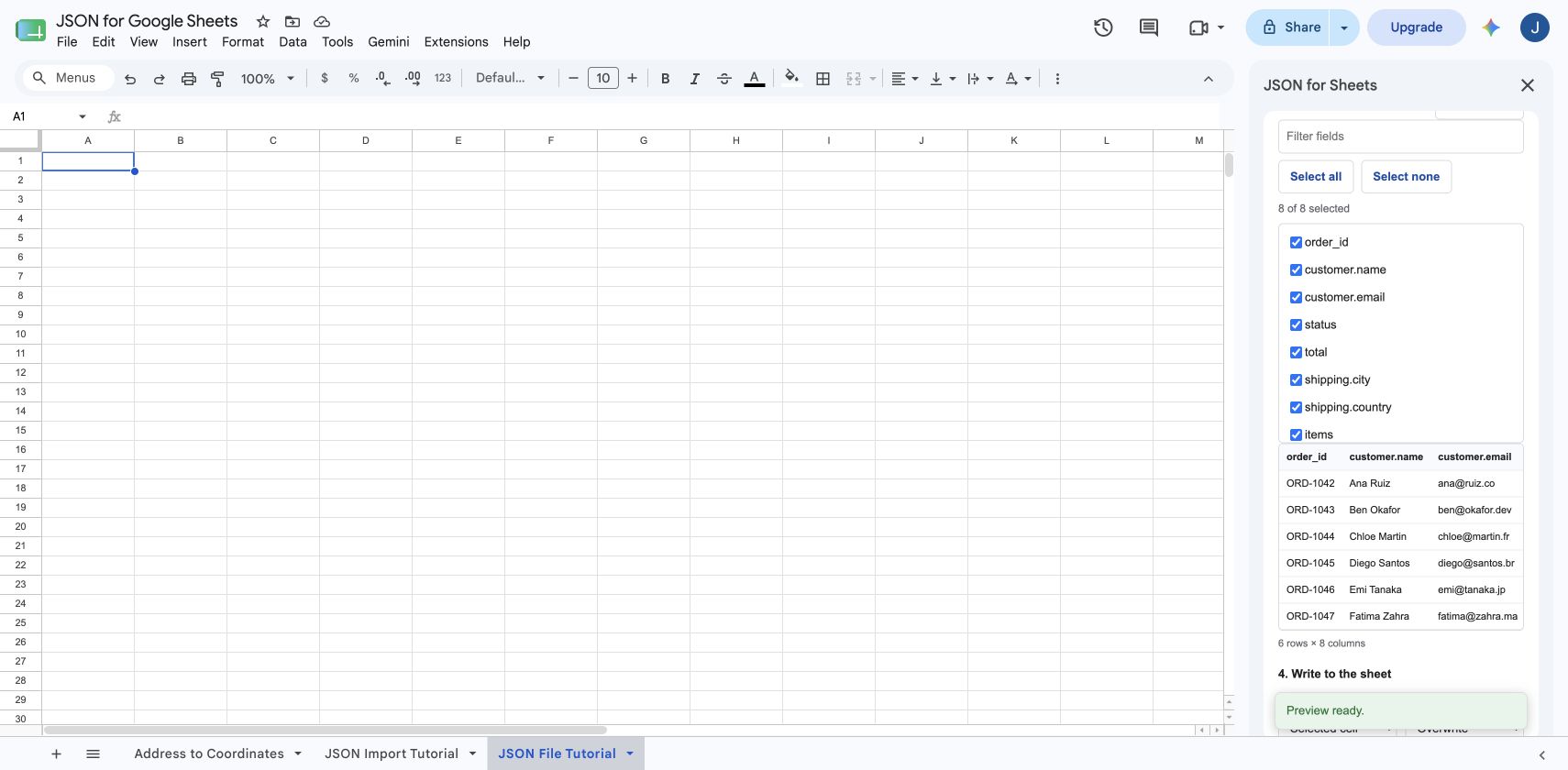
When Expand to rows produces more output rows than source records, the preview warns about the expansion. Treat that as a data-model check: confirm that each child item truly should become its own row.
Step 5
Select useful nested fields and write the table
Keep only the parent and child fields required for the final table. In the order example, the selected output includes order_id, customer.name, customer.email, status, total, shipping.city, and items.
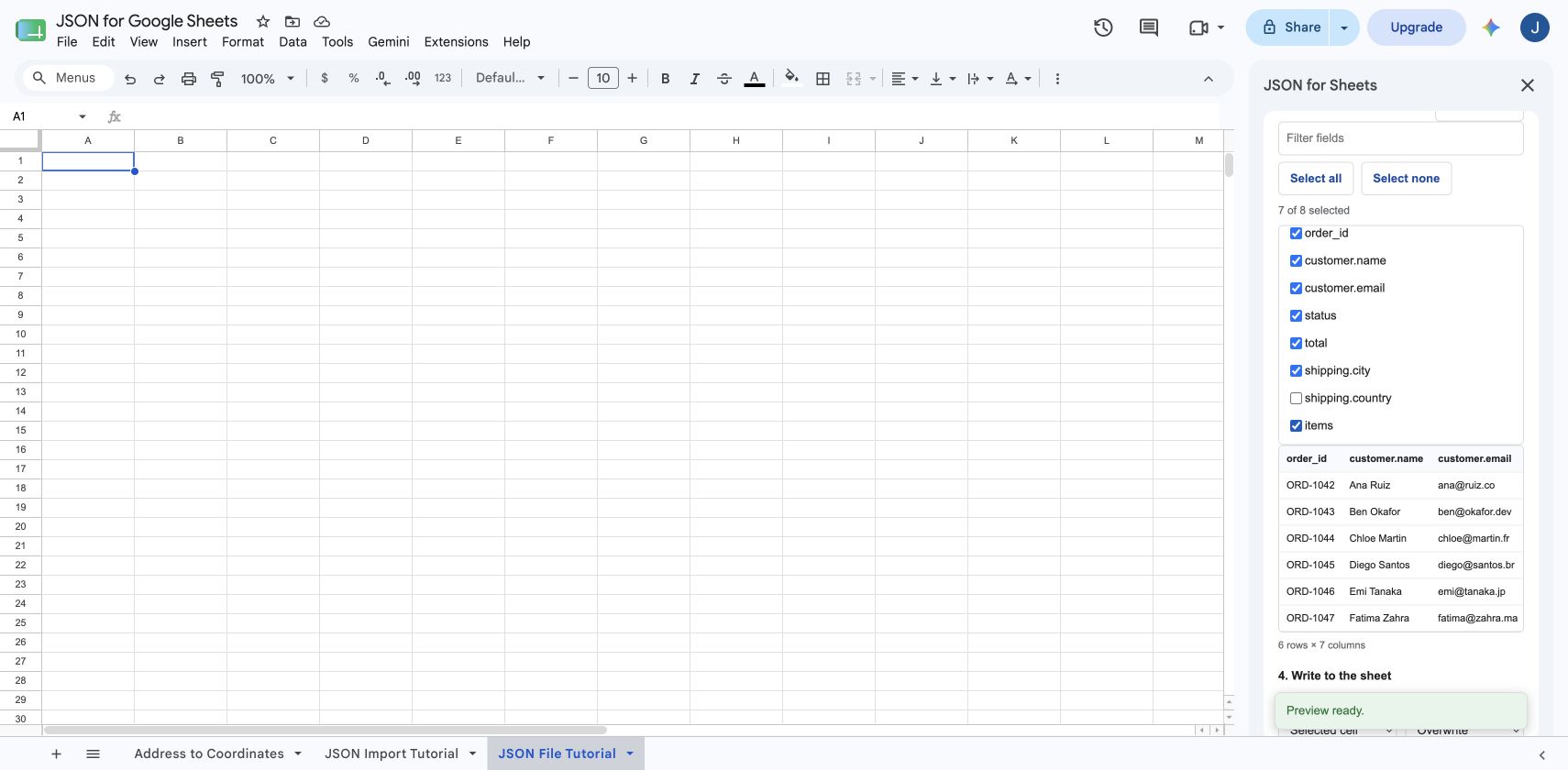
Choose the destination and write mode, confirm an overwrite when required, and select Write table. The completed sample keeps one row per order because its item arrays were joined.
Be careful when expanding multiple sibling arrays
Suppose one record has three items and four discounts. Expanding both arrays produces 12 combinations, not seven rows. This Cartesian expansion is sometimes correct, but it is often a sign that two separate child tables would be clearer.
JSON for Sheets calculates projected growth before materializing oversized combinations. It reports expansion warnings and rejects output that would exceed configured row or total-cell limits. Even when the output fits, preview the count before writing.
- Keep one array as JSON while expanding the array you plan to analyze.
- Join simple labels instead of expanding them.
- Run two imports with different root paths when child arrays represent separate tables.
Flatten JSON with the JSON_TABLE formula
For local JSON text in a cell, the custom function uses the same conversion engine:
=JSON_TABLE(A1,"data.orders","array=rows;headers=true")Common array options are:
array=jsonkeeps each nested array as compact JSON.array=joinjoins array values in one cell.array=rowsexpands child items into output rows.delimiter= |changes the join delimiter when using the formula.
The sidebar is better when you want a visual field picker, row-count warnings, destination controls, saved remote imports, or scheduled refreshes. Remote URL imports remain sidebar-only so usage is charged to the correct account.
Read the JSON parsing guide for JSON_VALUE, JSON_QUERY, JSON_SCHEMA, validation, formatting, and the complete local-function workflow.
Troubleshoot nested JSON imports
| Problem | What to check |
|---|---|
| No rows found | Root path may point to the wrapper instead of the record array. Try a path such as data.items. |
| Too many rows | Expand to rows is multiplying one or more nested arrays. Join or preserve arrays that should not become records. |
| Array shows as JSON text | Keep as JSON is selected. Choose Join values or Expand to rows and preview again. |
| Nested fields are blank | Some records may not contain those paths. The combined table includes detected columns and leaves missing values blank. |
| Unexpected dotted and bracketed fields | Dotted paths represent nesting; bracket notation identifies source keys that literally contain dots or special characters. |
| Output exceeds a limit | Narrow the root path, choose fewer fields, reduce pagination, or avoid expanding multiple arrays in the same import. |
Frequently asked questions
How do I flatten nested JSON in Google Sheets?
Open JSON for Sheets, choose the JSON source, select the record array with Root path, and preview it. Nested object properties automatically become dotted columns such as customer.name. Choose how nested arrays should be handled before writing the table.
How do I turn a JSON array into multiple Google Sheets rows?
Choose Expand to rows under Nested arrays. Each child item becomes an output row, while parent values such as an order ID are repeated so every row keeps its context.
Can I keep an array in one spreadsheet cell?
Yes. Keep as JSON serializes the complete array into one cell. Join values produces a readable comma-separated cell for simple tags or labels.
What is a root path in a JSON import?
A root path points to the part of the response that should become the table. If records are inside data.orders, use data.orders so the preview starts from that array instead of the response wrapper.
What happens when JSON records have different fields?
JSON for Sheets creates the union of detected fields as columns. A record that does not contain one of those fields receives a blank cell in that column.
Why did expanding nested arrays create many rows?
One child array creates one row per child. Multiple sibling arrays create combinations of their child items, which can multiply quickly. The preview reports expansion and the parser rejects output that exceeds configured row or cell limits.
Can I flatten JSON with a spreadsheet formula?
Yes. JSON_TABLE flattens objects by default. Use options such as array=json, array=join, or array=rows to choose the nested-array behavior, and set a delimiter when joining values if needed.
Start with a real nested file
Turn orders.json into a clean table.
Download the sample, compare all three array modes, select the useful nested fields, and verify the output before using your own data.