Spreadsheet export tutorial
How to export Google Sheets to JSON
Turn a selected spreadsheet table into clean JSON without writing an Apps Script. Export an array of objects, a keyed object, or raw row arrays; preserve useful value types; optionally rebuild nested objects; then copy the result.
Select the table you want to convert, including its headers. Choose Extensions → JSON for Sheets → Export selected range to JSON. Leave Array of objects, Use headers, and Pretty print JSON selected for the most common output. Select Export selection, review the result, and choose Copy JSON.
Prepare the spreadsheet table
Keep one field per column and one record per row. For an array of objects, the first selected row should contain unique, non-empty field names such as id, title, price, and category.
The exporter reads the values in the selected range. It does not export cell formatting, comments, notes, filters, charts, or conditional-formatting rules. Formula cells contribute their evaluated values rather than their formula text.
Do not select the entire sheet unless every included row and column belongs in the JSON. A focused table produces smaller, clearer output and avoids accidental blank records.
Step 1
Select the range to export
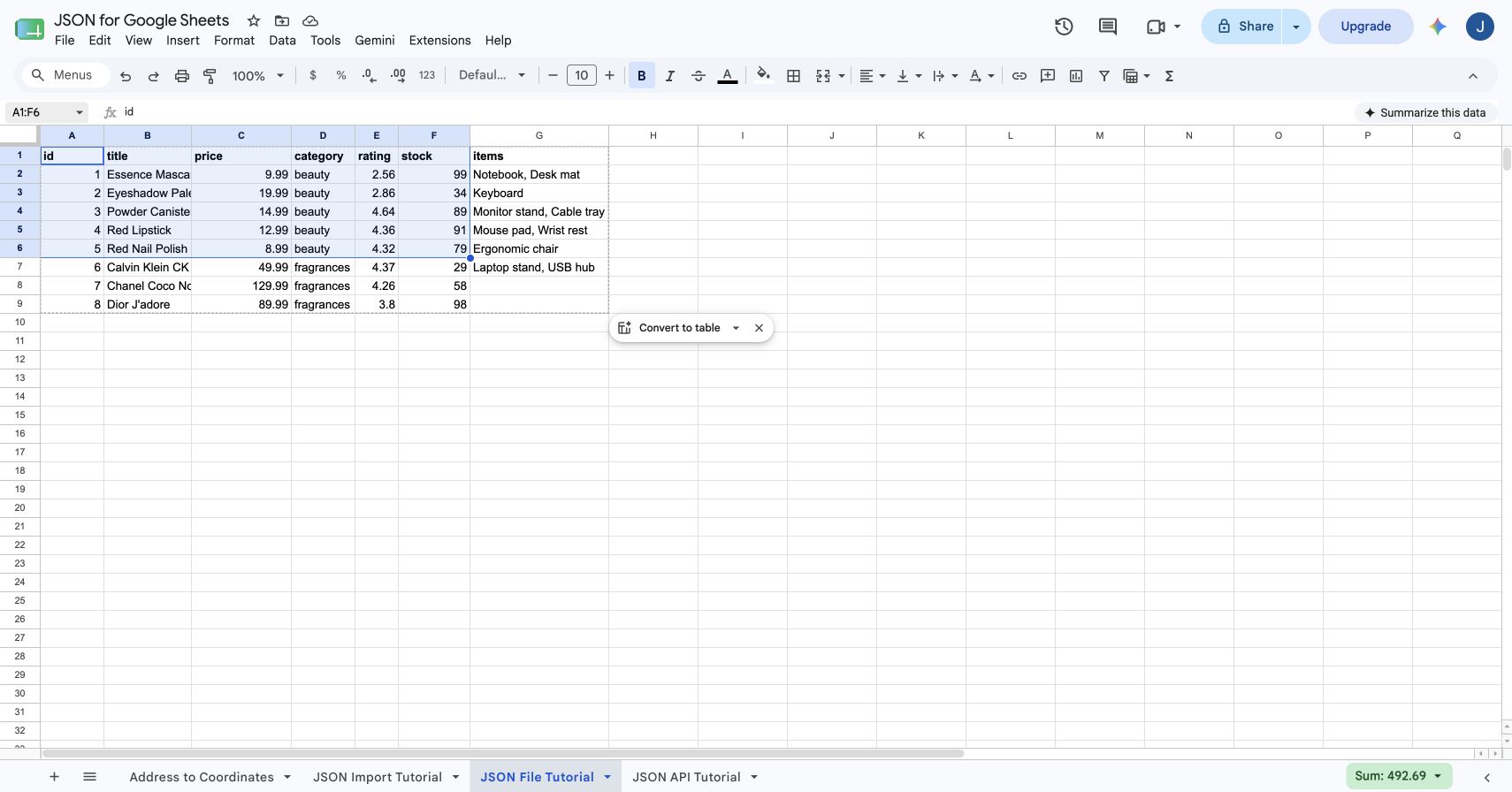
Drag across the complete table or enter its A1 notation in the name box. In this example, A1:F6 includes six headers and five product records. The selection includes the header row because those labels will become JSON property names.
Step 2
Open Export selected range to JSON
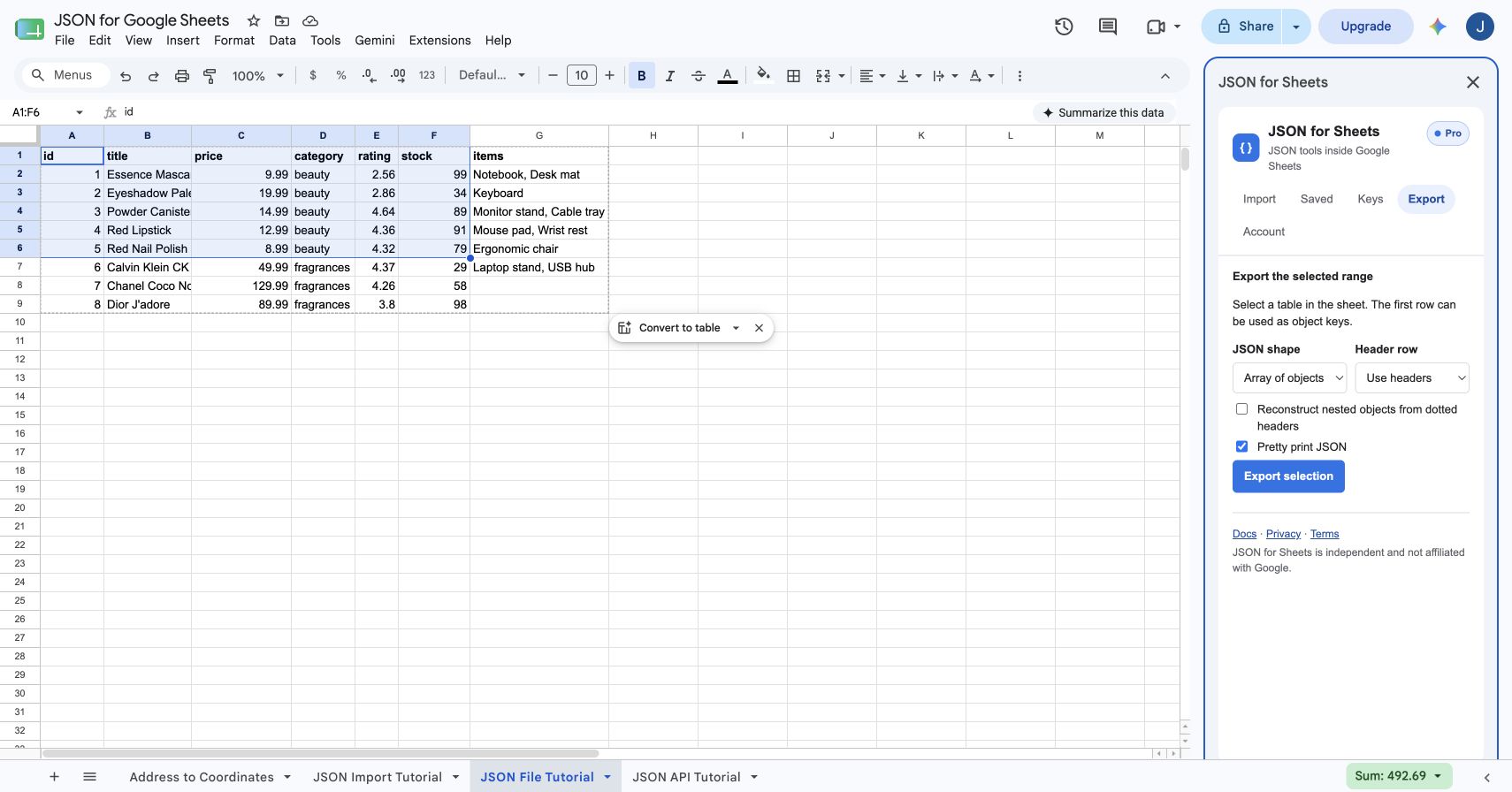
Choose Extensions → JSON for Sheets → Export selected range to JSON. The add-on opens directly on the Export tab and keeps the active spreadsheet selection as the source.
You can also open the full JSON for Sheets sidebar first and then choose Export. Both routes use the same exporter.
Step 3
Choose the right JSON shape
| JSON shape | Result | Best for |
|---|---|---|
| Array of objects | [{"id":1,"title":"…"}] | Most APIs, application data, and record lists |
| Object | {"1":{"title":"…"}} | Looking up records by a unique first-column key |
| Array of rows | [["id","title"],[1,"…"]] | Preserving a compact two-dimensional table |
Array of objects is the safest default. Choose Object only when every first-column value is present and unique; that column becomes the object key and is removed from each nested record. Choose Array of rows when consumers expect a matrix instead of named properties.
Step 4
Set headers, nesting, and formatting
Configure the output before generating it:
- Use headers: treats the first selected row as field names. This is the normal setting for spreadsheet tables.
- No headers: treats every selected row as data and assigns generated names such as
column_1andcolumn_2where object keys are needed. - Reconstruct nested objects from dotted headers: converts headers such as
customer.nameandcustomer.emailinto a nestedcustomerobject. - Pretty print JSON: adds indentation and line breaks for readable output. Turn it off when compact JSON is preferred.
Step 5
Generate and copy the JSON
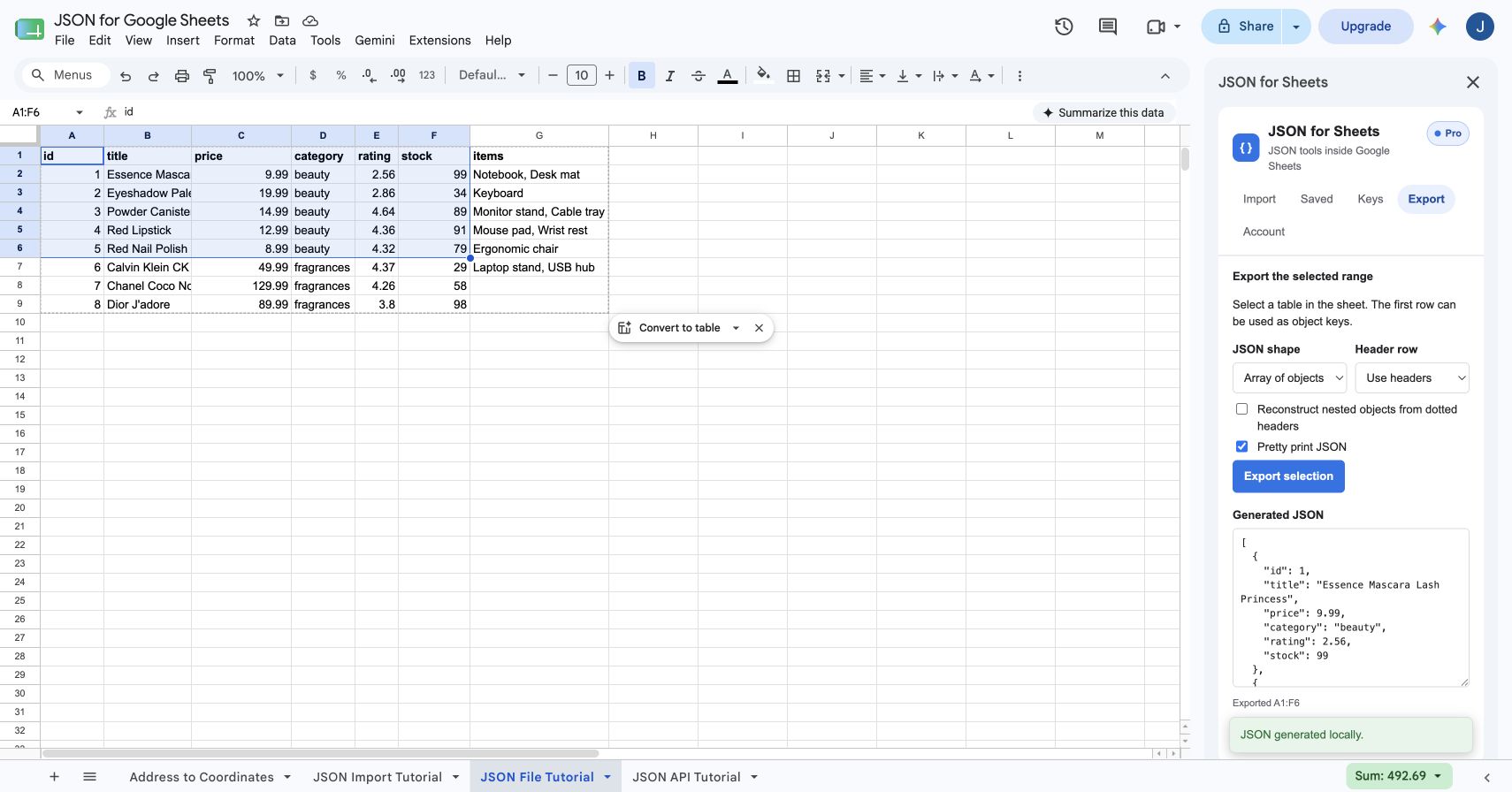
Select Export selection. JSON for Sheets converts the active range and displays its A1 notation under the output—for example, Exported A1:F6. Review the Generated JSON field before copying it.
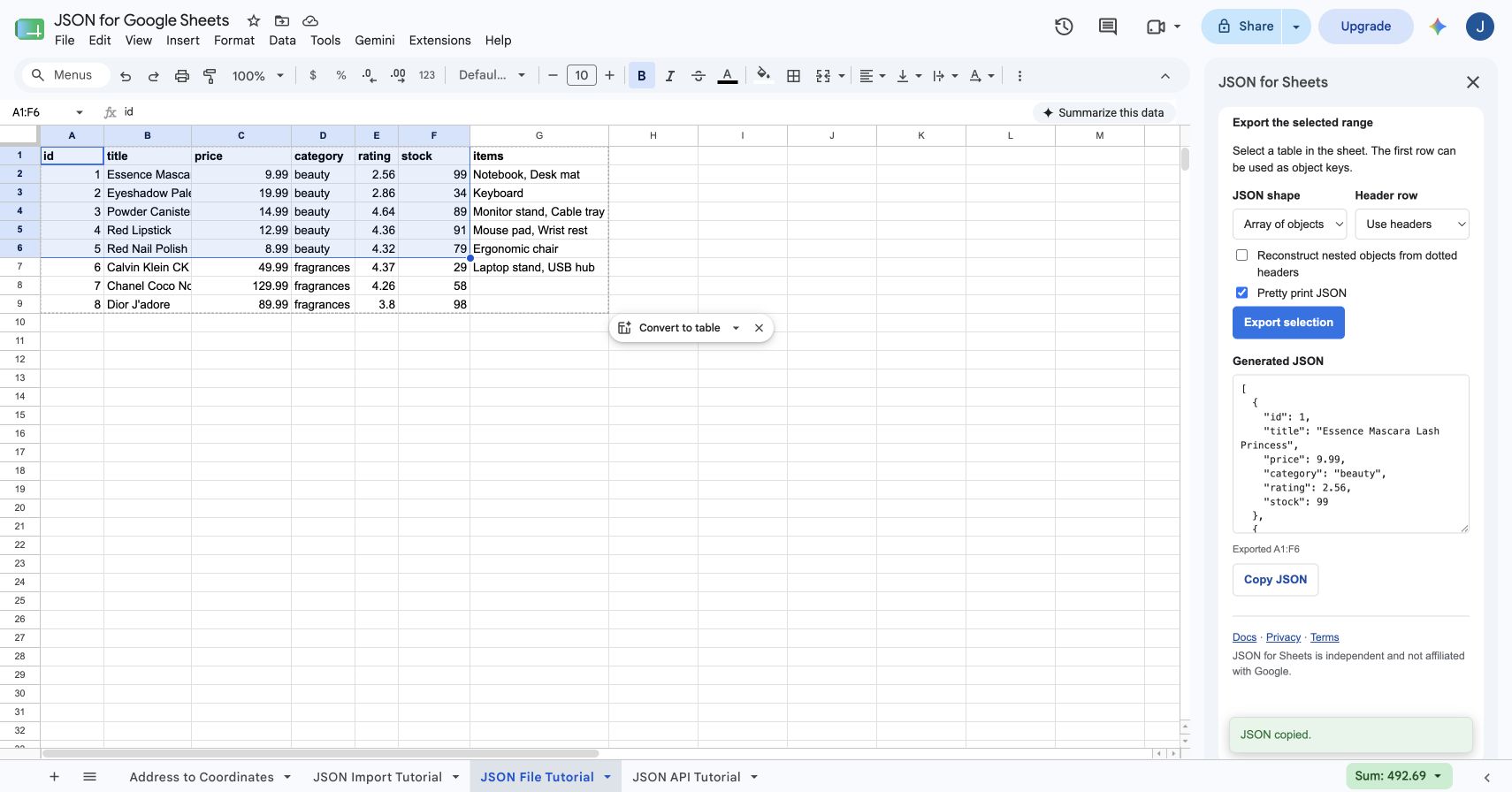
Select Copy JSON. The status changes to JSON copied, and the generated text is placed on your clipboard for use in a codebase, request body, configuration file, or another application.
Range export is processed within the add-on and does not call the JSON for Sheets remote-fetch service. It does not use a remote request from your daily or monthly allowance.
How to save the copied output as a .json file
The current add-on copies JSON; it does not include a direct file-download button. To create a file, open a plain-text editor such as Visual Studio Code or TextEdit in plain-text mode, paste the copied output, and save it with a name such as products.json using UTF-8 encoding.
Validate the file before sending it to another system. A JSON parser should accept the content immediately because the exporter serializes the result rather than constructing it with spreadsheet formulas or manual string concatenation.
Turn dotted spreadsheet headers into nested JSON
Suppose the sheet contains these headers:
id | customer.name | customer.email
1  | Ana Ruiz      | ana@example.com
With nested reconstruction enabled, the result becomes:
[
  {
    "id": 1,
    "customer": {
      "name": "Ana Ruiz",
      "email": "ana@example.com"
    }
  }
]
Header paths must not collide. For example, using both customer and customer.name is ambiguous because one column treats customer as a value while the other treats it as an object. Escape a literal dot in a property name with a backslash, such as literal\.dot.
Export JSON with the TABLE_TO_JSON formula
The same conversion engine is available as a custom function:
=TABLE_TO_JSON(A1:F6,"shape=array;headers=true;pretty=true")Use shape=array, shape=object, or shape=rows. Other supported options are headers=true or false, pretty=true or false, and reconstructnested=true or false. Separate options with semicolons.
The formula returns JSON text in a spreadsheet cell and recalculates with the range. Use the sidebar exporter when you want an explicit one-time conversion and a dedicated Copy JSON action.
How spreadsheet values become JSON data types
| Spreadsheet value | JSON result | Example |
|---|---|---|
| Blank cell | null | An empty note becomes "note": null |
| Number | JSON number | 29.99 |
| Boolean | JSON boolean | true or false |
| Date value | ISO-formatted string | "2026-08-05T14:30:00.000Z" |
| Text | JSON string | "In stock" |
| Formula | Evaluated result | A calculated total exports as its resulting number |
Spreadsheet display formatting is not a JSON type. A currency-formatted numeric cell exports as a number, not as a dollar-sign string. If leading zeros matter—such as in postal codes or account IDs—store the value as text before export.
Troubleshoot Google Sheets to JSON exports
| Problem | What to check |
|---|---|
| Every selected column needs a header | Fill each cell in the first selected row or choose No headers when the range contains data only. |
| Duplicate headers cannot be exported | Rename repeated first-row labels so every JSON property name is unique. |
| Blank or repeated object key | Object shape requires a non-empty, unique value in the first selected column for every record. |
| Nested header collision | Do not combine a parent value such as customer with a child path such as customer.name. |
Unexpected null | The source cell is blank. Enter a value or handle the null explicitly in the consuming system. |
| JSON is too large to work with | Select a smaller table, export fewer columns, or split the source into multiple ranges. |
| Leading zeros disappeared | Convert identifier-like numbers to text in the spreadsheet before exporting. |
Frequently asked questions
How do I export Google Sheets to JSON?
Select the table, open Extensions → JSON for Sheets → Export selected range to JSON, choose a JSON shape and header setting, then select Export selection. Review the generated JSON and use Copy JSON.
Can I download a .json file directly from JSON for Sheets?
The current exporter generates JSON and copies it to your clipboard; it does not include a direct download button. Paste the copied output into a text editor and save the file with a .json extension.
Does exporting JSON use my remote request allowance?
No. Exporting a selected spreadsheet range is a local add-on operation and does not consume a remote API fetch from your plan allowance.
Can Google Sheets columns become nested JSON objects?
Yes. Use dotted headers such as customer.name and customer.email, then enable Reconstruct nested objects from dotted headers. JSON for Sheets turns those paths into a nested customer object.
What happens to blank spreadsheet cells in JSON?
Blank cells are exported as JSON null values. Numbers and booleans remain typed values, dates become ISO-formatted strings, and other spreadsheet values become strings when needed.
Can I export JSON with a Google Sheets formula?
Yes. TABLE_TO_JSON converts a range to JSON in a cell. For example, =TABLE_TO_JSON(A1:F6,"shape=array;headers=true;pretty=true") returns a pretty-printed array of objects.
Why does Object shape reject my table?
Object shape uses the first column as each record's key. Every key must be present and unique, and the selection must include at least one additional value column.
Move data both ways
Export a table—or import the next JSON source.
JSON for Sheets supports local table exports, public and authenticated API imports, local .json files, field selection, saved requests, and scheduled refreshes.